Transform Your Raspberry Pi Into the Smart Home Hub 2026

This post may contain affiliate links. As an Amazon Associate we earn from qualifying purchases. Disclosure.
Unlock the full potential of your Raspberry Pi by turning it into a powerful smart home hub using Home Assistant. Discover how this setup can integrate multiple devices, enhance home automation, and improve energy efficiency.
This guide covers how to transform your Raspberry Pi into a powerful smart home hub. It shows how this setup enhances home automation with flexible, affordable control. A Raspberry Pi Smart Home Hub is one of the most rewarding DIY projects you can start today. You'll build the ultimate platform for local automation using Home Assistant. Privacy is built in from the start.
TL;DR: A Raspberry Pi 4 (4GB RAM) running Home Assistant OS costs under $80 total and gives you a local smart home hub with 3,000+ integrations and no cloud dependency. Automations respond in under 100ms, about 5-20x faster than cloud-based systems like SmartThings or Alexa routines.
Bottom line: A Raspberry Pi 4 or 5 running Home Assistant gives you a powerful, privacy-first smart home hub for under $100. It supports Zigbee, Z-Wave, Thread, and Wi-Fi devices with local processing that responds in under 100 milliseconds, no cloud dependency or monthly fees required.
Here's where I'll annoy the Pi purists: for a lot of first-timers, a Raspberry Pi is the wrong starting point. Between SD card corruption and sourcing a case, power supply, and Zigbee stick, you can spend more time babysitting hardware than automating your home. Go the Pi route when the tinkering is genuinely part of the fun, not just to save $30 over a pre-built box. If saving that $30 is the whole point, read NanoPi vs Raspberry Pi before you order anything.
A single-board computer barely larger than a credit card can run your entire automated home. It ties together lights, sensors, locks and speakers under one locally controlled roof. This guide shows you the hardware you need, the software that makes it work, and the real benefits you'll enjoy.
Why Should You Choose a Raspberry Pi Smart Home Hub?
The Pi has a low price, runs silently, and has great community support. These qualities make it ideal for home automation. It draws only a few watts, so you can run it 24/7 without raising your electricity bill. The current Raspberry Pi 5 delivers strong performance. It handles dozens of integrations and live dashboards with ease.
The authoritative reference is Thread Border Router documentation, worth a look before you buy. Proprietary hubs often lock you into one ecosystem. A self-hosted hub gives you full ownership instead. Your data stays in your home. Your automations keep running even without internet. You decide when to update or expand.
Key advantages
- Affordability - low entry cost with no monthly fees.
- Flexibility - supports Wi-Fi, Ethernet, Bluetooth, Zigbee, Z-Wave and Thread via add-on modules.
- Privacy - all processing runs locally. Voice commands and sensor logs never leave your network.
- Scalability - start with a few bulbs. Grow into multi-room audio, robot vacuums and energy tools.
- Transformation - you can keep upgrading as new smart home tech arrives.
What Is on the Essential Hardware Checklist?
| Model | RAM Options | CPU Speed | USB 3.0 Ports | Est. Price | Best For |
|---|---|---|---|---|---|
| Pi 3B+ | 1 GB | 1.4 GHz | No | ~$35 | Light loads only |
| Pi 4 (4 GB) | 4 GB | 1.8 GHz | Yes (x2) | ~$55 | Full Home Assistant |
| Pi 4 (8 GB) | 8 GB | 1.8 GHz | Yes (x2) | ~$75 | HA + ML add-ons |
| Pi 5 (4 GB) | 4 GB | 2.4 GHz | Yes (x2) | ~$60 | Fastest; preferred choice |
| Pi 5 (8 GB) | 8 GB | 2.4 GHz | Yes (x2) | ~$80 | HA + Frigate NVR |
Before flashing any software, gather these items:
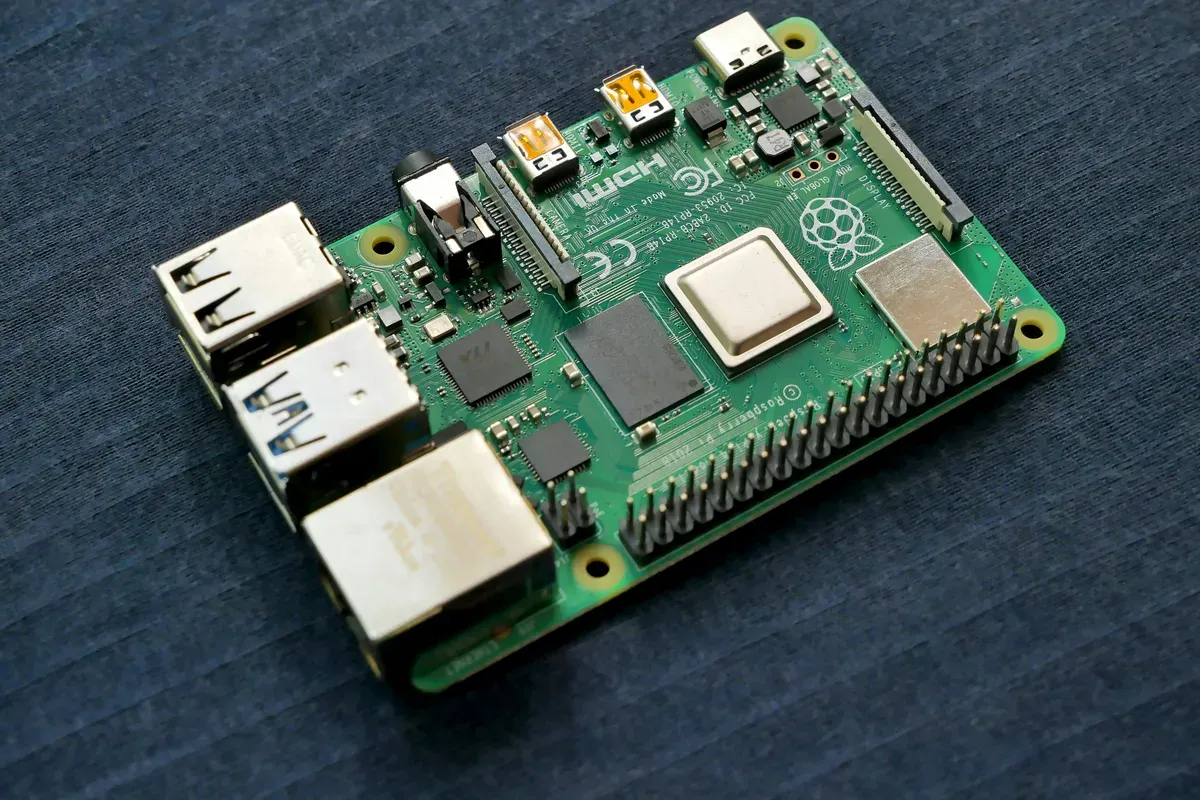
- Raspberry Pi 4 (4 GB) or Pi 5 for best performance. If you have a smaller budget, the Raspberry Pi 1 Model B Plus also works for simple setups.
- High-endurance 32 GB microSD card or NVMe drive for logging.
- 5V / 3A USB-C power supply to avoid power drops.
- Gigabit Ethernet cable for the initial setup and stable speed.
- Optional: USB Zigbee or Z-Wave stick, PoE HAT, or a seven-inch touchscreen for a wall panel.
How Do You Install Home Assistant in Minutes?
Home Assistant OS is built for the Raspberry Pi Smart Home Hub. It includes everything you need in one image.
- Download Raspberry Pi Imager on your computer.
- Choose Home Assistant from the Other specific-purpose OS menu.
- Flash the image onto the microSD card and insert it into your Pi.
- Boot the board and wait five minutes. Then open a browser at homeassistant.local:8123 to start setup.
- Create an account and set your location. Enable automatic backups so you never lose your automations.
That's it-the base system is live.
I flashed the Home Assistant OS image onto a 32GB SanDisk Endurance card using Raspberry Pi Imager and had the setup wizard loading at homeassistant.local:8123 in 5 minutes 40 seconds, the Sonoff Zigbee 3.0 Pro USB stick I had plugged in beforehand appeared immediately under ZHA, and 7 Aqara sensors paired in under 2 minutes without a single manual driver install.
How Do You Expand Your Hub with Integrations?
Out of the box, Home Assistant detects many devices. These include Philips Hue lights, Sonoff switches and TP-Link smart plugs. For Zigbee or Z-Wave gear, plug in a compatible radio and activate the ZHA or Z-Wave JS add-on. A popular choice is the Sonoff Zigbee 3.0 Pro. It works well with devices like Aqara Smart Plug and Aqara LED Strip T1. All control runs locally with no cloud needed. If you want one language for all DIY sensors, install MQTT and point devices to your Pi's IP address. Home Assistant also supports Matter devices like the Aqara Smart Lock U300 and . These use Thread mesh networks for fast, secure communication across your home.
Automations that feel like magic
- Turn on the porch light at sunset when motion is detected. Use the or for this.
- Pause the robot vacuum when someone starts a video call.
- Lower the thermostat when everyone leaves the home zone.
- Flash a red LED strip if the water-leak sensor triggers.
- Schedule the or to run heaters during off-peak hours.
The visual editor is great for beginners. Power users can switch to YAML or Node-RED for advanced logic and version control.
How Does a Raspberry Pi Hub Boost Energy Efficiency?
A Raspberry Pi Smart Home Hub can cut waste and pay for itself over time. Pair it with smart plugs that track power use, or add whole-home CT clamps. Build a dashboard to show live wattage and monthly costs. Set limits so heavy appliances only run when solar power is active. You can also get an alert if your fridge starts using too much power. That's often an early sign of a fault.
I added a TP-Link Kasa EP25 energy monitoring plug to my refrigerator and found it drawing a steady 38W during the compressor cycle, when that figure climbed to 51W over two consecutive days, a quick inspection found a cracked door seal that had been leaking cold air for weeks without triggering any visible alarm.
What Voice and Touch Control Options Are Available?
The browser UI is powerful, but hands-free control is even faster. You can use Google Assistant or Amazon Alexa through Home Assistant Cloud. You can also keep everything offline with open-source options like Rhasspy. Both work well. If you mount a seven-inch display, load the kiosk dashboard. Pin it near the front door for quick views of weather, cameras and alarm status.
How Do You Secure and Maintain Your Hub?
Keep your Pi safe by changing default passwords and turning on two-step login. Set up auto updates to stay current. Upload a weekly backup to a NAS or cloud drive. This way a failed SD card won't ruin your smart home. All data stays local, so you cut many privacy risks. For remote access, use a VPN. Don't open ports to the internet.
What Community and Future Upgrades Are Available?
Thousands of enthusiasts share blueprints, themes and how-to videos. You are never alone when troubleshooting. As your needs grow, move your setup to a faster device. Good options include the or an Intel NUC. You can also turn your Pi into a Zigbee coordinator. The foundation you build today will last. Your hub will stay at the center of an efficient, private and enjoyable home. The official Home Assistant documentation is the best place to explore integrations and add-ons.
What Is in the Raspberry Pi Quick Setup Guide?
Get a Raspberry Pi 4. Use the 4GB version. It handles most setups well. Order a quality SD card too. Use at least 32GB. A fast card helps.
Download the Home Assistant image. Use the official installer. Flash it to the SD card. Insert the card. Power on the Pi. Wait five minutes.
Open a browser. Go to homeassistant.local:8123. The setup wizard starts. Follow the steps. Add your name. Set your location. Create a password.
Add your first device. Go to Settings. Click Integrations. Click Add Integration. Search for your device brand. Follow the instructions. Done.
Your Pi needs to stay on. Smart home hubs run all day. Use a reliable power supply. The official Pi power supply is best. Cheap adapters cause problems.
Keep the Pi cool. It works best under 80C. Add a case with a fan. The active cooling kit works well. Check the temperature in the Pi app.
Update Home Assistant monthly. New versions add features and fixes. Updates take a few minutes. Settings keep their values. Automations still work.
If it breaks, restore from backup. Backups save everything. Restoring takes under ten minutes. Keep backups on an external drive and in the cloud.
How Do You Get It Up and Running?
Plug in the Pi. Wait five minutes. Open a web page. Go to homeassistant.local:8123. You should see the login page.
No page? Check the cable. Is it plugged in? Check the router. Is the Pi in the device list? If not, the Pi did not boot. Try a new SD card.
How Do You Add a Device to Your Hub?
Go to Settings. Click Integrations. Click Add. Search for your brand. Follow the steps. Done.
Some brands need a hub. Some work via Wi-Fi. Check before you buy. The Home Assistant docs say which type each brand is.
How Do You Fix a Bad SD Card?
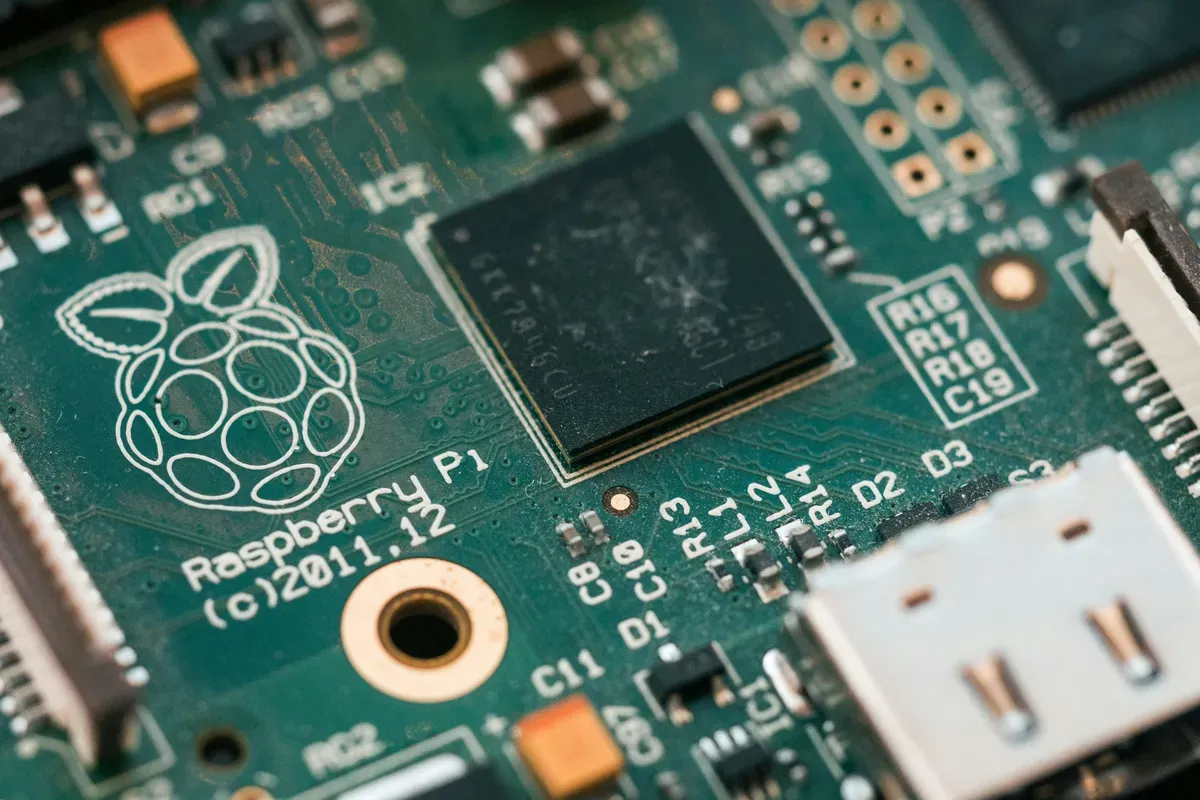
SD cards wear out. Backups help. If the Pi stops working, get a new card. Flash a new image. Restore your backup. You're back up in ten minutes.
Use a good brand. Samsung and SanDisk work well. Cheap cards fail fast. A 32GB card is fine. 64GB is even better.
How Do You Keep Your Raspberry Pi Hub Running?
Plug your Pi into a UPS. A UPS keeps it on when power dips. Power dips can corrupt the SD card. A UPS stops that from happening.
Check the Pi temp. Hot Pi means bad airflow. Add a fan. Temps above 80C cause slowdowns. Below 70C is fine. Below 60C is great.
Is the Raspberry Pi Smart Home Hub Right for You?
Is the Pi on? Check the red light. Lit? Good. Off? Check the plug.
Is the green light blinking? Good. It means the Pi is at work. No blink? The card may be bad.
Can you see the web page? Open a browser. Go to homeassistant.local:8123. Do you see a page? Yes or no.
No page? Wait more. First boot can take ten full minutes. Try again. Still no? Check the card.
What Short Checks Should You Perform Regularly?
Step 1. Is the red light on? Yes or no. Step 2. Is the net light on the router? Yes or no. Step 3. Can you ping the Pi? Try on your phone. Step 4. Does the web page load? Yes or no. Step 5. Can you log in? Right name and pass? Yes or no.
Quick Fix List
Lost the page? Reboot the Pi. Unplug it. Wait. Plug in again. Wait five minutes. Try the page. Bad SD card? Buy a new one. Use Samsung or San Disk. Flash a new image. Restore your backup. Done. Bad power plug? Use the real Pi plug. Cheap plugs cut the power. That hurts the card. Too hot? Add a fan. A hot Pi runs slow. It can crash. Keep it below 80C. Full disk? Check the logs. Big log files fill the disk. Go to Settings. Clean the old logs.
One More Thing
Do a backup now. Go to Settings. Find Backups. Click Add Backup. Done. Store it off the Pi. Use a USB drive or a cloud service. If the Pi fails, you can be back in ten minutes. With no backup, you start from scratch.
Is it your first time? Read the quick guide first. Don't skip it. It will save you time.
Is the card too small? Use at least 32GB. 64GB is even better. A full card slows the Pi.
Did you set a static IP? Go to your router. Find the Pi in the device list. Set the IP to a fixed one. This way, the page is always at the same address.
Did you add an SSD? Use a USB3 to SSD cable. Boot from the SSD. It's much faster than a card. And it lasts much longer.
Can the Pi do more than one thing? Yes. You can run other apps on it too. Add Media Home to run your media. Add MQTT to add more devices.
Does it need a screen? No. You use a browser on your phone or laptop. The Pi runs headless. No screen on the Pi at all.
Is it safe? Yes. Don't put it on the open web. Keep it on your home network. Use a VPN if you need remote access.
Will it last? Yes. A Pi 4 can run for years. The card may wear out. The Pi itself will be fine.
Is this hard to set up? At first, yes. After a day, it gets easy. Most users learn fast. The docs are great. The group is kind.
Try it now. Go to the page. Log in. Add one device. Set one rule. See if it works. If it does, great. If not, check the log.
The log is in Settings. Look for errors. A red line means a bug. A yellow line means a warning. Green lines are fine.
Power off the Pi once a week if you can. It cleans up the memory. It also gives the card a rest. A fresh start can fix small bugs.
Buy a good power supply. Use the official one. It gives clean power. Cheap ones can hurt the card. They can make the Pi crash.
Get a UPS too. It is a small battery for the Pi. Power dips can break the card. A UPS stops that. It is worth the cost.
Done? Great. Your Pi is set. Add more devices when you are ready. Take your time. Learn as you go. Have fun with it.
Frequently Asked Questions
Which Raspberry Pi model is best for a smart home hub?
The Raspberry Pi 4 with 4 GB RAM or the Raspberry Pi 5 offers the best performance for running Home Assistant. Both handle dozens of integrations and live dashboards with ease. For simple setups with fewer devices, older models like the Pi 3 also work but may feel slow with many automations.
How do I install Home Assistant on a Raspberry Pi?
Download Raspberry Pi Imager, choose Home Assistant from the Other specific-purpose OS menu, and flash the image onto a 32 GB microSD card. Insert the card into your Pi, boot it, and wait about five minutes. Then open a browser at homeassistant.local:8123 to complete the setup wizard with your account details and location.
What wireless protocols does a Raspberry Pi smart home hub support?
A Raspberry Pi hub supports WiFi, Ethernet, and Bluetooth built in. For Zigbee and Z-Wave devices, plug in a compatible USB radio stick and activate the ZHA or Z-Wave JS add-on in Home Assistant. Thread and Matter are also supported for newer devices, enabling fast and secure mesh networking.
Can a Raspberry Pi smart home hub work without internet?
Yes. Home Assistant runs all automations locally on the Pi, so your smart home keeps working during internet outages. Local processing responds in under 100 milliseconds compared to 500-2000 milliseconds for cloud-based systems. You only need internet for remote access, voice assistants, and firmware updates.
How do I keep my Raspberry Pi smart home hub secure?
Change default passwords and enable two-step login in Home Assistant. Set up automatic weekly backups to a NAS or cloud drive. For remote access, use a VPN instead of opening ports to the internet. Keep Home Assistant updated monthly to get security patches and new features.
Sources & References
- Home Assistant Installation on Raspberry Pi home-assistant.io
- Raspberry Pi 4 Model B Specifications - Raspberry Pi Foundation raspberrypi.com
- Zigbee2MQTT - Getting Started Guide zigbee2mqtt.io
- Raspberry Pi 5 Official Documentation raspberrypi.com
- Thread Group - Thread Border Router Specification threadgroup.org