Home Assistant Smart Home Setup: The Complete 2026 Guide


This post may contain affiliate links. As an Amazon Associate we earn from qualifying purchases. Disclosure.
Explore how to build the perfect smart home in 2026 with Home Assistant, featuring automation, AI tasks, and voice control.
This is the complete guide to building a smart home with Home Assistant. You'll learn how to add automation and keep full local control. Home Assistant keeps smart home setup simple and free of subscriptions in 2026. You'll see how to turn your home into a connected space using dashboards, voice control, and AI automation. It doesn't matter if you're new or upgrading - you'll find clear steps to follow.
Bottom line: Home Assistant is the best platform for local smart home control in 2026. Install it on a Raspberry Pi or mini PC, add devices via integrations, and build automations through a drag-and-drop dashboard - no cloud subscription required.
Looking for something more focused? This is the complete pillar guide, the canonical end-to-end Home Assistant reference. If you're brand new and want a first-day setup walkthrough, getting started with Home Assistant covers install, first device, and first automation in 20 minutes. If you want to browse all our HA guides by topic (setup, ZigBee, automations, advanced projects), the Home Assistant topic hub is the directory.
For securing your Home Assistant install before exposing it to the internet, see hardening Home Assistant Nginx Cloudflare, it covers Cloudflare Tunnel, Access policies, fail2ban, and VLAN isolation.
What Makes Home Assistant's AI and Voice Features a New Era for Smart Homes?
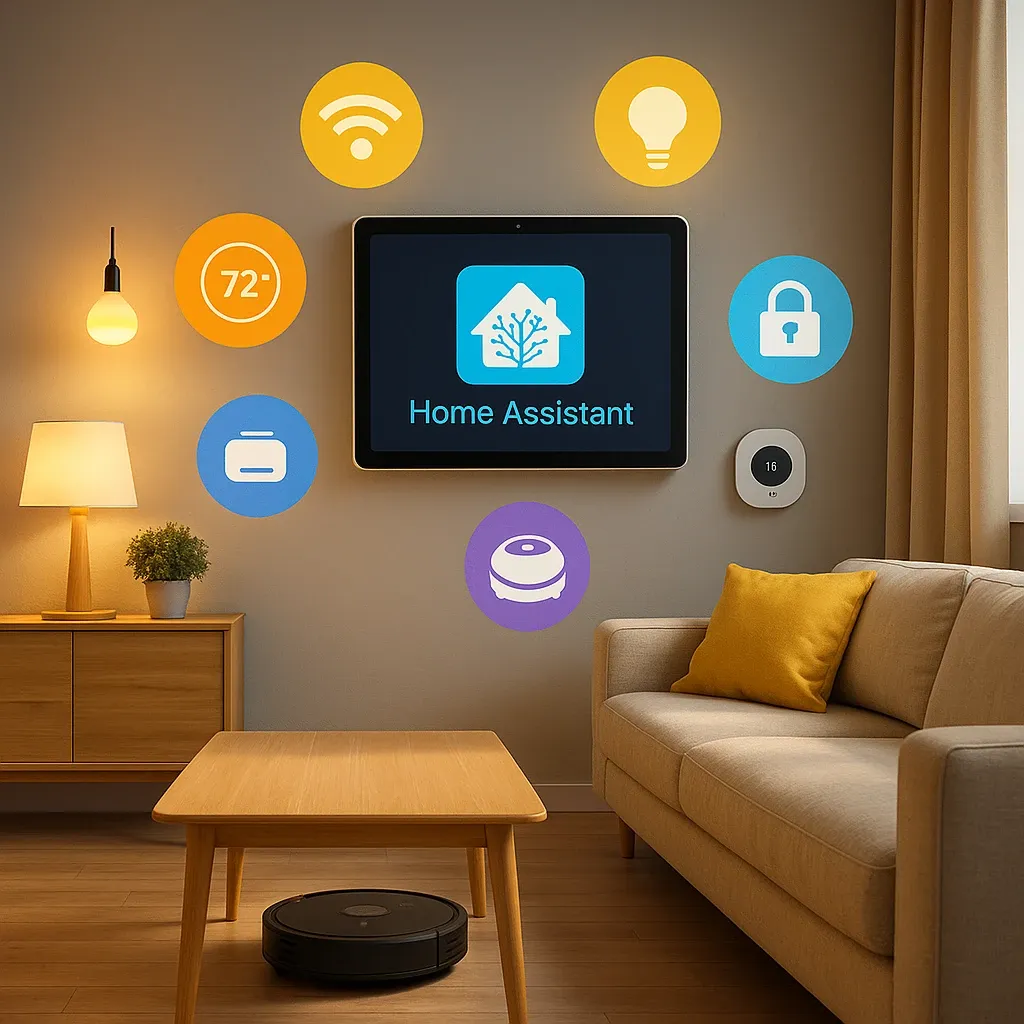
Home Assistant ships a new release on the first Wednesday of most months, and the 2026.10 release landed on October 7, 2026. Its headline AI change: the old AI tasks page is now simply called AI, and it carries a one-click card for the built-in Model Context Protocol server, so apps like Claude, ChatGPT or Cursor can talk to your house.
The bigger idea arrived in 2025. AI Tasks let templates, scripts and automations ask a language model for structured data, including from attached files, according to Home Assistant's own write-up. You can point them at a cloud model or at a local one served through Ollama, so the data stays in your home.
What does that look like in practice?
- An automation sends a sensor or camera snapshot to a model and uses the answer
- A script turns a messy question into data an automation can act on
- You decide which model runs it, cloud or local
Another 2025 addition is the Ask Question action (2025.7). Your voice helper can ask YOU a question on a satellite, listen for the reply, and match it against a list of answers. It's not just reactive any more. It talks with you to get things done.
Installing Home Assistant on Raspberry Pi
The best way to start is to put Home Assistant OS on a Raspberry Pi. Pick the Raspberry Pi 4 or the newer Pi 5. Both work well.
Here's how to do it:
- Flash the Home Assistant image to a micro-SD card or SSD
- Power up the board
- Finish setup in your web browser
Home Assistant's own installation guide uses the Raspberry Pi Imager for the flashing step, recommends an A2-class card of at least 32 GB, and says the web interface should answer within a minute or so of first boot on a Pi 4 or Pi 5. If nothing shows up after about five minutes, reflash the card. My own house runs Home Assistant OS on a Pi 5 mounted on a DIN rail in the electrical panel, so a bare board in a drawer isn't the only way to do it.
Why Raspberry Pi is a great choice:
- Modest price, though memory costs have pushed Pi and mini PC prices up since 2025
- Enough power for most automations
- Has Wi-Fi and Ethernet built in
- Uses very little electricity
- Works well for new and advanced users
!### Setting Up Your Smart Home Dashboard
Home Assistant lets you build your own dashboard. You pick what shows up and how it looks.
What you can do:
- Add cards for lights, thermostats, and cameras
- Use badges to show alerts like low battery or water leaks
- Set visibility rules to show or hide info based on time or who's home
- Show energy use next to your security status
Example: Build a dashboard with lights, thermostat, and energy data all in one place. You see everything at a glance.
A sensible first dashboard mixes a few Philips Hue lights, a thermostat, and energy monitoring from smart plugs with power metering. The drag-and-drop editor lets you place each card by hand, and sensor values update live as soon as the entity exists, so a first screen is quick to build.
!This setup keeps your smart home easy to use and manage every day.
What Are Works With Voice Helpers for Home Assistant?
!Voice control is a must for modern smart homes. Home Assistant works with:
- Amazon Alexa
- Google Assistant
- Home Assistant's own Assist
What you can do:
- Change your lights with your voice
- Set your thermostat with a word
- Lock doors using a smart lock
- Control any linked device by name
The three options differ mostly in where the speech is processed. Alexa and Google Assistant send your voice to their own clouds, then call back into Home Assistant. Home Assistant's native Assist can run fully on your own hardware, according to the project's documentation, so voice commands stay private, or it can use Home Assistant Cloud for the simplest setup and for conversational language models. Local processing costs you some speed on small boards, so check the hardware before you commit. I haven't benchmarked the three side by side.
Home Assistant's voice helper is different from others. It doesn't just follow commands. It can ask YOU a question to get more info. This back-and-forth makes complex automations much easier to use.
For local voice hardware, Home Assistant's docs point to the Voice Preview Edition, ESPHome-based devices, or a Linux satellite. Assist can also use a large language model for more conversational requests, but that part is optional. With a language model plugged in, you don't need exact command phrases. You can say "It's too warm in here" and the system can work out what you mean. Everyone in your home can use it, even those who aren't tech-savvy. With the local setup, voice data stays on your device and doesn't go to cloud servers. With Home Assistant Cloud or a third-party assistant, it does leave the house.
What Are Popular Works With Options in 2026?
Home Assistant works with thousands of devices using many protocols:
Matter and Thread (new standards)
- Link devices from different brands on one network
- Matter lights, plugs and sensors from brands like Philips Hue, Aqara and TP-Link Tapo can sit side by side
- Thread devices need a border router, and a Home Assistant Connect ZBT-2 (running Thread) can fill that role
- Don't count on Ring: Matter Alpha reported in late 2024 that no Ring doorbell supported Matter, I found no newer announcement, and Home Assistant reaches Ring through its cloud integration
- Energy readings are the gap. Owners report that Tapo's Matter plugs show up in Home Assistant with basic on/off control only, so metering has to come through the TP-Link integration instead
ZigBee and Z-Wave (wireless protocols)
- Solid mesh network
- Great for motion sensors, door locks, and thermometers
- Works without internet
- You need a USB coordinator. Home Assistant's own docs now recommend the Connect ZBT-2 for anyone starting fresh, and Zigbee2MQTT users often pick a Sonoff stick such as the Sonoff ZigBee 3.0 Pro to build their ZigBee mesh.
- For Z-Wave, Home Assistant's docs recommend an 800-series stick on firmware 7.23.2 or later
ESPHome (DIY option)
- Build your own smart devices with cheap microcontrollers
- Make custom sensors that fit your exact needs
Official brand works with options
- TP-Link and Tapo devices are controlled locally. The TP-Link integration is local polling
- Robot vacuums are mixed. Roborock polls the vacuum locally but still needs a cloud account for setup and for maps. Ecovacs is classed Cloud Push and needs your Ecovacs login
- Wyze has no official integration in Home Assistant's docs, so expect community workarounds
MQTT (light-weight messaging)
- Local control that works even when your internet is out
- Best for advanced users
Home Assistant is the most flexible smart home platform in 2026. It works with all of these options.
How Do You Boost Home Security and Save Energy with Home Assistant?
Security features:
- Smart cameras, video doorbells, and motion sensors work in your automation routines. Pick cameras by how they reach Home Assistant. The eufy Indoor Cam E220 is a 2K indoor camera that eufy says can stream over RTSP or store to a NAS, which is the route into Home Assistant. The eufyCam 2C Pro is different: it can't join your Wi-Fi at all and talks only to a eufy HomeBase, so Home Assistant users rely on community workarounds such as HomeKit. If local control matters, an RTSP camera is the safer buy.
- A vision model can look at a camera snapshot and flag something odd, if you wire up an AI Task for it
- You stay in full control from your app
Energy saving features:
- Track power use with built-in tools
- Set up smart plugs like the Tapo Smart Plug P125M to run on a schedule. For metering, check the exact model, because sources disagree on whether the P125M measures energy, and the P110M is the version sold with energy monitoring
- Use a motion sensor to switch lights on only when someone is in the room
- Cut energy waste while staying comfortable
These features team up to keep your home safe and efficient.
How Do You Future-Proof Your Home with AI and Automation?
AI in 2026 adds real power to Home Assistant:
- A conversation agent can understand what you mean in plain speech
- AI Tasks can read a camera snapshot for object sensing
- Cloud models and local ones (through Ollama) both work, so AI doesn't have to leave your house, but nothing forces it to stay local either
- Home Assistant 2026.10 added a one-click Model Context Protocol server, and the same release added Matter switches for leak sensor alarms and one-touch locking
Predictive automation is mostly rules you write, using data Home Assistant already has:
- Start heating before you arrive, based on a presence sensor or a forecast
- Shift light schedules with sunrise and sunset through the season
- Run big loads when your energy price sensor is low
- Alert on odd power use from a metered plug that stays high
- Skip watering when a rain sensor or forecast says it's wet
Home Assistant doesn't ship a built-in machine learning engine that learns your habits. What it gives you is the sensors, templates and optional AI models to build that behavior yourself.
What Are Final Tips for Building Your Smart Home?
!Start with the basics:
- Pick key devices: lights, cameras, and a thermostat
- Use dashboards to see and control everything
- Add a voice helper for hands-free control
Improve over time:
- Track your energy use and cut waste
- Keep Home Assistant and your device firmware up to date
- Add new devices as you go
Home Assistant in 2026 makes your smart home easy, efficient, and safe. Start small and grow at your own pace. You'll be surprised how quickly your home starts working for you. For the full list of supported integrations and automation blueprints, the Home Assistant official documentation is the authoritative reference for configuration, troubleshooting, and advanced automation setups.
What Are the Home Assistant Architecture and Installation Options?
Home Assistant runs on many hardware platforms. The official guide lists a Raspberry Pi 4 or 5 with at least 2GB RAM as the entry point. For bigger installs, an Intel N100 mini PC or an older NUC gives more headroom. Solid-state storage beats SD cards for reliability. It handles database logging much better over time.
Home Assistant OS is the full version. It runs on dedicated hardware and supports all add-ons. Docker Container works if you share a server with other services. Both options run locally with no cloud dependency required.

How Do You Integrate Devices and Services with Home Assistant?
Home Assistant supports thousands of brands. They cover lights, cameras, weather, media, and cloud services. The discovery system finds many devices on your network. They appear under Settings > Devices & services, where you can add them with one click. Adding a new device usually takes under a minute.
Local integrations work without the cloud. They respond faster and keep working during outages. Zigbee2MQTT connects hundreds of Zigbee devices with one USB stick. Z-Wave JS handles Z-Wave devices, and its public device database at devices.zwave-js.io shows whether your model is covered. Some command classes aren't fully implemented yet, per the integration docs.
How Do You Create Automations with the Visual Editor?
The automation editor uses a trigger-condition-action structure. No coding knowledge needed. Triggers start the automation. They can be time-based, device state changes, sunrise/sunset events, or webhooks.
Conditions add logic. They stop automations from running at the wrong time. For example, a vacation mode condition stops lights from running on a schedule when you're away. You can stack AND/OR conditions without touching YAML.
How Do You Set Up Energy Monitoring and the Home Assistant Dashboard?
The Energy dashboard tracks electricity consumption across your home's devices and compares usage patterns over time. Connecting smart plugs with power monitoring to the Energy dashboard reveals which appliances consume the most electricity. Big, always-on loads such as refrigerators, pumps, and heating or cooling gear are the usual suspects, which is why a metered circuit tells you more than a guess.
According to Home Assistant's documentation, the Energy dashboard covers electricity, gas and water, with setup guides for the grid, solar panels, home batteries and individual devices. A device needs a sensor that reports energy in kWh, or a power sensor with the right state class and units. If a plug only reports instantaneous power, the Riemann sum integral helper can derive kWh from it. Metering plugs like the Tapo P110M report wattage through the TP-Link integration (which doesn't report total consumption on Tapo devices, so use the Riemann helper), and that's enough to see the compressor cycle of an old fridge. In my own house, whole-home data comes from a Huawei EMMA meter and a single metered DIN-rail switch rather than a scatter of plugs, though PV isn't connected to Home Assistant yet.
Dashboards, once known as Lovelace, are where Home Assistant finally feels like yours. Begin simple: a tile card per room, an entities card for the devices you touch daily. Layer in sensor graphs later, because a clean starter dashboard beats an overloaded one you stop opening.
How Do You Create Advanced Automations with Scripts and Templates?
Scripts run sequences of actions with delays and loops. They go beyond what automations alone can do. A "movie mode" script can dim lights to 20%, close blinds, turn on the TV, and launch a streaming app - all in order.
Jinja2 templates make automations dynamic. They use live sensor data in decisions. For example, set thermostat temperature based on who's home and what time it is. The developer tools editor lets you test template syntax before using it.
What Is the Home Assistant Quick Setup Summary?
Home Assistant is free. It runs locally. No subscription is needed. Install it on a Raspberry Pi, or buy a Home Assistant Green ($199 list as of 2026). Connect your devices. Control everything from one app.
Setup takes about one hour. Start with the official image. Flash it to an SD card using Raspberry Pi Imager, the tool the official guide recommends (Balena Etcher works as a fallback) - this takes 5-10 minutes. Boot your Pi and wait for startup (a few minutes). Open a browser to http://homeassistant.local and follow the setup wizard. Create a user account, set your location and time zone, and pick which features to enable at first.
Add devices one at a time. Each integration has a guide. Most take under five minutes. Zigbee devices need a USB stick (the Connect ZBT-2 or a Sonoff dongle). Wi-Fi devices link to your network, and many show up in Home Assistant right away. Z-Wave devices need a USB stick too.
Automations are easy to build. Use the visual editor for simple automations without any code knowledge. Pick a trigger (time of day, sensor change, or device event), add conditions if needed (only run if someone's home, for example), and choose actions (turn on lights, send notifications, or run scripts). Save your automation, test it manually, and adjust as needed based on real-world performance.
The community is large. Help is easy to find. The forum is busy. Discord is active. GitHub has the source code.
Home Assistant gets updates monthly. New features arrive every month. Bug fixes come even faster. Updates install with one click. Restart and you are done.
Backups are important. Set them up on day one. Daily backups take seconds. Store them off-site too. Recovery is fast. You will not lose your work.
Why Should You Start Small with Home Assistant?
Pick one room. Add one light. Set one rule. See how it works. Then add more.
Small steps help. Big jumps cause stress. Go slow at first. Learn as you go. Build from there.
How Do You Use the Home Assistant App?
Get the app. Log in. Find your device. Tap to turn on. Tap to turn off. That is all.
The app is free. It works on phones. It works on tablets. Use it from home. Use it from work.
How Do You Save Your Work in Home Assistant?
Back up each week. It takes one click. Go to Settings. Find Backup. Click Save. Done.
If things break, you can fix them. Restore from a backup. Takes five minutes. All your work comes back.
Where Can You Get Help with Home Assistant?
Stuck? Ask online. The forums are free. Lots of people help. Post your issue. Get an answer fast.
Search first. Your issue is not new. Someone solved it. Find their post. Try their fix. Move on.
Is Home Assistant free? Yes. No cost. No fees. Open source. Does it need the cloud? No. It runs on your home. Local. Fast. Safe. Can I use voice control? Yes. Link it to Alexa or Google. Say the word. The device responds. Does it work offline? Yes. Most things work with no internet. Some cloud links need the net. Can I add more devices? Yes. Thousands of brands work. Add as many as you need. No cap. Is it hard to learn? At first, yes. After a week, it gets easy. The docs help. The forum helps more.
It transforms everyday living spaces into responsive, intelligent environments. The architectural reason for putting Home Assistant above your existing brands rather than replacing them is covered in why six commercial systems run through one local layer here.
Frequently Asked Questions
What hardware is best for running Home Assistant in 2026?
Home Assistant Green is the easiest pick: plug it in, connect it to your network, and you're running Home Assistant OS within minutes. It has 4GB RAM and 32GB eMMC storage. Its price has gone up, though. Nabu Casa raised the recommended retail price to $199 (EUR 179) in January 2026, blaming memory costs, so it's no longer the $99 to $129 box older guides describe. Home Assistant Yellow is a different story: Nabu Casa stopped production in October 2025 and says it will keep shipping software builds for existing owners, but new buyers are pointed to the Green. If you'd rather bring your own hardware, the official install guide lists a Raspberry Pi 4 or 5 with at least 2GB RAM, Odroid boards, and any x86-64 machine. Small Intel N100 mini PCs are a popular step up for people who want headroom for large Zigbee meshes and several cameras, but memory prices have hit them too. One January 2026 home-lab write-up saw a Beelink S13 climb from $169 to $269 in five months, and a general 2026 buying guide puts budget N100 boxes at $150-250. For my own house I chose a third route, a Raspberry Pi 5 on a DIN rail in the electrical panel, which suits a panel install better than any of these boxes.
Can Home Assistant replace a Samsung SmartThings or Google Home hub?
Yes, and I'd argue it does both jobs better for anyone willing to spend a weekend learning the UI. Home Assistant supports Zigbee (with a USB coordinator), Z-Wave (with a USB stick), Matter, and Thread natively, the same protocols SmartThings handles. For Zigbee the official pick is now the Home Assistant Connect ZBT-2 (about $49 list price, Zigbee or Thread, one at a time), which replaced the discontinued ZBT-1; Sonoff's ZBDongle-P and ZBDongle-E remain common alternatives. It also supports thousands of brands through official and community integrations, broader than either SmartThings or Google Home. The migration takes planning: your Zigbee devices need to be re-paired (unpair from SmartThings, pair to HA's Zigbee coordinator), and automations have to be rebuilt in HA's Automation editor or YAML. That's real work. The payoff is local processing for all Zigbee and Z-Wave devices, full data control, and automations that don't wait on a cloud round trip. Google Home's strength is voice and multi-room audio, which HA doesn't fully replicate without workarounds.
Does Home Assistant work if my internet connection goes down?
Yes, this is actually Home Assistant's biggest advantage over cloud-dependent platforms. Home Assistant runs locally on your home network, so automations, device control, and dashboards all keep working during internet outages. A Zigbee motion sensor talking to a local coordinator doesn't need a fiber link to switch a light, and the dashboard stays reachable from a phone on local Wi-Fi. What doesn't work offline is anything that contacts external servers. Nest thermostats need internet because their API is cloud-hosted. The Ring integration is cloud polling, per Home Assistant's docs, and doesn't connect to the devices locally, so Ring entities go dark in Home Assistant too. Any automation calling a weather service or sending a notification through a cloud service fails silently until internet returns. The fix is using local alternatives like local-polling thermostats and RTSP cameras, or treating cloud services as optional bonus layers rather than core automations.
Sources & References
- Home Assistant - Installation home-assistant.io
- Home Assistant - Automating Home Assistant home-assistant.io
- Home Assistant - Dashboards home-assistant.io