Home Assistant SmartThings Integration Setup Guide

This post may contain affiliate links. As an Amazon Associate we earn from qualifying purchases. Disclosure.
Learn how Home Assistant integrates with SmartThings. Explore features, benefits, and how to set up integrated smart home automation using both platforms.
I stopped treating Home Assistant and SmartThings like rivals the day I noticed I was running both, in two places, for two different reasons. A SmartThings Hub v3 still runs the apartment. It has held that job for years, the SmartThings app is still the least annoying way to check on it, and I have never found a good reason to rip it out.
The house I'm finishing went the other way entirely. Home Assistant OS runs there on a Raspberry Pi 5 bolted to a DIN rail in the distribution board, sitting next to the breakers and fed from a Mean Well 5V supply. Zigbee arrives through a Home Assistant Connect ZBT-1 coordinator with a few dozen devices behind it. So these two aren't competitors. They're two eras of the same hobby, and they overlap more than I expected: Home Assistant reads the aging eQ-3 MAX! Cube in the apartment locally, through the maxcube integration, with no vendor server in the loop. This guide shows you how to connect both platforms and build automations that use the best of each.
TL;DR: You can run Home Assistant and SmartThings together, HA controls automations and local devices, SmartThings handles Samsung appliances and Z-Wave gear. The native integration in HA 2026.2 takes about 20 minutes to configure and doesn't require any custom components.
Bottom line: Home Assistant and SmartThings connect through a native integration in HA 2026.2. Setup takes under 30 minutes. You get Home Assistant's 3,000+ integrations and local automations combined with SmartThings' polished app and Samsung appliance support. Critical routines keep working even when the internet goes down.
Why Connect Home Assistant and SmartThings?
SmartThings has a great app. It works with lots of devices. But its automation builder runs out of room fast, and it runs out of room in a predictable place: the moment you want one rule that weighs several sensors at once, plus a time window, plus a state that has held for twenty minutes. Home Assistant does that without blinking and charges you a much steeper first evening for the privilege. Connecting them means you don't have to pick which weakness you live with.
As of early 2026, SmartThings supports Matter 1.4 and Thread border routing natively. Home Assistant 2026.2 improved its SmartThings integration with faster entity syncing and better error recovery. The two platforms work together more reliably now than when I first set this up. Here's what you get:
- One dashboard for every light, lock, camera, and sensor
- Fast local routines that work even if the internet is down
- Cloud access for anyone in your family, anywhere
- Much wider device support than either platform alone
Home Assistant now supports over 3,000 official integrations (home-assistant.io, 2026). SmartThings handles the polished app and Samsung ecosystem. Linking both gives you breadth from Home Assistant and ease-of-use from SmartThings in the same setup. Neither platform alone offers that combination.
What Is Home Assistant?
Home Assistant is a self-hosted smart home server. It runs on almost anything. You can use a Raspberry Pi 5 for better speed. A NAS or virtual machine also works. It keeps your data local. You can build detailed automations without writing code. The Raspberry Pi 4 Model B and Raspberry Pi 3 Model B are still popular choices.
Key Home Assistant features:
- Local processing for privacy and speed
- Over 3,000 integrations from a large community
- Flexible dashboards with drag-and-drop cards
- Visual editors for conditions, delays, and scenes
What Is SmartThings?
SmartThings is owned by Samsung. It connects appliances, TVs, and Zigbee hubs under one app. It works well with devices like the Aeotec Water Leak Sensor.
Key SmartThings advantages:
- Polished mobile app with remote access
- A certified Works with SmartThings device program
- Easy setup for Samsung products and Matter devices
- Simple automation builder great for beginners
What Are the Top Benefits of Integration?
| Feature | Home Assistant | SmartThings | Winner |
|---|---|---|---|
| Local processing | Full (100% local) | Partial (cloud fallback) | HA |
| Device integrations | 3,000+ | 200+ brands | HA |
| Automation editor | Visual + YAML | GUI only | HA |
| Zigbee/Z-Wave | Direct (ZHA, Z-Wave JS) | Hub built-in | Tie |
| Setup difficulty | High | Low | SmartThings |
| Matter/Thread | Yes | Yes | Tie |
| Monthly cost | Free | Free | Tie |
Single Control Center. Your SmartThings lights, TV, and washer show up in Home Assistant. They sit alongside Zigbee sensors and ESPHome gadgets. Create one scene to dim lights, lock the door, and mute the TV. No app switching needed.
Advanced Automations. Home Assistant can trigger off SmartThings events. "Washing cycle done" or "TV turned on" both work. You can send an alert, make an announcement, or start your robot vacuum right away.
Reliable Local Execution. If your internet drops, Home Assistant keeps things running. Hallway lights still turn on when motion is detected. Critical routines don't need the cloud at all.
Broader Hardware Support. Some Zigbee products only pair with a SmartThings hub. Some MQTT devices only work in Home Assistant. Linking them fills those gaps. Your automations can mix and match brands freely.
Which Devices Work Well Together?
The combinations that survive are boring and protocol-shaped: gear that speaks Zigbee to a hub, with the decision-making kept somewhere you control. Samsung appliances are the headline case for SmartThings, since cycle-status events come through cleanly, though I don't own any and can't tell you how they behave after a firmware push.
Here's the part I can vouch for, because it cost me nothing and taught me more than any spec sheet. My Aqara and other Zigbee devices have now been through two coordinator changes without a single re-pair. They came back on their own, names intact, automations intact. The Xiaomi gear that spoke WiFi through Mi Home didn't survive even one migration. That isn't a theory about protocols. That's a Saturday I didn't spend on a stepladder.
For lighting, Philips Hue bulbs behave well on either side, and better when paired straight to Home Assistant. Color-capable options such as the LIFX A21 Smart Bulb and the Govee Smart Ceiling Light appear on both platforms, while cheap unbranded Zigbee GU10s are what actually went into my ceilings. Zigbee plugs like the Aqara Smart Plug sit on the hub and get automated from there. Tuya switches work across both platforms too, with the usual quirks around dimming and color sync.
Smart plugs with energy monitoring report power in both apps, which is still the cheapest way to find out what a house actually draws. Z-Wave locks such as the Schlage BE469 pair to SmartThings and sync quickly, according to the platform documentation. There is no Z-Wave radio anywhere in either of my setups, so read that row as documentation rather than something I've timed. ESPHome DIY sensors fill the remaining gaps on the Home Assistant side.
How Do You Connect Both Platforms Step by Step?
Here's how to get this working, in the order that avoids the two places people reliably get stuck.
-
Set Up Home Assistant Install Home Assistant 2026.2 or later. Make sure you can reach the UI from your phone. Fix remote access first or you'll regret it later.
-
Check Your SmartThings Setup Open the SmartThings app. Verify every device shows as "Connected." Check them all. Skipping this is how you end up debugging Home Assistant for an hour over a device that was offline in SmartThings the entire time.
-
Install the Integration In Home Assistant, go to Settings, Devices and Services, Add Integration. Search for "SmartThings." Log in with your Samsung account. It's quick and painless.
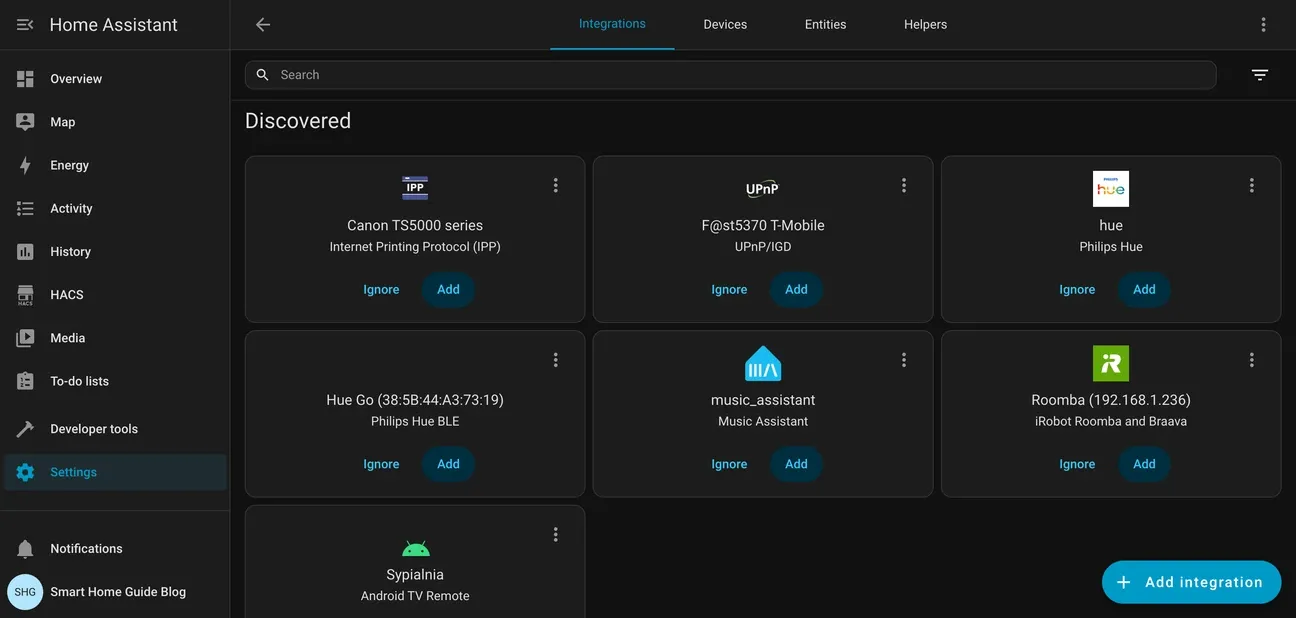
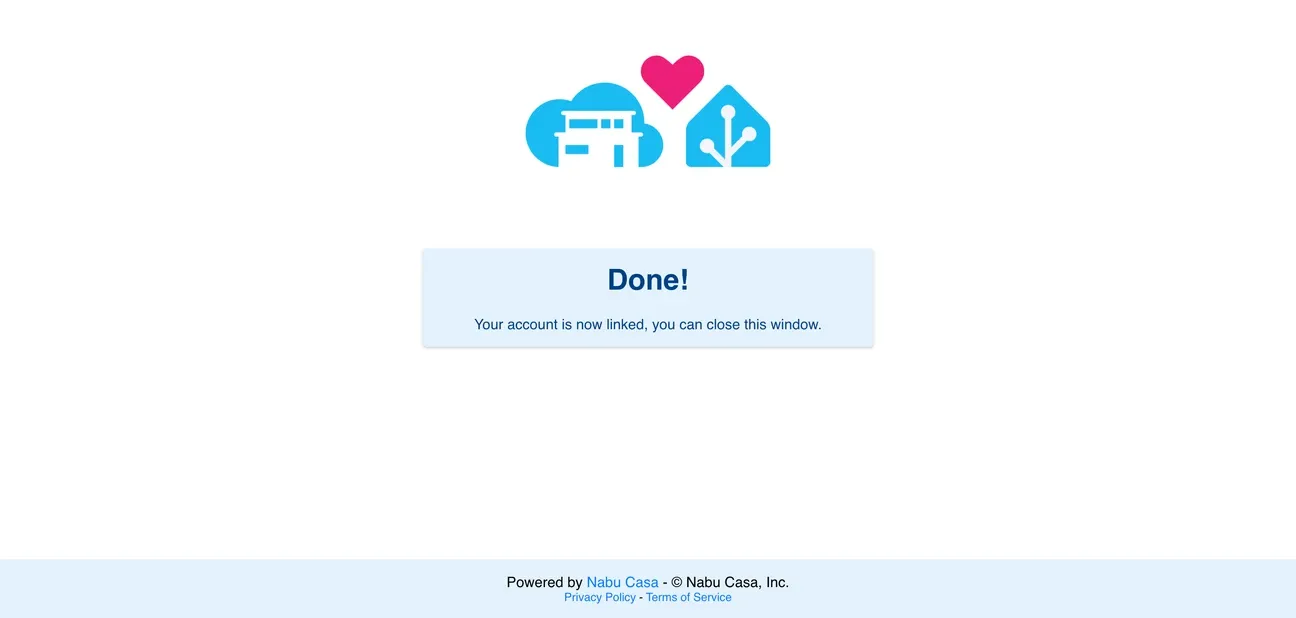
- Grant Location Access Pick the "location" that has your hub and devices. Allow all the permissions when asked. Home Assistant needs them to read device status and send commands.
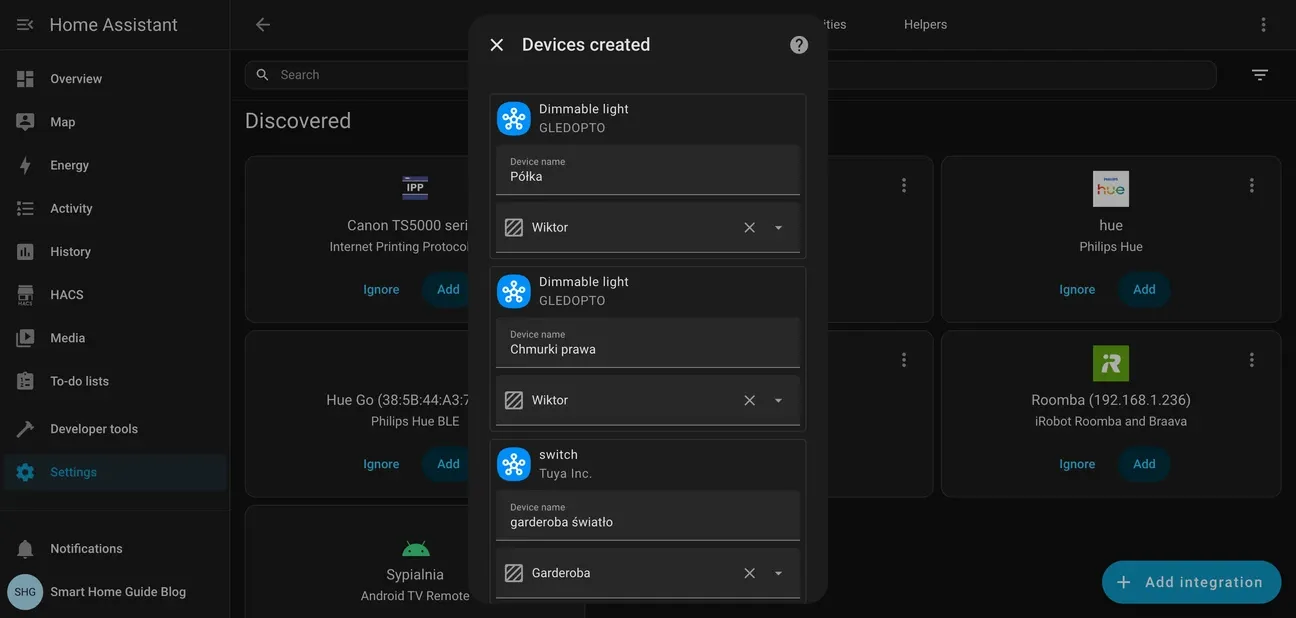
- Rename Everything Right Now
After import, your devices have confusing default names. Rename them right away.
light.dimmable_light_1should becomelight.bedroom_shelf. You'll thank yourself later.
- Test with a Simple Automation Start easy. Use the visual editor. Make one rule: when a contact sensor opens, flash a light strip blue and send an alert. If that works end to end, you're all set.
How Do You Configure Imported Devices Step by Step?
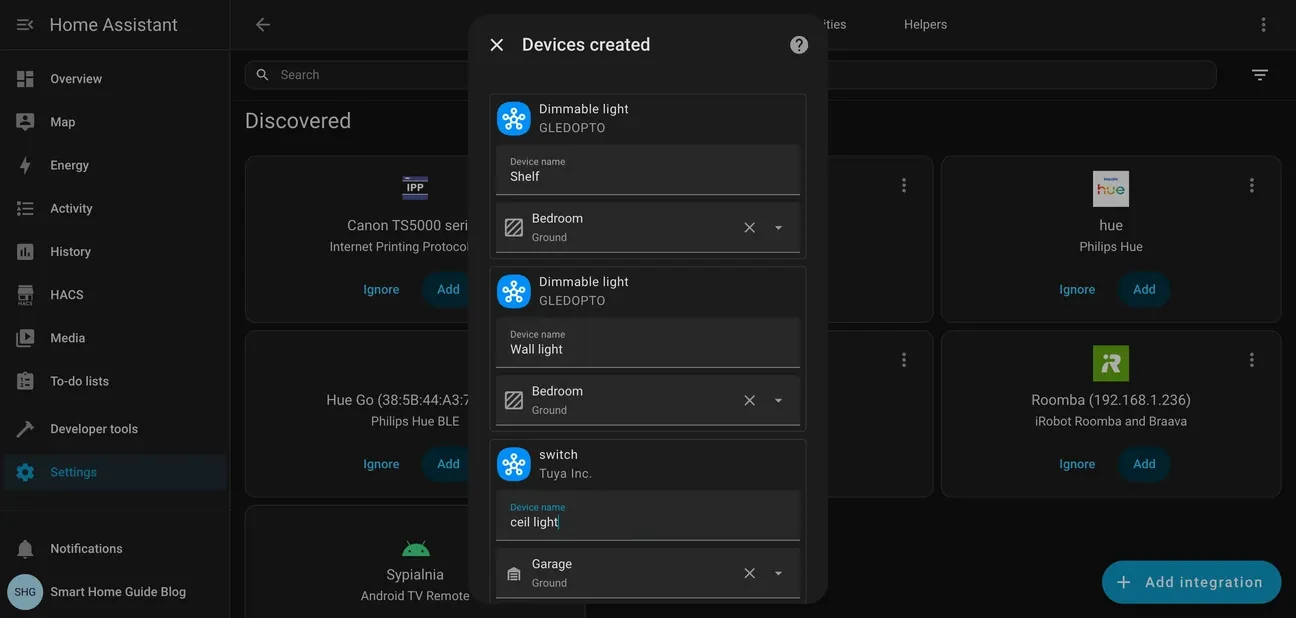
After setup, Home Assistant shows a dialog to set up each device. Give them clear names and assign rooms. Your automations will make more sense later.
Step 1: Name Your Devices
Default names are a trap. "Dimmable light" and "Switch 1" tell you nothing by the time you're writing your fifth automation, and renaming later means touching every rule that referenced the old entity ID. Do it now, while the list is short.
For each device, set:
- Device name: Use real names like "Shelf" or "Wall light" that you'll know at 2 AM
- Area assignment: Pick the room from the dropdown, such as Bedroom or Kitchen
Name devices for where they are, not for what they are. The awkward case is anything portable: a Hue Go that migrates between rooms deserves its own name rather than a room it refuses to stay in. Tuya switches get the same treatment, because "Garage Ceiling" beats "Switch 3" at every hour of the day and especially at 2 AM.
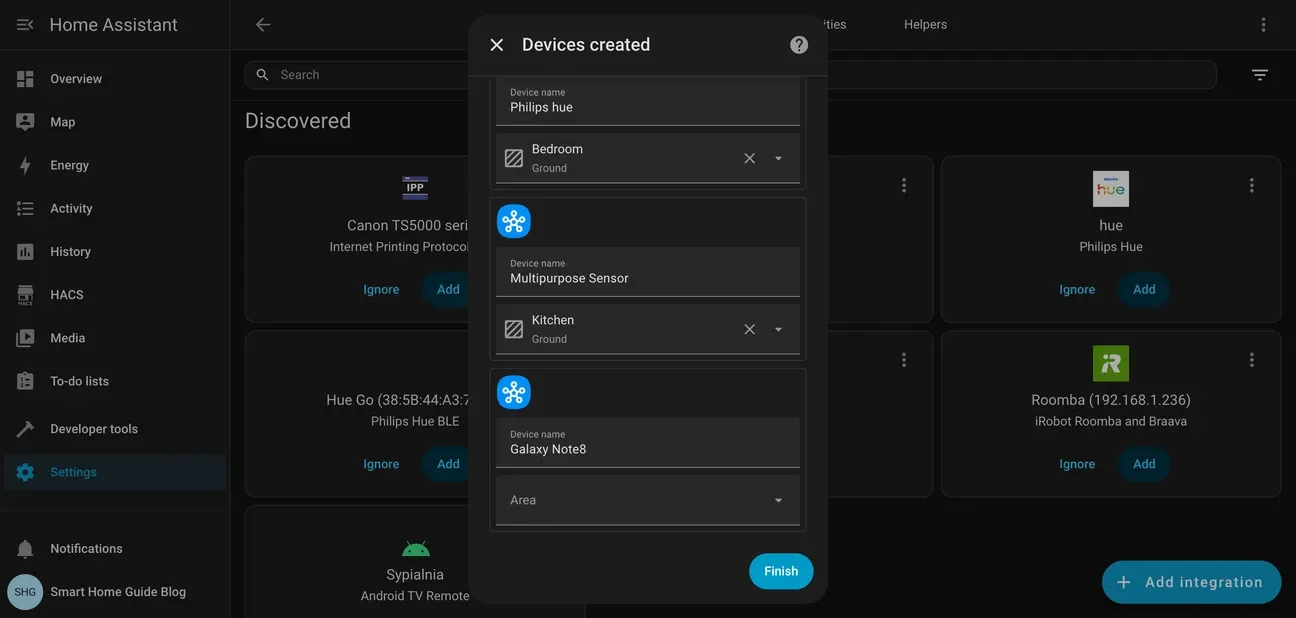
Step 2: Configure All Device Types
Go through the full device list and set up each type:
- Smart bulbs: Name Philips Hue and other bulbs by their physical location
- Sensors: Assign sensors to the rooms they monitor
- Mobile devices: Samsung phones appear as presence sensors for home/away automations
Click Finish when done. Home Assistant creates entities for each device.
Step 3: Review Your Integration
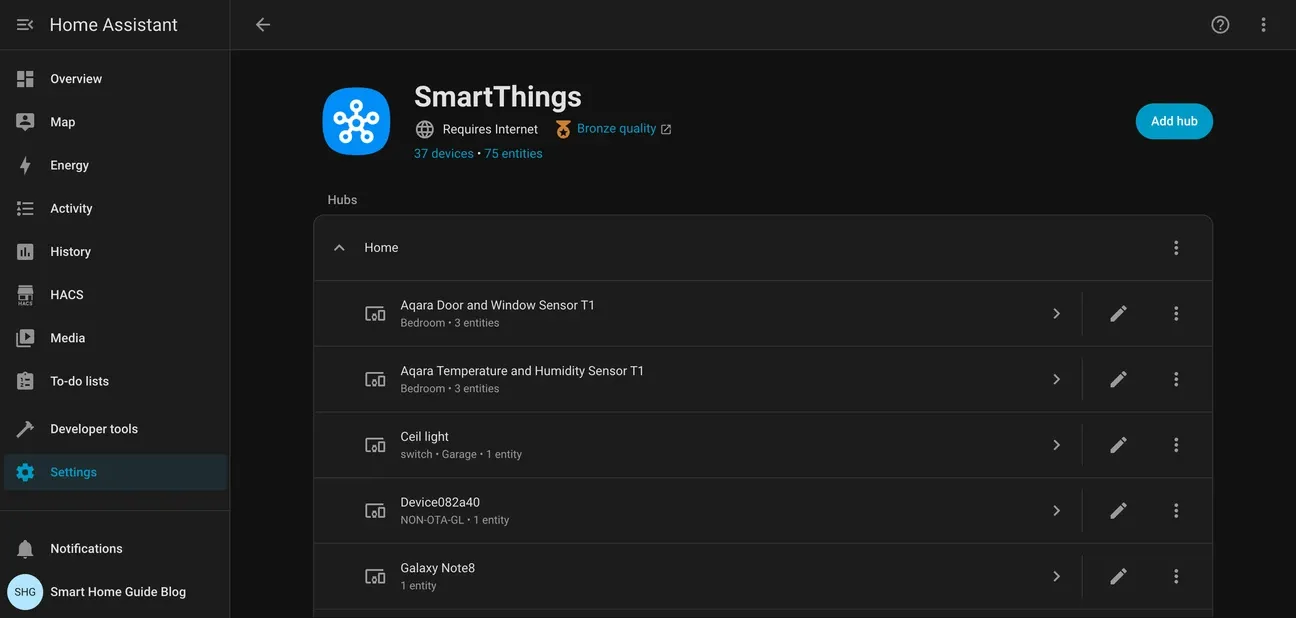
Go to Settings, Devices and Services, SmartThings after setup. You'll see how many devices made it over, and the entity count will be noticeably higher than the device count. Devices are grouped by their SmartThings hub location. Click any device to see advanced settings or fix a name you missed.
The integration quality indicator shows Bronze, Silver, or Gold. This tells you how well Home Assistant talks to your device.
What Are the Best Troubleshooting Tips?
Here's what works when things go wrong:
- Devices missing? Click Configure on the integration and choose Re-sync. Worth doing on a schedule rather than after something breaks.
- Won't log in? Your SmartThings app is probably out of date. Old versions block new login tokens for security.
- Slow responses? Turn on Edge drivers in your SmartThings hub settings. It makes key automations run locally instead of through the cloud.
- Random disconnects? Update your hub firmware. Deferred hub updates are a common cause of intermittent drops that look exactly like radio interference and aren't.
What Are Common Integration Scenarios?
The pattern that earns its keep is simple: each sensor stays on whichever radio it pairs to best, and the thinking moves to Home Assistant. A Zigbee motion sensor on the SmartThings hub can trigger WiFi bulbs on the Home Assistant side, and neither platform needs to know or care.
My own crossover is less glamorous and more useful than any of the demo automations. Home Assistant reads the eQ-3 MAX! Cube in the apartment over the local maxcube integration, so radiator thermostats from a discontinued product line still report temperatures into a dashboard built years after that line was killed off. The vendor moved on. The data didn't have to.
On the new-house side the equivalent trick is the wired Satel alarm, which reaches Home Assistant through its Ethernet module and the satel_integra integration. "Armed away" is a far better departure trigger than a phone geofence, because a wired panel doesn't drift, doesn't drain a battery, and doesn't decide the boundary sits 40 meters off.
Even when the internet dies, local devices keep responding. SmartThings cloud is what keeps remote access working, and that division of labor is the whole argument for running both.
What Can You Build with Home Assistant and SmartThings?
Here are the automations worth building, plus one honest note about what mine does and doesn't touch:
Movie Mode: One button dims the Philips Hue lights, stops the robot vacuum mid-clean, and mutes the TV. The blinds are the interesting exception. Twelve Somfy io motors and the garage door run on a TaHoma Switch that I have deliberately not bridged into Home Assistant, so no scene of mine closes a single blind. Somfy's own controller does that job, on its own remote, and I'd rather have that layer boring than clever.
Energy Saver: Smart plugs with energy monitoring tell you which loads are worth shifting, and Home Assistant can hold them until rates drop. In the new house, though, the meaningful load isn't a plug at all. It's a 15 kWp array with a Huawei LUNA2000 battery behind it and a heat pump that dwarfs everything else on the board. Shifting a kettle is theater. Shifting the heating is the actual lever.
Heating Control: This is where I refused a cloud round trip outright. The Gree Versati III SPLIT heat pump answers Home Assistant directly over MODBUS, and the ten heating zones run on Sonoff panels I reflashed so they'd talk to Home Assistant instead of a vendor thermostat app. Presence signals come from ceiling-mounted mmWave sensors and a 24G presence sensor. Nobody lives there yet, so this is a design I can wire and describe, not a year of data I can quote at you.
Multi-Room Audio: The speakers here are Google Nest Mini units and a Nest Hub Max, one of them in the living room, and they're the one product category I've been happy enough with to keep buying and to move into the new house. Grouping happens on Google's side. Home Assistant is the part that decides when a group should exist at all.
What Are the Device Support Notes?
Works Great:
- Samsung appliances, including real-time cycle status
- Zigbee devices paired through SmartThings hub
- Matter-certified devices
- Philips Hue lights via SmartThings bridge
- Z-Wave locks and switches
Partial Support:
- Samsung SmartTVs - basic power and input control, but volume can be spotty
- Tuya devices - on/off works fine, but dimming and color may not sync well
- Custom SmartThings automations - state changes show up, but triggers don't transfer
The TV here is a Philips set running Android TV, and Home Assistant talks to it directly rather than through any hub, which is one less thing to blame when a scene half-fires. That's the general lesson: when a device has a direct integration, the direct path usually beats the bridged one.
How Do You Speed Things Up?
Optimizing Local Execution
Turn on Edge Drivers: Modern SmartThings hubs support Edge Drivers for local execution. Enable them in your hub settings. Motion-triggered lighting is where you notice the difference first, because that's the automation you experience as latency instead of reading about in a log.
Pick a Primary Platform: Decide per device class which system owns it, then write that decision down somewhere you'll find it. Duplicate automations across both systems will fight each other, and the one you end up debugging is always the one you wrote at midnight.
Adjust Polling: Home Assistant polls SmartThings for updates. Motion sensors need a tight interval or the automation feels broken. Temperature sensors are perfectly happy on minutes. Matching the interval to the signal is what keeps you off the rate limiter.
Go Direct When Possible: A bulb paired straight to a local Zigbee coordinator answers on hardware you own. The same bulb reached through a cloud API answers after a round trip you don't control. You don't need a stopwatch to feel which is which.
What Do You Do When Things Break?
Integration Won't Sync: Delete the SmartThings integration in Home Assistant. Restart, then reinstall and log in again. This fixes token and sync issues.
Devices Missing: Check they show "Connected" in the SmartThings app first. If they're offline there, they won't appear in Home Assistant.
Rate Limit Errors: SmartThings cloud API has rate limits. Increase polling intervals or turn off polling for devices that don't need live updates.
Check the Logs: Go to Settings, System, Logs in Home Assistant. Look for "invalid_grant" (token expired), "device_list_sync_failed" (hub unreachable), or "unauthorized_client" (permission revoked).
How Do You Manage Both Platforms?
Keep Names Consistent: Use the same device names in both platforms. "Living Room Overhead Light" in SmartThings and in Home Assistant. Not "Light_1" in one and "LR_Light" in the other. Mismatched names turn a five-minute fix into an entire evening.
Choose Where to Automate: My split follows the two setups rather than the two feature lists. The apartment's routines stayed on the SmartThings hub, because they work and nobody gains anything from me migrating them. Everything in the new house is written in Home Assistant. When both platforms could do a job, the local one wins.
Back Up Everything: My Home Assistant configuration lives in git and pushes to GitHub, which means I can run git blame on my own house and find out which evening I broke the hallway. The data goes to Google Cloud. Secrets stay out of the repository, which is the step people skip and later regret. Here's the honest caveat, though: I've never had to restore from any of it. What I have is a backup I trust on paper and haven't yet proven under fire. Keep a list of your SmartThings devices too, because that list isn't in the repo.
What Are Alternative Approaches?
Maybe this setup isn't for you. Here are other paths I've tried:
Skip SmartThings Entirely: Put a dedicated Zigbee coordinator on your Home Assistant box and pair everything to it. That's the route the new house took: a Home Assistant Connect ZBT-1 with a few dozen Zigbee devices behind it, from GU10 bulbs to leak sensors to a 16A timer switch, and no hub account anywhere. You trade a polished app for a dashboard you build yourself. Every smart plug, sensor, and bulb answers locally, which is the entire point.
Keep Them Separate: Run both platforms side by side for different devices. No setup headaches. But you'll constantly switch apps. That's effectively where I still live: two systems, two places, and only the parts that actually earn it bridged together.
Go All-In on Home Assistant: Move everything to Home Assistant with direct setups. You get full local control and infinite options. But you lose Samsung's whole ecosystem. Not for everyone.
How Do You Buy Smart for the Long Term?
Buy Matter-certified hardware when you can. Matter devices work with SmartThings, Home Assistant, Apple HomeKit, and Google Home. You're not locked into one platform. One thing worth saying plainly here: there's plenty of Apple hardware in my life and I have still never paired a single device to Apple Home, so I can describe that path from the documentation but not recommend it from use.
I don't have a drawer of dead bulbs. What I have is an eQ-3 MAX! system that outlived its own product line. The MAX! range was discontinued, and when one of the window contacts failed there was simply nowhere left to buy a replacement. Not expensive. Not available. The Cube itself still works, Home Assistant still reads it locally through maxcube, and every surviving sensor still reports. That's the failure mode nobody warns you about, and it isn't a brand breaking your gear. It's a brand quietly stopping production of the one part you need.
Build your critical automations in Home Assistant with local execution. Lights, locks, and sensors should all work when the internet is down. That principle is exactly why the heat pump here answers over MODBUS rather than through an app.
What Are Our Final Thoughts on Home Assistant SmartThings Integration?
This stopped feeling like a compromise once I noticed the two systems answer different questions. The SmartThings hub answers "is the apartment fine," and it has answered that for years without me touching it. Home Assistant answers everything about the house I'm still finishing, from a heat pump on MODBUS to a few dozen Zigbee devices on the ZBT-1 coordinator. Bridging them means the older setup keeps earning its place instead of ending up in a box.
Start simple. Get the integration running. Confirm your devices show up in both platforms. Then build from there, one automation at a time, and keep the configuration in version control from the first day. That last habit is the one I'd defend hardest.
I cross-checked the protocol claims against ZigBee specification and documentation. Once you see what's possible, you'll wonder why you waited. The official Home Assistant SmartThings integration documentation covers the full list of supported device types, entity mappings, and troubleshooting steps.
Frequently Asked Questions
Does Home Assistant integrate with SmartThings?
Yes. Home Assistant has a built-in SmartThings integration under Settings > Devices and Services > Add Integration. It connects via your Samsung account and imports your SmartThings devices automatically, no third-party add-ons needed. As of Home Assistant 2026.2, the integration supports faster entity syncing and improved error recovery. The flow is short: add the integration, log in to Samsung, authorize the connection, and your devices appear as entities in Home Assistant. A Philips Hue bridge paired to SmartThings shows up as individual light entities in Home Assistant, so you can include them in HA automations without extra setup. SmartThings scenes also appear as scene entities. The integration pulls both device state (on/off, temperature, lock status) and triggers (motion detected, contact opened), which means you can build Home Assistant automations that react to SmartThings sensor events. Most SmartThings users find it covers 95% of what they need without any customization.
Can SmartThings work locally with Home Assistant?
Local SmartThings devices keep running locally when you enable Edge Drivers in your hub settings. Home Assistant communicates with them through the SmartThings cloud API for most commands, but enabling Edge Drivers makes automations run on the hub directly. Critical routines in Home Assistant itself run fully local regardless. The practical difference matters more than it sounds. With Edge Drivers enabled, a Zigbee contact sensor and the light it controls both sit on the hub, so the round trip never leaves the building. Without them, the same event travels out to Samsung's servers and back before anything happens. The hub here is a SmartThings Hub v3 and it still runs the apartment, but I have never put a stopwatch on the two paths, so treat that gap as structural rather than measured. Home Assistant automations using SmartThings devices as triggers still run locally on your HA instance. The only cloud dependency is fetching the device state update from SmartThings. If SmartThings cloud is up and your HA server is local, your automations run on your hardware, not Samsung's.
What happens when SmartThings cloud goes down?
Home Assistant automations that use local devices keep running. Zigbee sensors and other locally connected devices respond normally. Only SmartThings-specific features, such as remote app access and Samsung appliance events, go offline. SmartThings publishes a status page at status.smartthings.com with incident history, which is worth checking before you start rebuilding anything. The wider point is where execution lives. In the new build I'm finishing, Home Assistant OS runs on a Raspberry Pi 5 mounted on a DIN rail in the distribution board, Zigbee arrives through a Home Assistant Connect ZBT-1 coordinator, and the wired Satel alarm reports over its Ethernet module through satel_integra. None of that asks anyone's cloud for permission. The flip side is worth stating honestly: when that Pi is down, the lighting is down too, and I took that trade on purpose.
Is a subscription needed for SmartThings?
No. The SmartThings integration in Home Assistant works without Nabu Casa. You do need a Samsung account to authenticate. Nabu Casa (Home Assistant Cloud) adds remote access and voice assistant support, but it's not required for the SmartThings connection itself. How many SmartThings devices can I import into Home Assistant? All of them. Home Assistant pulls every device associated with your SmartThings location. Each device creates one or more entities depending on its capabilities. A smart bulb creates a light entity plus color and brightness controls. A sensor creates separate entities for each reading, so the entity count always climbs faster than the device count. Nabu Casa is a paid monthly subscription if you want remote access outside your home network, and it also funds Home Assistant development. For local-only SmartThings control, the free Samsung account is all you need. Entity names pull from your SmartThings device names, so rename them in SmartThings first if they're messy, because renaming a few dozen entities in Home Assistant later is more tedious than it sounds.
Sources & References
- Home Assistant SmartThings Integration Docs home-assistant.io documentation
- SmartThings Developer Documentation developer.smartthings.com documentation