How to Set Up Your Google Nest Cameras & Doorbells

This post may contain affiliate links. As an Amazon Associate we earn from qualifying purchases. Disclosure.
Learn how to set up your Google Nest devices with this step-by-step guide. From smart speakers to thermostats, we cover everything you need to know.
Setting up Google Nest devices is straightforward once you understand how the Google Home ecosystem works. All Nest devices - thermostats, speakers, cameras, doorbells, and smart displays - are managed through the Google Home app on iOS or Android. This guide walks you through the complete setup process for the most common Nest devices.
Setup is all this article does - hands-on pairing, one device at a time. For the bigger picture on what each product costs and why you'd buy it, see our complete Google Nest review first. One piece of advice I'll stand behind: install the thermostat last, not first. It's the only Nest device that touches mains wiring, and getting a speaker or camera running in five minutes builds the confidence you'll want before you kill the breaker.
Bottom line: All Google Nest devices set up through the Google Home app with a Google account and Wi-Fi. Thermostats take about 30 minutes (turn off power at the breaker first), speakers and displays pair in under 5 minutes, and cameras need a QR code scan. Use Routines to tie everything together with a single command.
What Should You Know Before You Begin?
You'll need a Google account and the Google Home app installed on your smartphone. The app is free and available on both iOS and Android. Make sure your home Wi-Fi network is running on 2.4 GHz or 5 GHz - all current Nest devices support both bands.
See CSA Matter specification for the published technical reference. Before starting setup, confirm you have:
- A Google account (free to create at google.com)
- The Google Home app installed on iOS or Android
- Your home Wi-Fi password handy
- Power to any wired devices (thermostat, doorbell) turned off at the breaker
If you plan to use multiple Nest devices, create a single home in the Google Home app first so all devices share the same rooms and automations.
How Do You Set Up a Google Nest Thermostat?
The Nest Learning Thermostat and Nest Thermostat E are among the most popular smart home upgrades. Setup requires replacing your existing thermostat, which takes about 30 minutes.
Step-by-Step Thermostat Setup
- Turn off power to your HVAC system at the circuit breaker before touching any wires.
- Remove the old thermostat faceplate and photograph the wiring before disconnecting anything.
- Connect the wires to the corresponding terminals on the Nest base plate (C, R, W, Y, G are the most common labels).
- Snap the Nest display onto the base plate and restore power at the breaker.
- The Nest will boot and walk you through initial Wi-Fi setup on the thermostat display itself.
- Open Google Home app, tap + > Set up device > New device, and select your home.
- The app finds the Nest thermostat on your network and links it to your Google account.
After setup, Nest thermostats learn your temperature preferences over the first week and begin adjusting automatically. You can also create heating and cooling schedules in the Google Home app or directly on the thermostat.
How Do You Set Up Google Nest Hub and Nest Audio?
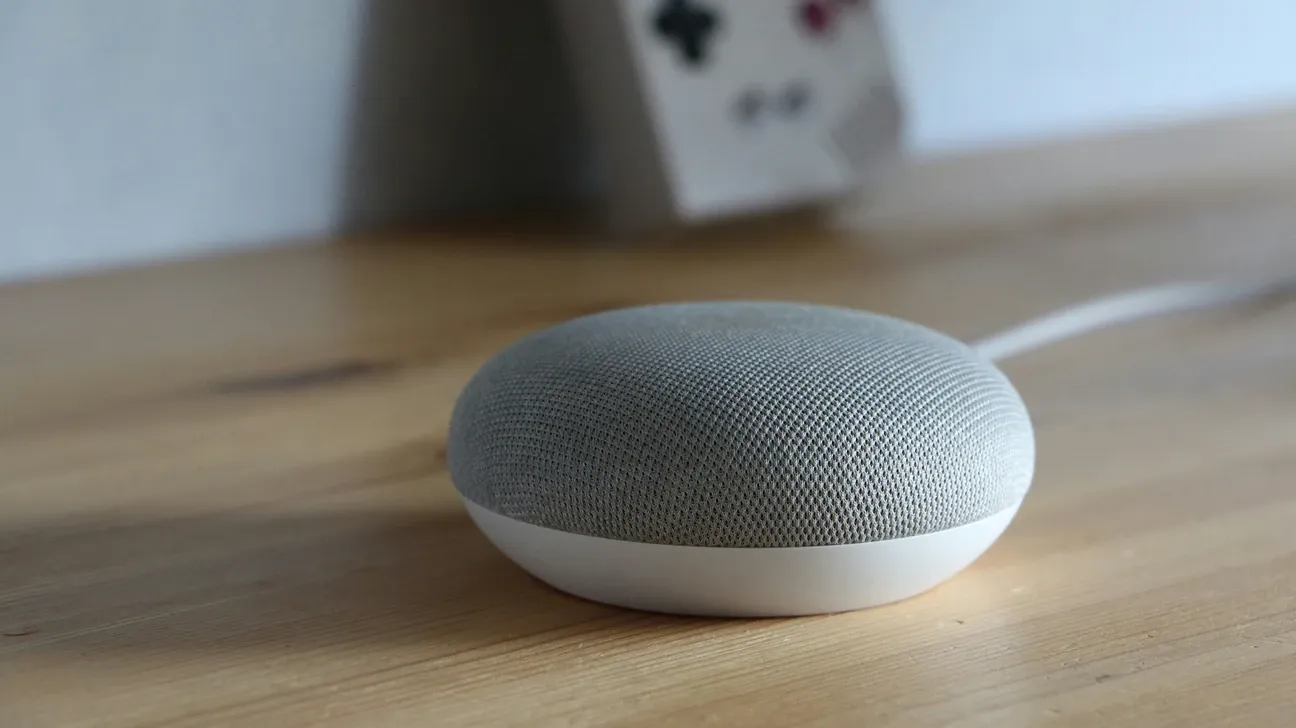
Nest Hub and Nest Audio speakers use Google Assistant for voice control and smart home management.
- Plug the Nest Hub or Nest Audio into power.
- Open the Google Home app and tap + > Set up device > New device.
- The app scans for nearby devices and finds your speaker.
- Follow on-screen prompts to connect it to your Wi-Fi network.
- Assign it to a room (Kitchen, Living Room, Bedroom) so voice commands like "Hey Google, turn off the bedroom lights" work correctly.
- Complete Voice Match setup so the speaker recognizes your voice and returns personalized results.
Once set up, Nest speakers can control any other Google Home-compatible device in the same household.
How Do You Set Up Google Nest Cameras and Doorbell?
Nest cameras require the Google Home app and a Google account with Nest Aware subscription for full features including history and AI event detection.
- Download the Google Home app if not already installed.
- Tap + > Set up device > New device.
- Scan the QR code on the back of the camera or doorbell.
- For wired doorbells, turn off the doorbell circuit at the breaker, remove the old doorbell, and connect the two existing wires to the Nest Doorbell terminals. Wired installation provides continuous power and enables 24/7 continuous recording.
- For battery cameras, charge the battery fully before mounting.
- Follow the in-app prompts to connect the camera to your Wi-Fi and choose its placement room.
Nest cameras support familiar faces detection (with Nest Aware Plus), package detection, and vehicle detection. Events are notified through the Google Home app with a thumbnail preview.
How Do You Add Devices to Google Home Routines?
Routines let you trigger multiple Nest devices with a single command or schedule. To create a routine:
- Open Google Home and tap Automations (house icon at the bottom).
- Tap + to create a new automation.
- Choose a starter: voice phrase, time of day, sunrise/sunset, or when another device changes state.
- Add actions: adjust thermostat, announce on speakers, change camera recording mode, etc.
A common setup is a Good Night routine that lowers the Nest Thermostat to 68F, mutes Nest speakers, and switches cameras to Home/Away Assist mode automatically.
How Do You Troubleshoot Common Google Nest Setup Issues?
Device not found during setup: Make sure your phone is on the same Wi-Fi network as the device. Temporarily disable mobile data if the app can't locate the device automatically.
Thermostat shows no power after installation: Check that the C-wire (common wire) is connected. Without a C-wire, some HVAC systems can't provide continuous power to the thermostat. Nest sells a Power Connector accessory that solves this without additional wiring in most systems.
Camera offline after setup: Verify the camera is within range of your router. Nest cameras require a stable Wi-Fi signal above -70 dBm for reliable streaming. A Wi-Fi extender or mesh node placed near the camera typically resolves intermittent offline issues.
Voice commands not recognized: Confirm the device is assigned to the correct home and room in Google Home. Re-run Voice Match setup if the speaker fails to respond to your voice consistently.
How Do You Integrate Nest Devices with Other Smart Home Platforms?
Google Nest devices work with Matter-compatible platforms, meaning they can be controlled from Apple Home, SmartThings, and Amazon Alexa in addition to Google Home. For Home Assistant users, the official Google Home integration or local Matter pairing (on supported devices) provides local control without cloud dependency.
According to Google's official Home and Nest support documentation, all current Nest devices receive automatic firmware updates through the Google Home app, keeping security patches and feature additions current without manual intervention.
The standards body publishes the details at Matter connectivity standard documentation. Setting up Google Nest devices is a reliable way to add intelligent automation and energy savings to any home. Once the initial configuration is complete, the devices work together easily through the Google Home app and voice commands.
What Advanced Smart Home Integration Tips Should You Know?
Connecting multiple smart home systems creates more powerful automation opportunities than any single platform enables alone. IFTTT (If This Then That) provides a straightforward way to create cross-platform automations without technical programming knowledge. Connecting triggers from one system to actions in another opens possibilities unavailable within closed ecosystems.
API-based integrations for users comfortable with technical configuration provide deeper connectivity than consumer-facing integration options. RESTful API calls from Home Assistant, Node-RED, or custom scripts can query device states and trigger actions across platforms. This technical approach requires initial setup investment but unlocks unlimited customization potential without platform restrictions.
How Do You Optimize Smart Home Performance?
Network performance directly affects smart home responsiveness. Running smart home devices on a dedicated 2.4GHz network segment, separate from personal computing devices, doesn't just reduce interference, it also prioritizes home automation traffic. Modern mesh router systems support IoT network segmentation through their management applications, implementing this separation without requiring technical network configuration.
During setup, let your Nest devices finish that first firmware update before you start pairing accessories. Google pushes these automatically overnight, but a fresh-out-of-box unit often sits a version or two behind until it does.
How Do You Build a Reliable Smart Home Foundation?
Infrastructure reliability determines overall smart home system quality more than individual device capabilities. Uninterruptible power supplies (UPS) for smart home hubs protect against brief power interruptions that would otherwise reset hub configurations and disconnect all managed devices. A small UPS providing 15-30 minutes of backup power covers typical utility fluctuations while giving time for graceful shutdown during extended outages.
Plan for internet drops while you set things up. Nest cameras and doorbells lean on the cloud, so a brief ISP outage can knock out remote viewing. A cellular failover router is overkill for most homes, but worth it if security depends on remote access.
How Do You Troubleshoot Common Smart Home Issues?
Most setup hiccups clear with a restart of the device and the hub. If a Nest unit keeps dropping off mid-setup, it's usually too far from the router, so move it closer or add a mesh point before blaming the hardware.
Automation failures frequently trace to changed device names, group memberships, or state values that break automation conditions written against previous configurations. Reviewing automation logs available in Home Assistant, SmartThings, and similar platforms identifies exact failure points and error messages. Searching these error messages in community forums typically surfaces solutions from other users who have encountered identical problems.
How Do You Handle Smart Home Privacy and Security Maintenance?
Smart home security requires ongoing attention beyond initial setup. Quarterly password audits verify that hub and device accounts use unique, strong passwords not reused across other services. Enabling two-factor authentication on platform accounts adds a critical security layer that prevents account compromise even if passwords are exposed in data breaches.
Network traffic monitoring through router management dashboards reveals devices communicating more than expected. A device sending large data volumes when no one's home may indicate privacy concerns or malware. Smart home device communications normally consist of small control messages and occasional status reports, not sustained high-bandwidth transfers. Unusual traffic patterns warrant investigation before assuming benign causes.
Frequently Asked Questions
What app do I need to set up Google Nest cameras and displays?
All Google Nest devices are set up through the Google Home app, available on iOS and Android. The app is free and you'll need a Google account, if you already use Gmail or YouTube, you're set. The setup flow for most devices takes 5-10 minutes: open the app, tap the + button, select "Set up device," and follow the on-screen steps. The app uses Bluetooth to detect nearby devices during pairing, so Bluetooth needs to be enabled on your phone. One thing that trips people up: older Nest products set up with the legacy Nest app (cameras and thermostats bought before 2020) need to be migrated to Google Home. That migration takes about 10 minutes and you do it once, after that, everything lives in Google Home. Nest Protect smoke detectors are still managed in the Nest app as of early 2026 with no migration path yet announced.
Do Google Nest cameras work without a subscription?
Yes, but the free tier is quite limited. Without a Nest Aware plan, you get live view and 3 hours of event history, enough to check what happened earlier today but nothing further back. Nest Aware Basic at $6 per month (or $60 per year) bumps event history to 30 days for all cameras on your account. Nest Aware Plus at $12 per month extends that to 60 days and adds 10-day 24/7 continuous recording on wired cameras. The free tier also omits intelligent alerts, you won't get "person detected" vs "motion detected" distinctions without a paid plan, just generic motion events. If you have 3 or more cameras, Nest Aware is much cheaper than competitors that charge per camera: $6 per month covers all your Nest cameras, not just one. For a single indoor camera used mainly for live view with occasional event checks, free is workable.
Can I control Google Nest devices with Amazon Alexa?
You can control Nest thermostats and some Nest cameras via Alexa after linking your Google account in the Alexa app under "Skills & Games", the Google Home skill handles the connection. Once linked, voice commands like "Alexa, set the hallway thermostat to 20 degrees" work reliably. What doesn't work well is Nest camera streams on Echo Show devices. As of early 2026, Alexa doesn't display Nest camera feeds on Echo Show screens due to Google restricting third-party camera streaming access. You get motion event notifications but can't pull up a live view from a Nest camera on an Echo Show. If you want Alexa-controlled thermostats with live camera viewing, the workaround is using Google Home displays for cameras and Echo Show for thermostat control in different rooms. The integration has been limited like this for several years with no announced fix from either Google or Amazon.