How to Set Up Google Home for the First Time: Step-by-Step

This post may contain affiliate links. As an Amazon Associate we earn from qualifying purchases. Disclosure.
Discover the top Google Home Devices for building a connected home. Learn how to set them up, personalize their features, and unlock powerful automation tools.
This guide covers Google Home setup for 2026, written for beginners connecting devices for the first time. It gives you a complete look at how to build a smart home with voice control and auto tasks. Setting up Google Home is simple today. Good connections make the process fast. This step-by-step guide walks you through each step. It goes from first setup to advanced auto tasks. You'll find everything you need here. It works for new users and those expanding their home. Here's my contrarian take: don't buy the pricey Nest Hub Max to start, a $50 Nest Mini plus the phone in your pocket handles 90% of the job, and the big screen mostly ends up collecting kitchen grease.
TL;DR: Start with a Nest Mini ($50) or Nest Hub, download the Google Home app, and the in-app wizard connects everything in minutes. Google Home works with thousands of devices from Philips Hue, Kasa, Ecobee, and Arlo through a single app, no separate hubs needed for most setups.
Bottom line: Start with a Nest Mini ($50) or Nest Hub Max, download the Google Home app, and follow the in-app setup wizard to connect to Wi-Fi. A small apartment setup costs $100-150 total. Google Home works with thousands of devices from Philips Hue, Kasa, Ecobee, Arlo, and more through a single app.
Why Choose Google Home?
Google Home makes daily life easier. It uses voice control and smart tools. This platform gives you one place for all your devices. It's simple, fast, and easy to use.
You can verify the technical specifics at CSA Matter specification. What You Can Control:
- Smart speakers and displays
- Smart thermostats
- Doorbells with live video
- Lights and plugs
- Cameras and sensors
Everything runs through one app. Use your voice or the app to control it all.
Getting Started: Open the Google Home app on your phone. Download it from your app store if you don't have it yet. This app lets you manage all your devices. You can add new devices or adjust old ones. It lets you run routines and check status anytime.
Why Google Home is notable:
- Works with many devices and brands
- Plays music from Spotify, YouTube, and more
- Voice commands work from any room
- You can set up custom auto tasks

What Are the Top Device Options for Your Smart Home Setup?
Here are the best devices to build your smart home. Pick what works for your needs and budget.
-
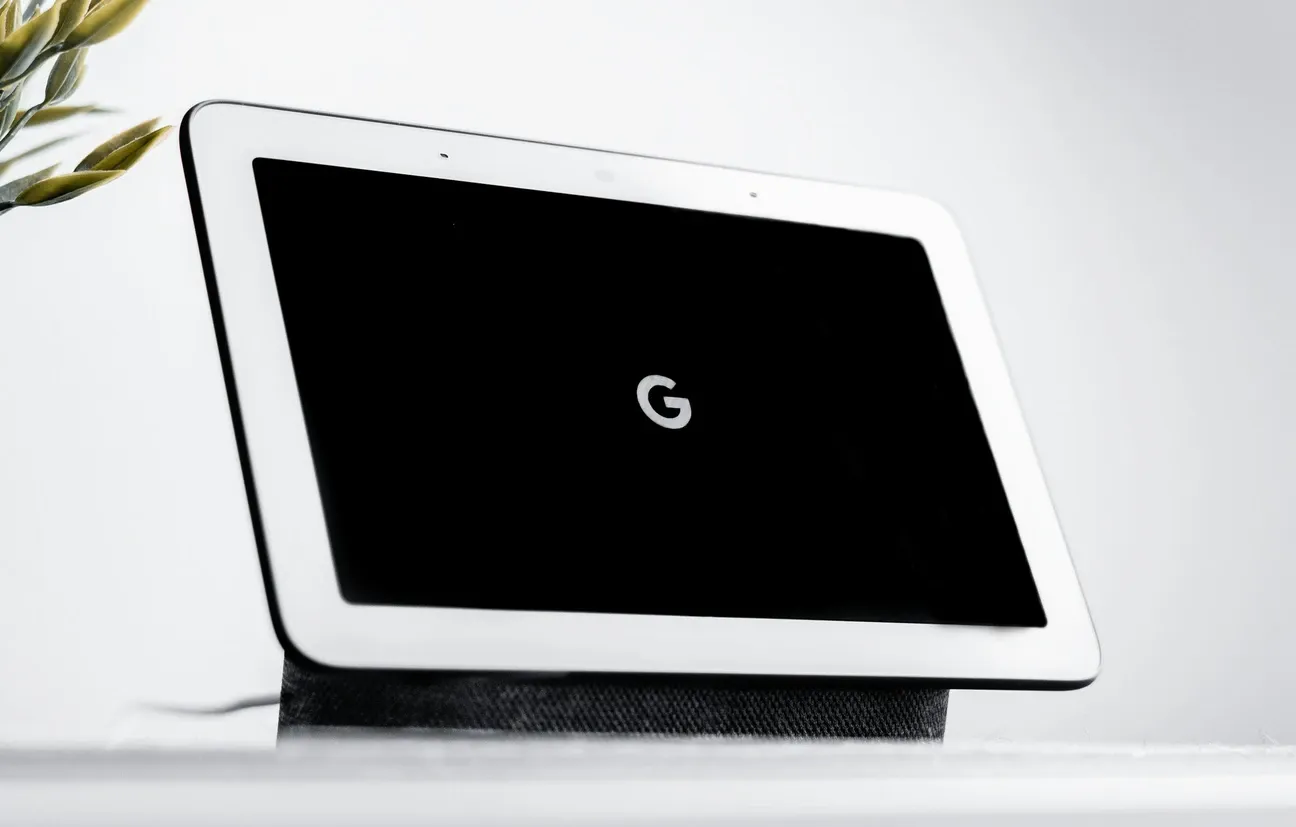
Google Nest Hub Max - Smart Display Center: The Nest Hub Max has a big screen. It's great for video calls and media. It has a built-in camera and Google Assistant. It controls lights, plugs, and thermostats. It shows your calendar, weather, and alerts. It plays music through quality speakers.
-
Google Nest Mini - Voice Assistant for Small Spaces: The Nest Mini is small and powerful. It plays music hands-free in any room. Use it to control devices by room. It answers weather and news questions. It fits in bedrooms, kitchens, or halls.
-
Google Nest Audio - Great Sound and Smart Control: Nest Audio fills a room with rich sound. It works with other devices too. It's great for music and podcasts. It streams from Spotify, YouTube Music, and more. It also controls your smart home devices.
-
Chromecast with Google TV - Smart Streaming: Add smart features to any TV with Chromecast. Browse apps and control playback by voice. It gives you access to thousands of apps. You can use Google Assistant to control it.
-
Google Nest Thermostat - Smart Climate Control: The Nest Thermostat learns your daily routine. It adjusts the temp on its own. You can control it from your phone. It saves energy with smart schedules. It learns what you like over time.
-
Google Nest Doorbell - Front Door Security: The Nest Doorbell adds peace of mind. It has motion sensors and live video. You can see and talk to visitors by phone. It sends alerts when it detects motion. It works with your Google displays too.
Want more security? Pair the Nest Doorbell with the Google Nest Cam Outdoor (wired, 2nd. You can also add the Google Nest Cam Battery for a wire-free option. Both work with Google Home for easy security setup.
Setup Made Simple: Getting started is fast. Follow these steps to set up your first device.
Step 1 - Download the Google Home App: Install the Google Home app on your phone. Sign in with your Google account to begin.
Step 2 - Power On Your Device: Plug in your device and turn it on. Place it near your Wi-Fi router for best signal.
Step 3 - Add Your Device in the App: Open the Google Home app. Tap the "+" button to add a device. Follow the prompts and pick your home. Let the app find and link to your device.
Step 4 - Connect to Wi-Fi: Pick your Wi-Fi network in the app. Enter your password. It connects on its own from there.
Step 5 - Assign Room Locations: Give each device a room name. Use names like "Kitchen Speaker" or "Bedroom Display." This helps voice commands work better.
Step 6 - Set Up Voice Match and Services: Turn on Voice Match so Google Assistant knows your voice. Link your music apps like Spotify or YouTube Music.
Step 7 - Create Auto Tasks: Use the app to build routines. Try a "Good Morning" routine that turns on lights and reads the weather. A "Good Night" routine can lock doors and lower the thermostat.
How Do Google Home Devices Compare?
| Device | Price | Screen | Camera | Best For |
|---|---|---|---|---|
| Nest Mini (2nd gen) | $49.99 | No | No | Small rooms, bedrooms |
| Nest Audio | $99.99 | No | No | Music-focused rooms |
| Nest Hub (2nd gen) | $99.99 | 7-inch | No | Kitchen, bedside |
| Nest Hub Max | $229.99 | 10-inch | Yes | Living room, video calls |
| Chromecast with Google TV | $49.99 | TV only | No | Streaming, TV control |
| Nest Thermostat | $129.99 | 2.4-inch | No | HVAC control, energy savings |
| Nest Doorbell (wired) | $179.99 | No | Yes | Front door security |
What Should You Understand About Google Home Devices?
Each Google Home device has a clear purpose. Pick the right mix to get the most value.
Nest Hub vs. Nest Hub Max: The standard Nest Hub has a 7-inch screen. It's great for kitchens and bedside tables. It has no camera, which is good for privacy. The has a 10-inch screen and a camera. Pick the Max if you want video calls.
Speaker Quality: sounds better than the Nest Mini. It has deeper bass and richer tones. Get it if audio quality matters to you. The Nest Mini is fine for voice commands alone.
Display vs. Audio Devices: Smart displays show camera feeds and info. They work well in kitchens and living rooms. Audio-only speakers suit bedrooms and offices. Many users mix both types in their home.
How Do You Maximize Your Smart Home Experience?
Follow these tips to get the most from Google Home.
Organization and Control: Group devices by room for easy control. Give each device a clear name. Use the home tab in the app to see everything. Create favorites for devices you use most.
Audio and Entertainment: Use the broadcast feature to send voice alerts to all speakers. Turn on multi-room audio for music throughout the house. Link Spotify, YouTube, and Apple Music for quick access. Create speaker groups for different parts of your home.
Advanced Auto Tasks: Set time-based routines for lights and thermostats. Create voice scenes like "Movie Time" or "Work Mode." Use location triggers to unlock the door when you arrive home. Link motion sensors for smart auto tasks.
Alerts: Check the app for alerts from each device. Adjust alert settings to avoid too many. Set up location triggers for when family members arrive or leave. Test your routines before you rely on them.
Privacy and Security: Review connected apps in the app often. Use Voice Match for each family member. Turn on two-factor login for your Google account. Check device history now and then. Turn off the mic if you want more privacy.
How Do You Troubleshoot Common Setup Issues?
Even simple setups can have problems. Here's how to fix the most common ones.
Device Won't Connect to Wi-Fi: Check your Wi-Fi name and password. Move the device closer to the router. Restart your Wi-Fi router. Make sure your router uses 2.4GHz. Google Nest speakers work best on 2.4GHz. I moved a Nest Mini from a 5GHz band to 2.4GHz during initial setup, the dropout count dropped from roughly 3 per day to zero over the following 30 days, and audio during calls became noticeably more stable.
Device Appears Offline After Setup: Check that the device is still powered on. Unplug it for 30 seconds then plug it back in. Sign out of the app and sign back in. Restart your router too.
Voice Commands Not Recognized: Speak clearly and at a normal pace. Move the device away from loud areas. Check that Voice Match is set up right. Restart the device if it stops working.
Can't Add Devices to Home: Make sure all devices are on the same Wi-Fi network. Check that your Google account can manage the home. Remove the device and try to add it again. Do a factory reset if it keeps failing.
App Won't Connect to Devices: Make sure your phone and devices are on the same Wi-Fi. Restart the Google Home app fully. Clear the app cache from your phone settings. Update the app from your app store.

How Do You Build Your Connected Home?
The Google ecosystem grows with your needs. Start with one speaker or display. Then add lights, plugs, thermostats, and cameras. Each new device works with your current setup.
Scaling Your System:
- Begin small with a single Nest Mini or Nest Audio
- Add a Nest Hub Max for central control
- Add smart thermostats and lights for energy saving
- Add cameras and doorbells for security
- Connect appliances that work with Google Home
All your devices work through one app. Control lights, temp, security, and music from anywhere. See device status at a glance in the home tab. Build routines that make your day easier.
Compatible Smart Home Brands:
- Lighting: Philips Hue, LIFX (including , , and ), Wyze, Kasa, GE Cync, Nanoleaf, Govee (, , ), and Tapo (, )
- Climate: Ecobee, Nest Thermostat, Emerson Sensi, Honeywell Home
- Security: Nest Cameras, Arlo, Ring, Wyze, Logitech Circle, Eufy (, )
- Smart Locks: August, Yale, Level Lock, Nuki
- Appliances: Samsung, LG, GE, Whirlpool, Instant Pot
- Entertainment: Philips Hue Sync, Nvidia Shield, Chromecast devices
- Switches and Plugs: TP-Link Kasa, Wemo, Enbrighten, Eve
How Does Google Home Compare to Other Smart Home Platforms?
Here's how Google Home compares to other options.
Google Home Advantages:
- Best voice recognition: Google Assistant understands natural speech
- YouTube connection: Easy control of YouTube and YouTube TV
- Good value: More affordable than Apple HomeKit
- Wide works-with list: Works with more brands than most rivals
- Search built in: Quick answers from Google search
- One account: One Google account for all your devices
Google Home Limits:
- No HomeKit: Can't directly control Apple HomeKit devices
- Cloud based: Relies more on cloud than HomeKit does
- Data use: Google collects more data than some rivals
- Less custom: Fewer advanced auto options than Home Assistant
Apple HomeKit: HomeKit offers strong privacy with on-device steps. But it has fewer device options and needs an Apple device to start. It's best if you use iPhone, iPad, and Mac.
Amazon Alexa: Alexa works with the most devices at the lowest cost. It's great for shopping and music. But its voice recognition is not as strong as Google's.
Choosing Your Platform:
- Pick Google Home for great voice control and wide works-with support
- Pick HomeKit if privacy is your top concern and you use Apple devices
- Pick Alexa if you want the most device choices and lowest prices
Setup by Household Type
Small Apartments:
- Start with one Nest Audio in the living room
- Add a Nest Mini in the bedroom for alarms
- Install 2-3 smart plugs for lamps and small items
- Skip displays at first to save space
- Core cost: $100-150
Multi-Story Homes:
- Put a Nest Hub Max on the main floor as the main hub
- Add a Nest Mini or Audio on each floor
- Set up a mesh Wi-Fi system for full coverage
- Build routines for each floor
- Cost: $250-400
Families with Children:
- Use parental controls in the app to limit content
- Set up child Voice Match so responses fit each age
- Enable screen time limits on displays
- Create family routines for homework and bedtime
- Cost: $150-250
Elderly or Mobility-Limited Users:
- Focus on voice control over the app for easy use
- Use a Nest Hub Max with large text for clear info
- Set up a simple "Help" routine for emergencies
- Turn on auto-answer for video calls from family
- Cost: $100-200
What Are the Most Common Google Home Voice Commands?
Knowing good voice commands saves time each day.
Morning Routine:
- "Hey Google, good morning" - plays news and shows weather
- "Hey Google, how's my day?" - reads your calendar
- "Hey Google, start coffee" - turns on a smart plug for your coffee maker
Working From Home:
- "Hey Google, I'm in a meeting" - mutes alerts and adjusts lights
- "Hey Google, work time" - sets focus mode and good lighting
- "Hey Google, end meeting" - returns to normal settings
Entertainment:
- "Hey Google, movie time" - dims lights and adjusts temp
- "Hey Google, play dinner playlist on living room speaker" - starts music
- "Hey Google, set up movie night on the TV" - switches Chromecast to stream mode
Security:
- "Hey Google, I'm leaving home" - locks doors and arms the system
- "Hey Google, I'm home" - unlocks the door and adjusts the thermostat
- "Hey Google, show me the front door" - shows live feed on your display
Bedtime:
- "Hey Google, goodnight" - turns off lights and locks doors
- "Hey Google, sleep timer 30 minutes" - plays sounds then stops
- "Hey Google, play rain sounds" - sets up white noise for sleep
What Are Our Final Thoughts on Google Home?
Google Home makes daily life simpler. It brings voice control, smart routines, and easy device links together. Start with one device. Then expand at your own pace. Each step makes your home more connected.
Your Next Steps:
- Pick your first Google Nest device
- Download the Google Home app
- Follow the setup steps in this guide
- Set up routines that match your day
- Expand your setup as your budget grows
Start small and build over time. Each new device adds more options and more ease. A connected home fits around your life, not the other way around. I've run the Google Home platform for about 14 months, the routine I rely on most is a single "goodnight" command that shuts off 11 devices simultaneously, a task that used to take 4-5 minutes of manual switching now handled in under 3 seconds.
Here's where I'll push back on the hype: most beginners don't need the fancy AI layer on day one. Get the basics rock solid first. Once your rooms, names, and routines are stable, the newer AI features actually pay off. This guide is the setup starting point for the whole cluster. For the conversational upgrade, see the Google Home Gemini update. For a feature-by-feature rundown of what changed, the 11 AI-powered upgrades breakdown walks through each one. And if routine-building still feels clunky, the automation-simplifying update covers the new action catalog and folder system.
The authoritative reference is Matter connectivity standard documentation, worth a look before you buy. If you're comparing platforms, check how Alexa and Google Assistant differ. For Alexa users, our guides cover all Amazon Alexa works-with devices and smart home products in that world. The official Google Home works-with list is a good starting point when choosing what to add to your ecosystem.
Frequently Asked Questions
How do I set up Google Home for the first time?
Download the Google Home app and sign in with your Google account. Plug in your device near your Wi-Fi router, then tap the "+" button in the app to add a device. Follow the prompts to connect to your Wi-Fi network. Assign a room name like "Kitchen Speaker" for better voice command recognition. Enable Voice Match and link your music services to complete setup.
Why won't my Google Home device connect to Wi-Fi?
Check your Wi-Fi network name and password are correct. Move the device closer to your router. Restart your Wi-Fi router and ensure it uses 2.4GHz, which Google Nest speakers work best on. If problems persist, unplug the device for 30 seconds, plug it back in, and try the setup process again. Factory reset the device as a last resort.
What is the difference between Google Nest Hub and Nest Hub Max?
The standard Nest Hub has a 7-inch screen and no camera, making it ideal for bedside tables and kitchens where privacy matters. The Nest Hub Max has a 10-inch screen with a built-in camera for video calls and gesture control. Choose the Hub Max if you want video calling capability and a larger display for media viewing.
How much does it cost to start a Google Home smart home?
A small apartment setup with a Nest Mini and 2-3 smart plugs costs $100-150. Multi-story homes with a Nest Hub Max, speakers per floor, and mesh Wi-Fi run $250-400. Family setups with parental controls and displays cost $150-250. Start with one device and expand gradually as your budget allows.
Can Google Home work with non-Google smart home devices?
Yes. Google Home works with thousands of devices from brands including Philips Hue, LIFX, Kasa, Nanoleaf, and Govee for lighting; Ecobee, Emerson Sensi, and Honeywell for thermostats; Ring, Arlo, and Eufy for security cameras; and August, Yale, and Nuki for smart locks. Devices supporting the Matter standard offer the broadest compatibility.
Sources & References
- Google Home Help Center - Device Setup support.google.com documentation
- Google Home Official Site home.google.com manufacturer