Apple HomeKit Guide: Devices, Scenes, and Automations

This post may contain affiliate links. As an Amazon Associate we earn from qualifying purchases. Disclosure.
Apple Home connects hundreds of HomeKit and Matter devices through a single app, but not every smart home product works smoothly with it. Here's what does and how to set it up.
Quick take: Apple HomeKit runs most automations locally on a HomePod mini ($129), HomePod, or Apple TV 4K, lights and scenes work even when your internet drops. Hundreds of certified devices across every major category. Matter devices pair natively and can run on Alexa or Google Home simultaneously. HomeKit Secure Video processes footage locally before encrypted iCloud upload.
Apple HomeKit turns your iPhone into a universal remote for your home. Unlike competing platforms, HomeKit runs a lot of its logic locally, meaning lights respond faster and automations keep working when your internet drops.
Let me be straight about where I'm standing. HomeKit isn't what runs my house. My automation logic lives in Home Assistant OS on a Raspberry Pi 5 bolted to a DIN rail in the electrical cabinet, with Google speakers as the layer the family actually talks to and twelve Somfy io motors on the blinds. So everything below about HomeKit itself comes from the documentation, the release notes and what owners report, not from my own hub, and I'll flag which is which as we go. What I can compare from experience is the shape of the decision: I picked a local-first controller for the same reason Apple advertises one, and the argument holds up whichever badge is on the box.
The platform supports hundreds of certified devices across every major category: lights, locks, cameras, thermostats, fans, blinds, and sensors. If a device carries the "Works with Apple HomeKit" label, it pairs directly through the Home app with no additional hub required in most cases. This complete guide covers everything from first setup to advanced automations. For what Apple changed most recently, our breakdown of what iOS 27 shipped for the Home app tracks the current release, beta by beta.
What Does Apple HomeKit Cover?
HomeKit organizes your home into rooms and zones. You assign devices to rooms, then group rooms into zones for broader control. A tap on "Downstairs" turns off every light on your ground floor. Siri handles voice control without sending your requests to third-party servers, which matters if privacy is a priority.
Automations in HomeKit use triggers: time of day, your location, a sensor reading, or another device's state. When your door lock detects you've left, HomeKit can turn off all lights, lower the thermostat, and arm your cameras automatically. These multi-step automations run without your phone nearby.
Scenes let you set multiple devices to specific states with a single tap. A "Movie Night" scene might dim lights to 20%, lower the blinds, and set the thermostat to 68 degrees. Setting one up is quick. Still deciding whether HomeKit is the right ecosystem for your household? Our Google Home vs Alexa vs HomeKit comparison weighs all three head to head.
What Compatible Device Categories Work with HomeKit?
HomeKit covers a broad range of product types. The most commonly used categories include:
- Lights and bulbs: Philips Hue, LIFX, Nanoleaf, Eve, and dozens of other brands with full color and color-temperature control
- Smart locks: Schlage, Yale, Kwikset, and August with auto-lock and access code management
- Cameras: Eufy and Eve models with HomeKit Secure Video for encrypted, on-device recording
- Thermostats: Ecobee, Honeywell, and the Nest Learning Thermostat (4th gen) through Matter
- Plugs and switches: Eve Energy and Meross, some with energy monitoring. Skip Belkin Wemo: Belkin ended its cloud service on January 31, 2026, and a Wemo that wasn't already set up in HomeKit can't be added now
- Sensors: Aqara, Eve Door & Window, and temperature/humidity sensors
- Blinds and shades: Lutron Serena, IKEA Fyrtur, and various motorized shade systems
- Fans and air quality: Eve Room monitors plus a short list of purifiers and fans, so check the box before you buy
The Apple Home app developer documentation outlines every supported accessory type and the protocols each category uses. This is useful if you're buying less common devices and want to verify compatibility before purchase. Apple's accessory directory has also started a small Apple Home Collection, seven LG products and two Schneider Home thermostats, which Apple's TV and Home page still labels "coming later."

How Do You Set Up HomeKit Devices?
The setup process is faster than most platforms. Open the Home app, tap the plus button, then scan the HomeKit setup code on the device or its packaging. The app guides you through naming the device and assigning it to a room. Most devices are ready within a few minutes.
For older devices that don't natively support HomeKit, you have options. Some brands release firmware updates that add HomeKit support retroactively. Third-party bridges can also bring compatible Zigbee and Z-Wave devices into HomeKit. Home Assistant users can expose their entire device library to HomeKit using the HomeKit Bridge integration.
Home Hub Requirement
One thing that catches people off guard: you need a home hub to use automations and remote access. An Apple TV 4K, HomePod, or HomePod mini connected to your home network serves as the home hub. Without one, automations won't run when you're away, and you can't access your devices remotely.

How Does HomePod Work as a Smart Home Hub?
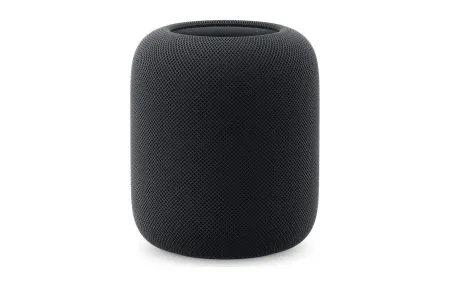
The HomePod mini has become the most popular home hub option. At $129 (up from $99 before Apple's June 2026 price increase), it handles the hub function, responds to Siri requests, and sounds reasonable for casual music listening. One HomePod mini per floor is enough for most homes. Its successor, the HomePod mini 2, costs $149 and ships October 30 with an S10 chip, Wi-Fi 6E, and Thread listed in Apple's specs.
The full-size HomePod ($349) is a genuinely good speaker, better than anything else at this price point that also handles smart home coordination. If audio quality matters in your living room or kitchen, the HomePod justifies its price independently of the hub function.
Apple announced two more hubs on October 13. HomeView is a 7-inch display hub at $299 that ships November 13 (it isn't sold in the EU), and the fourth-generation Apple TV 4K, with an A19 chip and a Gigabit Ethernet port, costs $299 and ships the same day. Both were pre-order only as of October 20, so I'm going on Apple's pages and launch coverage, not on anything I've handled.
Thread and Response Speed
Thread is where the HomePod and Apple TV 4K make a real difference. Both devices serve as Thread border routers (on the Apple TV side, that means the 2nd generation 4K and the 3rd generation Wi-Fi + Ethernet model). Thread-enabled accessories like Eve and Nanoleaf devices connect directly through Thread rather than Wi-Fi or Zigbee, which typically feels faster than a Wi-Fi round trip. The practical effect: lights respond the moment you tap, not a beat later.
What Is HomeKit Secure Video?
HomeKit Secure Video is one of the platform's most privacy-conscious features. Footage from compatible cameras processes on your local hub (HomePod or Apple TV) before uploading to iCloud, encrypted end-to-end. Apple can't see your camera footage. Neither can the camera manufacturer.
Storage uses an iCloud+ plan rather than a separate camera subscription. Per Apple, the 50GB plan ($0.99 a month) covers one camera, the 200GB plan ($2.99) covers up to five, and the 2TB plan ($9.99) covers an unlimited number. Apple also says none of the footage counts against your iCloud storage. That's competitive with Ring Protect and better for privacy.
The catch is that the camera must explicitly support HomeKit Secure Video. Not all HomeKit cameras include this feature. Eufy cameras with Secure Video support and the Eve Outdoor Cam are among the options on sale as of October 2026, but support varies by model, so confirm it on the box.
What Did iOS 27 Change in the Home App?
Apple released iOS 27 on September 14, 2026, and most of what it did to the Home app is about cameras. I haven't paired anything to Apple Home myself, so this section is a cross-check: Apple's own pages against MacRumors, 9to5Mac, AppleHome Authority and Matter Alpha, with every item tagged by status as of October 25. Which beta added which feature is a separate story, and the breakdown linked near the top of this guide tells it in order.
Shipped in iOS 27.0:
- 4K for HomeKit Secure Video. Supported cameras can stream and record in 4K, where 1080p was the ceiling before. It needs no Apple Intelligence.
- Apple Intelligence camera features. Written descriptions of what happened across a run of clips, plain-language clip search (also from Spotlight), noteworthy clips surfaced first, and footage from several cameras grouped into one event.
- Summarized notifications. Related alerts, such as someone arriving and then the door unlocking, merge into one notification that updates as events unfold. A Reduce Notifications toggle in the Apple Intelligence section of Home settings controls it.
- Energy tab. Smart plugs and other accessories that report power use show it in the Home app.
- Smaller items. Apple TV updates from the Home app, Thread 1.4 support, and a simpler add-accessory screen for Matter devices.
What each one asks of you differs a lot, and that's the part the headlines skip:
| Feature | What it needs |
|---|---|
| 4K recording | A HomeKit Secure Video camera with a 4K sensor that the maker has enabled, plus iCloud+ |
| Descriptions, search, summarized notifications | iPhone 15 Pro or later, a home hub on tvOS 27 or HomePod Software 27, an eligible iCloud+ plan |
| Energy tab | An accessory that reports power use |
| Apple TV updates, Thread 1.4 | iOS 27 and a hub |
The iCloud+ line is the one to read twice. MacRumors reported on release day that written summaries cover one camera on the $9.99 2TB plan, two on the $29.99 6TB plan and up to five on the $59.99 12TB plan, and that Apple may change those counts later. Recording itself still follows the older tiers listed above, so a household can switch on 4K at no extra cost and still pay a lot to get summaries on a third camera.
Not confirmed, or not there yet:
- A list of 4K cameras. Apple publishes none. AppleHome Authority wrote on September 14 that no manufacturer had confirmed 4K support, and I found no maker announcement since. The LG cameras in Apple's new lineup are described at up to 2.5K, which we covered in the Apple Home Collection analysis. Will a 4K label on a box mean anything before a maker names a model? I doubt it.
- Automations from the Energy tab. MacRumors' guide says you can't build one from that data yet, and AppleHome Authority calls the feature basic at launch, with grid forecast data limited to compatible US energy providers.
- Matter cameras. Still unsupported in Apple Home, as Matter Alpha noted when the betas began.
- Anything new in later builds. iOS 27.0.1 on September 28 was a Face ID fix, and iOS 27.2 reached release candidate on October 19. MacRumors' iOS 27 roundup lists no Home changes in either, and I couldn't confirm that 27.2 is public yet.
My own house wouldn't see most of this. Home Assistant exposes entities to Apple Home through its HomeKit Bridge integration, and that integration's documentation says plainly that HomeKit Secure Video is not supported, so a bridged RTSP camera gets a live view and none of the new recording features. For a household that lives in the Home app and owns native Secure Video cameras, though, this is the biggest Home update in years, as long as you check the hub software and the plan before you blame the camera.
What Is the HomeKit Compatibility Checklist?
Before buying any device for a HomeKit home, confirm a few things:
- Check that the device lists HomeKit (not just Siri) support on the box
- Verify Thread support if you want best-in-class local response times
- Confirm HomeKit Secure Video support if buying a camera
- Check that the manufacturer still supports the product with firmware updates
- Look for Matter certification on newer devices for future cross-platform flexibility
Not every budget device supports HomeKit. Mid-range and premium products from Aqara, Eve, Schlage, and Philips Hue are safe bets. Aqara in particular has released an extensive range of Zigbee sensors and accessories with HomeKit support at competitive prices.
How Does Matter Shape the Future of HomeKit?
Apple was a founding member of the Matter protocol consortium. Matter allows one device to work across HomeKit, Google Home, and Amazon Alexa simultaneously, which reduces the risk of committing to a single ecosystem.
In practice, Matter devices pair to HomeKit like any native device, scan the code, assign to a room, done. The difference is that the same device can also appear in Google Home or Alexa if you add it there too. That matters if your household has a mix of Apple and Android users, or if you want flexibility to switch ecosystems later without replacing hardware.
HomeKit's Matter implementation is solid as of 2026 for the device types it supports. The Home app handles Matter commissioning correctly, and Thread border routing through HomePod and Apple TV 4K covers the networking side. The gap is cameras: Matter 1.5 added them in November 2025, and Apple Home hasn't turned them on yet.
How Do You Use Advanced Automations and Shortcuts in HomeKit?
The Home app handles basic automations well: run when you arrive, run at sunset, run when a sensor triggers. For anything more complex, the Shortcuts app integrates with HomeKit to build multi-step flows with conditionals.
A Shortcut can check the current time, your location, the weather forecast, and whether specific people are home before deciding what to do. Run these from a widget, a Siri command, a schedule, or an NFC tag stuck to your wall. A tap of your phone against the door as you leave can lock the door, lower the thermostat, and turn off everything in one action.
Personal automations (those triggered by arriving or leaving home) require your location and run only on your device, useful for per-person household logic.
How Do You Build Your Apple Smart Home?
Start with one room. Pick a room where smart lighting will give you immediate value, a living room or bedroom. Add motion sensors next to trigger automations. Then expand to locks and thermostats once you understand how scenes and automations interact. HomeKit rewards a slow, deliberate build more than buying a dozen devices at once.
The hardware investment for a complete HomeKit setup is higher than budget Wi-Fi alternatives, but the tradeoff is a system that runs locally, protects your data, and doesn't depend on manufacturer cloud services staying operational. For households already in the Apple ecosystem, the integration with iPhone, iPad, Mac, and Apple Watch makes the premium worthwhile. My honest take: if you're not already carrying an iPhone every day, HomeKit isn't worth adopting from scratch in 2026. Matter has closed most of the local-control and privacy gap that used to be HomeKit's whole pitch, and you'd get broader device selection starting fresh with Google Home or a Matter-first Home Assistant setup instead.
Build a complete HomeKit home in stages rather than in one weekend. The goal is a system that's enjoyable to use daily, not just impressive to demonstrate.
What Are Common HomeKit Problems and Fixes?
A few issues come up repeatedly in HomeKit setups that are worth knowing upfront.
Devices showing as "Not Responding" is the most common complaint. It almost always means the device lost its Wi-Fi connection, ran out of battery, or the home hub temporarily lost network access. Force-close the Home app and reopen it first, since stale app state can look like a real connectivity problem.
Automations not triggering when away from home: This requires a home hub. If no HomePod or Apple TV 4K is at home and awake, personal automations won't run remotely, and an iPad doesn't fill that role. A HomePod mini solves this permanently.
Slow Siri response to device commands: Devices on Wi-Fi add latency from the router round-trip. Thread devices usually respond faster. If your lights feel sluggish, switching to Thread-based accessories like Eve or Nanoleaf makes a noticeable difference in daily use.
Pairing failures on setup: Some devices fail to pair because they've already been registered to another Apple ID or were partially set up previously. A factory reset on the device clears the pairing state and lets you start fresh.
These issues are solvable and don't reflect fundamental problems with the platform. Owners generally rate HomeKit's stability well once it's set up, and the initial setup quirks are the hardest part.
Frequently Asked Questions
Does Apple HomeKit work without an internet connection?
Yes. HomeKit runs most of its automation logic locally on a home hub, so lights, scenes, locks, and schedules keep working when your internet drops. Apple TV 4K, HomePod, and HomePod mini each qualify as a hub, and so will Apple's new HomeView display once it ships on November 13; one is enough for your whole home. The local processing model is one of HomeKit's biggest advantages over cloud-dependent systems like SmartThings, which requires an active internet connection for most automations. You can dim lights, trigger scenes, and run time-based schedules entirely offline. The one thing that does require internet is remote access, controlling your home from outside, using Siri over cellular, or checking camera feeds away from your network. Notifications from sensors also need internet to reach your iPhone. But for the typical scenario of sitting at home with a spotty ISP, HomeKit keeps running without skipping a beat.
What do you need as an Apple HomeKit hub?
A HomePod mini ($129), full-size HomePod ($349), or Apple TV 4K serves as a HomeKit hub. Apple raised both HomePod prices in June 2026, and the HomePod mini 2 arrives on October 30 at $149. You only need one hub per home, a single hub handles all automations, schedules, and remote access for the household. The HomePod mini is the most common choice because of its price, but it also doubles as a decent-quality speaker. An Apple TV 4K works well if you already own one; it just needs to stay powered and connected to your home network. Without a hub, HomeKit accessories still work for manual control from the Home app, but you lose automations triggered by time or location, and you can't control devices remotely. One thing people miss: Apple requires iCloud Keychain and two-factor authentication on your Apple Account, and the hub has to sit on your home Wi-Fi. If you swap hubs, check the Home app settings to confirm your new hub is active and connected before you trust your automations again.
How many devices work with Apple HomeKit?
HomeKit supports hundreds of certified devices across lights, locks, cameras, thermostats, sensors, blinds, fans, and air purifiers. Apple doesn't publish a running total, so be wary of any exact figure you see. Any device labeled "Works with Apple HomeKit" on the box pairs directly through the Home app using a QR code or NFC scan, no extra hub required. The real number is higher now that Matter is active, because a Matter- certified device in a category Apple Home supports pairs with it too. Philips Hue, Lutron Caseta, Eve, and Nanoleaf are among the brands with the deepest HomeKit support. The certification process Apple requires is stricter than most competitors, which means fewer devices total but generally better reliability and privacy. Google Home and Amazon Alexa support more devices by raw count, but HomeKit's end-to-end encryption and local processing make it the preferred choice for households that prioritize privacy. If a device doesn't carry the HomeKit badge, check whether it supports Matter, that's often an easier path to compatibility in 2026.
What is HomeKit Secure Video?
HomeKit Secure Video processes camera footage on your home hub before it ever reaches iCloud. The encryption happens locally, Apple and the camera maker cannot see your recordings. Only you and people in your Home app can view clips. Storage comes with iCloud+: according to Apple, the 50GB plan covers one camera, the 200GB plan covers up to five, and 2TB or larger plans cover an unlimited number. The footage doesn't count against your iCloud storage. That is a real cost advantage over Ring and Nest, which charge for video history on top of the camera. Supported cameras include models from Eufy and Eve, including the Eve Outdoor Cam, which works only with HomeKit Secure Video. Setup happens entirely in the Home app, scan the camera's HomeKit setup code and it's active within a minute or so. You can scroll back through the last 10 days of activity. One practical note: you need a home hub (HomePod, HomePod mini, or Apple TV 4K) on current software. iOS 27 added recording at up to 4K for cameras that support it, while the new Apple Intelligence clip summaries need at least a 2TB plan.
Does Apple HomeKit support Matter devices?
Yes. Apple was a founding member of the Matter protocol consortium along with Google, Amazon, and Samsung. Any Matter-certified device in a category Apple Home supports pairs to HomeKit using a QR code scan in the Home app, just like a native HomeKit accessory. What makes Matter useful for HomeKit households is multi-admin support, a single Matter device can connect to HomeKit, Google Home, and Amazon Alexa at the same time. If your household uses a mix of ecosystems, you don't have to pick one. Matter currently covers lights, switches, plugs, thermostats, blinds, locks, sensors, and robot vacuums. Matter 1.5, finalized in November 2025, added a camera device type, but Apple Home doesn't support Matter cameras yet, so cameras still go through HomeKit Secure Video. HomeKit also continues to support older non-Matter accessories through Wi-Fi, Bluetooth, and Thread. Thread is Apple's preferred wireless protocol for low-power devices. Apple's support page lists the HomePod, HomePod mini, the 2nd generation Apple TV 4K, and the 3rd generation Wi-Fi + Ethernet Apple TV 4K as Thread-enabled, and the new HomePod mini 2 lists Thread in its specs too. So if you buy a Thread-based sensor or lock in 2026, it connects without any additional hardware.
Do you still need a home hub for Apple Home in 2026?
Yes, for anything beyond basic local control. A HomePod, HomePod mini, or Apple TV 4K acts as the home hub that runs automations, enables remote access when you're away, and serves as the Thread border router for low- power accessories. Without a hub you can still control HomeKit devices while on the same Wi-Fi, but scheduled automations, presence triggers, and away-from-home control all stop. A HomePod mini left in the main room is one of the cheapest ways to keep a home hub always on, and it doubles as a Thread border router. If you own several hub-capable Apple devices, Apple picks one as the primary hub automatically, and you can choose a preferred hub in the Home app settings. An iPad doesn't count: Apple's hub support page lists only HomePod, HomePod mini, and Apple TV.
What changed in the Apple Home app with iOS 27?
iOS 27 shipped on September 14, 2026 with 4K recording for supported HomeKit Secure Video cameras, Apple Intelligence clip descriptions and search, notifications that merge related events into one, an Energy tab, Apple TV updates from the Home app and Thread 1.4. The Apple Intelligence parts need an iPhone 15 Pro or newer, a hub on tvOS 27 or HomePod Software 27 and an eligible iCloud+ plan. MacRumors reports that summaries cover one camera on the 2TB plan, two on 6TB and up to five on 12TB. Apple hasn't published a list of 4K cameras, and no later iOS 27 build has added Home features that I could find.
Sources & References
- Apple - Home app apple.com
- Apple Support - Set up your HomePod, HomePod mini, or Apple TV as a home hub support.apple.com
- Apple Developer - Developing apps and accessories for the home developer.apple.com
- Apple iCloud User Guide - HomeKit Secure Video and iCloud+ support.apple.com
- Apple Newsroom - Apple Intelligence brings powerful AI capabilities apple.com
- MacRumors - iOS 27 Home App: 10+ New HomeKit Features macrumors.com
- MacRumors - iOS 27 AI Camera Summaries Cost $9.99 for One Camera, $59.99 for Five macrumors.com
- MacRumors - iOS 27 roundup macrumors.com
- 9to5Mac - Everything new for Apple Home app in iOS 27 (October 8, 2026) 9to5mac.com
- AppleHome Authority - What is new in Apple Home with iOS 27 applehomeauthority.com
- Matter Alpha - Apple Home goes pro: Thread 1.4, 4K video, and native energy management in iOS 27 matteralpha.com
- Home Assistant - HomeKit Bridge integration documentation home-assistant.io