Home Assistant Hue Integration Setup & Automation Guide

This post may contain affiliate links. As an Amazon Associate we earn from qualifying purchases. Disclosure.
Discover how to easily integrate Philips Hue with Home Assistant to create a smarter, automated lighting environment.
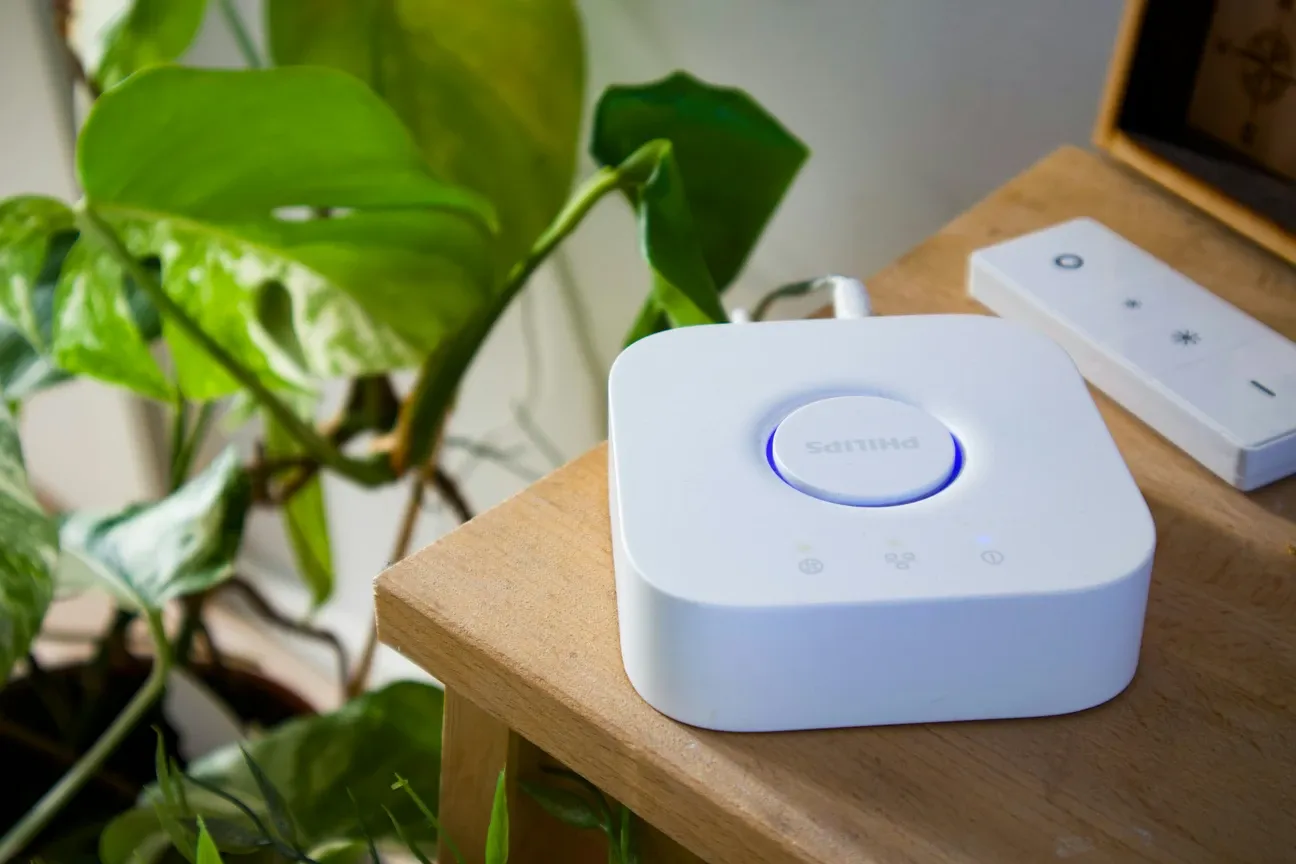
The Home Assistant Hue integration is the cleanest way to pull Hue lights into a bigger smart home. My flat has a Hue Bridge with five bulbs and a Hue Go, sitting next to Home Assistant and a SmartThings hub that still handles part of the automations there. Even at that scale, the integration goes well beyond what the native Hue app can do. Philips Hue gives good light control through its mobile app. But pairing it with a smart home hub like Home Assistant adds advanced rules, central device control, and local use without the cloud. This guide shows how to connect Philips Hue to Home Assistant step by step.
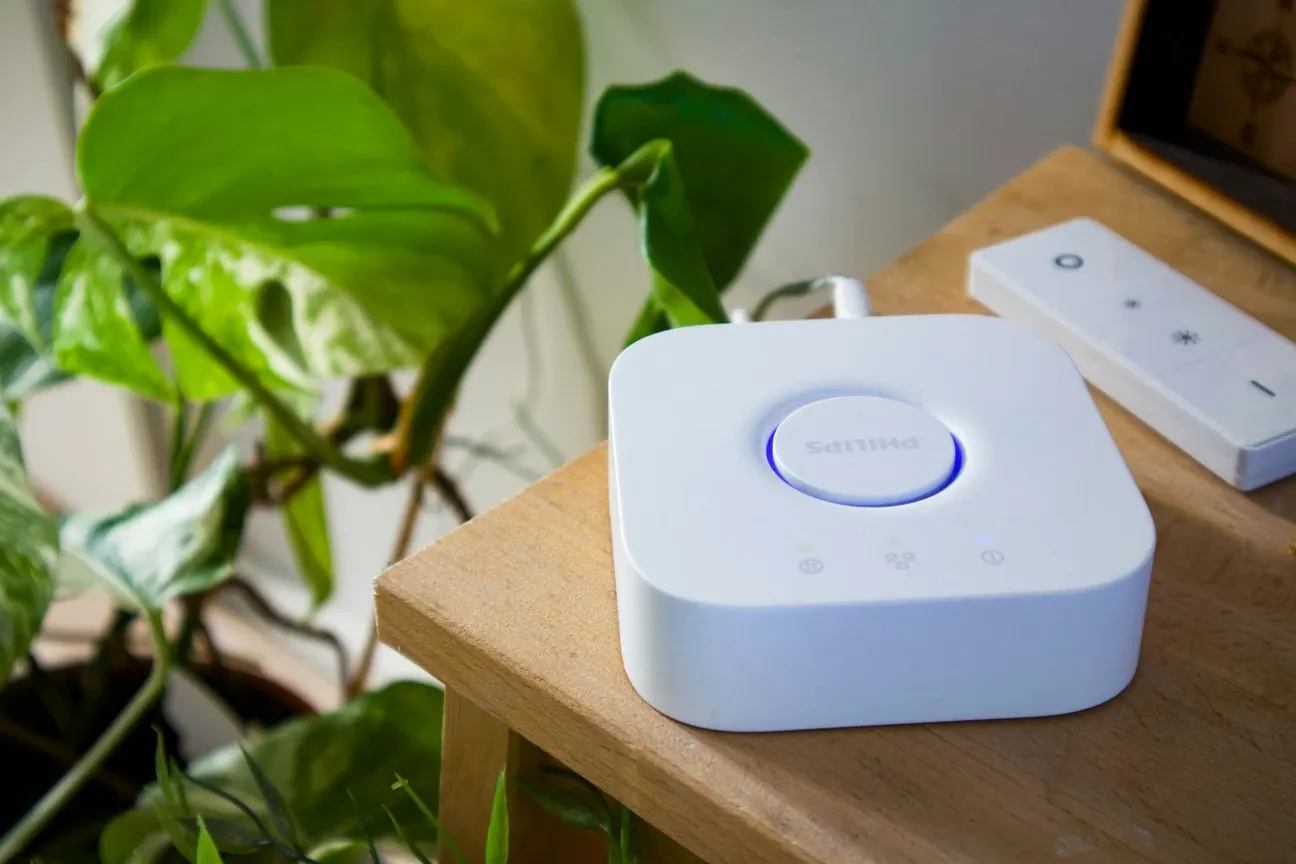
Bottom line: Philips Hue and Home Assistant run side by side on one Bridge. Setup takes a few minutes via auto-discovery. You gain cross-device automations, local control without cloud dependency, and lighting rules triggered by non-Hue sensors from any brand - none of which are possible in the native Hue app.
What Do You Need Before You Start?
This setup needs a Philips Hue Bridge (the Hue hub) wired to your router. The standard Bridge has no Wi-Fi radio, so it needs a wired link. You'll also need the hub's IP address. Find it in your router's device list or the Hue app settings. The hub uses ZigBee 3.0 and, according to Philips, supports up to 50 lights and 12 accessories. Those include bulbs, motion sensors, and dimmer switches. Each powered bulb acts as a signal repeater. This extends the mesh range.
Zigbee itself is specified by the Connectivity Standards Alliance. The Philips Hue integration ships built into Home Assistant and has done since version 0.60. Home Assistant's official Hue integration page lists every supported entity type and any version-specific configuration notes. You don't need HACS or any add-ons. Updates come through the standard Home Assistant cycle.
How Do You Set Up the Philips Hue Integration?
The whole setup takes a few minutes. Here are the steps:
- Go to Settings then Devices & services in Home Assistant
- Click ADD INTEGRATION and search for "Philips Hue"
- Enter your hub IP address when asked
- Press the button on the hub within 30 seconds to confirm
After that, Home Assistant finds all your lights, sensors, and switches on its own. With a handful of bulbs the import is quick, and everything shows up as ready-to-use entities.
How Do You Control Devices and Set Up Automation?
Home Assistant gives you a single dashboard for all Hue devices. It lets you build rules that the native app cannot do. The kinds of rule it unlocks:
- Motion-activated lighting with custom delay timers and brightness curves
- Multi-room grouping that runs lights across whole floors at once
- Mixed-device scenes that combine Hue with non-Philips devices
- Third-party switch control like the LIFX Switch with Night Vision for wall-mounted use
Note for motion sensor users: Hue motion sensors must be unlinked from the Hue app before Home Assistant can run their rules. In the Hue app, go to Settings then Accessories. Select your sensor and tap "Configure in another app." This stops conflicts between the two platforms.
Why Is Home Assistant Better Than the Philips Hue Native App?
Four clear wins make the extra setup worth it.
Local control: Home Assistant runs without the cloud. Your rules keep working during internet outages. The native Hue app needs the cloud for geofencing and remote use. Home Assistant doesn't.
Advanced rules: The platform supports conditions, time schedules, and multi-device triggers, so lights can react to weather data, room use, and sensors from brands Hue has never heard of. You can also link Home Assistant rules with Google Home and other voice platforms.
Cross-brand device control: Home Assistant brings all your devices into one place. It lets you run Hue lights with third-party switches, temp sensors, and voice tools through one engine. In my flat the same Home Assistant that can talk to a Hue Bridge also reads the MAX! heating gateway locally, so a Hue bulb and a radiator thermostat from a discontinued product line can land in one rule if I want them to, two ecosystems that have no idea the other exists.
Fine-tuned settings: Turn on Home Assistant's advanced mode for direct YAML editing. This gives precise control over poll times, fade speeds, and device options. Check Hue Bridge firmware each month in the Hue app. Keep the hub within 3 meters of your router for a stable wired link and mesh.
How Does the Philips Hue and Home Assistant Technology Work?
| Component | Role and Specs |
|---|---|
| ZigBee 3.0 | Low-power mesh protocol at 2.4GHz. Philips Hue bulbs relay signals to each other, so every powered bulb extends the mesh |
| Ethernet Link | Wired link for Hue Bridge. Keeps the Bridge on a stable local link to Home Assistant and avoids Wi-Fi issues |
| Hue Bridge | Runs the ZigBee mesh for up to 50 lights and 12 accessories. Translates between ZigBee radio and Home Assistant's IP-based messages |
The ZigBee mesh is self-healing. Powered devices like bulbs and plugs act as signal repeaters, so when a node drops the rest route around it. With only five bulbs I can't speak to how it behaves at the Bridge's limits; with a handful, it simply never comes up.
What Automation Examples Work Well with Hue?
These are the rule types worth building first:
- Circadian lighting: Shift color temp from 2700K warm white in the evening to 5500K daylight at noon, synced with local sunrise and sunset times through Home Assistant's sun tool.
- Motion-based savings: Sensors turn on lights per room and shut them off after a few minutes with no motion. How much that saves depends entirely on how often you used to leave lights on, so be wary of anyone's percentage.
- Movie mode: One scene can dim the living room to 5%, set bias light behind the TV to 10%, and switch off hall sensors to avoid breaks during viewing.
- Color alerts: Bulbs can change color based on temp sensor data, say blue when the room drops below 18 C and orange above 26 C. That gives quick visual feedback without checking a display.
- Wake-up light: A 30-minute sunrise effect can raise bedroom brightness from 0% to 100% while color temp shifts from 2000K to 4000K, a calmer wake-up than a harsh alarm.
A non-Hue ceiling light such as the Govee Smart Ceiling Light can sit in the same Home Assistant scene as Hue accent lights, which is the whole point of running them through HA rather than the Hue app.
What Is the Honest Take?
This setup delivers on its promise of better automation. But it also has real limits worth knowing before you start. Local control is the reason I moved lighting logic off the cloud in the first place: a cloud automation that fails doesn't tell you, you just find the room dark. Setup is harder than plug-and-play options. You need basic network skills to find the Bridge IP and fix mesh issues.
The Bridge's limit of 50 lights and 12 accessories can become a problem in larger homes. You may need to plan device spots carefully and remove rarely-used items. ZigBee mesh health depends on how you place your powered bulbs; gaps over roughly 10 meters are where sensor drops tend to start. Home Assistant has a learning curve. It may frustrate users who want simple app control. But the automation power justifies the initial setup work.
For homes that value privacy, local use, and multi-device control, this link offers real gains over the native Hue app. Users who are fine with basic YAML editing and network checks will get the most out of it. Those who prefer simple mobile apps may find the added work not worth it for their needs.
How Do You Troubleshoot Common Philips Hue Issues?
Integration shows "unavailable" after restart
This usually means your Hue Bridge changed its IP address. Home Assistant stores the IP at setup time. Fix it by assigning a static IP to your Bridge in your router's DHCP settings. In the router admin panel, find the Bridge by MAC address (printed on the Bridge label) and reserve its current IP permanently. After reserving the IP, reconfigure the integration in Settings > Devices & Services > Philips Hue.
Devices missing after initial import
Devices added to the Hue app after the initial Home Assistant setup do not appear automatically. In Home Assistant, go to Settings > Devices & Services > Philips Hue and click "Re-authenticate" or remove and re-add the integration to force a full rescan. You won't lose your automations when you re-add the integration since automations reference entity IDs, not the integration itself.
ZigBee mesh drops and sensor timeouts
Sensors dropping off the mesh is almost always a coverage gap. ZigBee signals weaken over distance, and walls reduce range significantly. Add powered Hue bulbs or smart plugs between your Bridge and the problem sensor. Each powered device acts as a repeater. Target no more than a 10-meter gap between any two powered mesh devices, and put the extra bulb in a stairwell or hallway rather than another room, since that is usually where the mesh has to cross a floor. A plain mains-powered bulb like the Hue White Ambiance A60 in a hallway fitting is the cheapest repeater you can buy, and it routes for the battery sensors around it.

What Advanced Hue Automations Can You Create in Home Assistant?
The key advantage is cross-device automation. Hue lights can sit in a single rule chain with devices from any other brand Home Assistant speaks to, which is impossible in the native Hue app. A motion sensor from any brand can trigger Hue lights. That's Home Assistant's core value for Hue users.
Adaptive lighting is another win. Home Assistant calculates your local sunrise and sunset times. It adjusts Hue color temperature all day. The transitions are smoother than Hue's built-in time steps.
Presence-based automations are also powerful. When your phone GPS shows you are 10 minutes away, lights switch to a welcome scene. When everyone leaves, all lights turn off on their own. No manual checking needed. No more lights running all day by accident.
How Do You Troubleshoot Hue Integration Issues?
If Hue lights stop responding, check the Bridge IP first. Routers can assign a new IP after a restart. Set a static IP in your router's DHCP settings. Then update the IP in the Home Assistant Hue integration to restore the link.
Slow response times usually point at the network rather than the integration. Home Assistant's documentation says a V2 (square) Bridge pushes state changes instantly over a local event stream, while an old V1 (round) Bridge can only be polled on an interval, so lag on a V1 is expected. On a V2, check for a weak Wi-Fi link between your phone and the router, or a thin Zigbee mesh around the slow bulb, before blaming Home Assistant.
What Quick Tips Help with Hue in Home Assistant?
Keep your Hue Bridge on a wired connection. Philips itself recommends Ethernet for the most reliable link, even on the newer Bridge Pro that can also use Wi-Fi. Update the Hue Bridge firmware regularly. Open the Hue app and check for updates monthly. Firmware updates fix bugs and add new features.
Name your bulbs clearly from the start. Good names like "Bedroom Ceiling" or "Kitchen Island" make automations easy. Vague names like "Light 1" cause confusion later.
Test automations during setup. Turn each light on and off from Home Assistant to confirm the link works. Fix issues now rather than discovering them during an important automation.
Group lights into rooms in Home Assistant. Groups let you control all lights in a room with one action. This saves time and simplifies automation rules.
Why Does the Philips Hue Integration Work So Well?
Hue is a top choice for smart home lighting. It has been on the market for years. It works well. The bulbs last a long time. The app is easy to use. Home Assistant makes it even better. You get more control. You build better rules. You use all your devices together. That is the goal of a smart home.
Start with one room. Get it working well. Then add more rooms. Take your time. Each step is small. The result is a home that responds to you. Lights turn on when you need them. They turn off when you leave. It just works.
Frequently Asked Questions
Can I use Hue without the Philips Hue Bridge?
Yes. With a Zigbee USB dongle (the Sonoff Zigbee 3.0 USB Dongle Plus is a popular, inexpensive choice) and either the ZHA or Zigbee2MQTT integration, you can pair Hue bulbs directly to Home Assistant without the Bridge. The trade-offs are real: you lose the Hue app, Hue Entertainment (sync with movies and games), Hue-native scenes, and native HomeKit through Hue's own system. Going bridgeless saves the price of the Bridge and works well if your home is fully HA-centered and no one else needs the Hue app. In mixed households where some people use Hue app and some use HA, keeping the Bridge makes more sense: the Hue app stays the simple remote for anyone who doesn't want to touch Home Assistant. Both work simultaneously without conflict for basic on/off and dimming.
Can the Hue app and Home Assistant run together?
Yes, both control the same Bridge simultaneously without conflict for basic light control. A V2 (square) Bridge pushes state changes to Home Assistant over a local event stream, so changes made in the Hue app show up in HA almost immediately and vice versa. The conflict zone is motion sensor rules: if the Hue app and HA both have automations on the same sensor, they fire together and cause double commands (light turns on, then off, then on again). Fix: in the Hue app go to Settings > Accessories > find the sensor > tap "Configure in another app" to unlink sensor rules from Hue. Then manage all sensor-triggered automations from HA only. Dimmer switch button actions have the same issue, pick one platform per input device. The symptom to watch for is a light that flicks on, off, and on again from a single trigger; once sensor rules live in one place only, it stops.
Does Hue integration work without internet?
Yes. The Hue integration uses Hue API v2, which is a local REST API with server-sent events, all communication happens directly between Home Assistant and the Bridge on your network, no cloud relay involved. No internet connection is required for device control, automation triggers, or scene activations. Linking happens on your own network (you press the button on the Bridge), and nothing in the daily control path leaves your network. Remote access from outside your home still needs internet: Nabu Casa (the paid Home Assistant Cloud subscription) or a VPN to your home network handles that. The Bridge itself needs internet for its own firmware updates and for the Hue app's remote access feature, but neither of those affects HA's local control. Local operation survives ISP outages completely.