Complete Home Assistant Setup Guide 2026: From Zero to Automations

This post may contain affiliate links. As an Amazon Associate we earn from qualifying purchases. Disclosure.
Home Assistant is free, local smart home software with 1,500+ integrations, and most people overthink the hardware. A Raspberry Pi 4 or 5, or a Home Assistant Green, gets you running in about two hours, from HA OS install through your first Zigbee device and your first automation.
Home Assistant is free, open-source, local-first software that runs on hardware you control. No subscription. No cloud dependency. No company shutting down your devices because they pivoted. The Home Assistant project advertises more than 1,500 integrations and says your data stays local, with a fall back to the cloud only when a device leaves no other option. For my own house build I run it on a Raspberry Pi 5 mounted on a DIN rail in the electrical panel, but the steps below work on whatever hardware you have. Once you're up and running, start with the best Home Assistant integrations so you're not lost in that long list.
This guide is a complete walkthrough of everything you need to go from zero to a working smart home with real automations. You'll have HA running in about two hours, your first devices connected shortly after, and your first automation firing by end of day.
TL;DR: Home Assistant is free, local smart home software with 1,500+ integrations. You need a Raspberry Pi 4 or 5 (at least 2 GB of RAM, per the official install page) or similar hardware, a 32GB+ SD card or USB SSD, and 1-2 hours. By the end of this guide you'll have HA OS installed, devices connected, and your first automation running.
What Do You Need Before You Start?
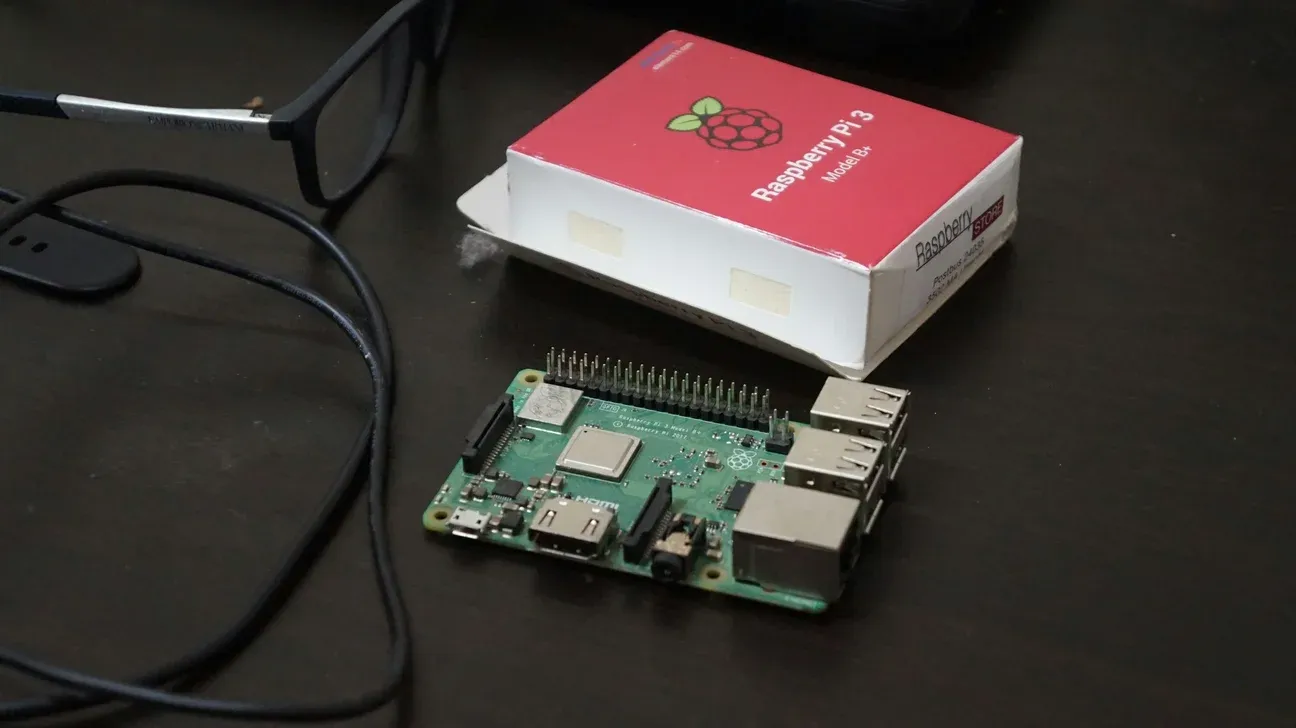
Most beginners overthink the hardware. Home Assistant runs well on surprisingly modest hardware. The official install page lists a Raspberry Pi 4 or 5 with at least 2 GB of RAM as the minimum, and the 4GB or 8GB models give you room to grow. Here's a quick checklist of what you need:
- Raspberry Pi 4 (4GB+) or similar low-power computer
- 32GB+ microSD card or USB SSD (an endurance-rated card is the safer pick)
- Ethernet cable and router port (Wi-Fi works but wired is better)
- Computer or phone to run the browser UI
- About 1-2 hours for initial setup
Hardware Options
Raspberry Pi 4 (4GB) is the safe default for most people. It's quiet, sips power, and it's one of the boards Home Assistant's own install page lists. Pi prices have moved around with memory costs, so check what it costs today before you plan a budget around it.
Raspberry Pi 5 is the newer supported board and has more headroom than the Pi 4. It's what I chose for the house build, where it sits on a DIN rail next to the breakers and runs from an industrial 5 V supply instead of a phone charger. If you're buying new hardware in 2026, it's worth pricing against the Pi 4.
Intel NUC or mini PC makes sense if you want maximum performance or already have one sitting around. Home Assistant OS supports x86-64 installations natively. Used and new mini PCs are increasingly popular in the Home Assistant community as an alternative to the Pi, according to the project's own announcement of the Yellow's end of production.
Home Assistant Green is Nabu Casa's own plug-and-play box with Home Assistant OS already installed, and it's the easiest hardware option if you want everything in one box. Its sibling, the Home Assistant Yellow with a built-in Zigbee radio, went out of production in October 2025, so don't plan a new build around it.
Virtual machine works fine too. You can run HA OS as a VM on any existing Windows, Mac, or Linux machine using VirtualBox or Proxmox. Good for testing before committing to hardware.
Storage and Network
This part matters more than most guides admit. A cheap microSD card is the classic failure point, because Home Assistant writes to its database constantly and worn cards tend to fail without much warning. Use a high-endurance card of at least 32 GB (the official minimum) or, better yet, boot from a USB SSD, which the Pi 4 and Pi 5 both support.
Wired ethernet beats Wi-Fi every time for the HA host. Plug your Pi directly into your router if at all possible. Wi-Fi works, but you'll see occasional dropped device connections that are hard to debug until you switch to ethernet. If you'd rather run HA on existing hardware instead of a Pi, our Home Assistant Docker setup guide covers that route in detail.
Step 1: How Do You Install Home Assistant OS?
Installing HA OS on a Raspberry Pi is mostly waiting for files to copy.
Flash the SD Card or USB Drive
First, download the Raspberry Pi Imager from the official Raspberry Pi website. Install and open it. Click "Choose OS," then scroll down to "Other specific-purpose OS," then "Home Assistants and Home Automation," then "Home Assistant." Pick the version for your specific hardware (Raspberry Pi 4 64-bit, or the 64-bit build for the Raspberry Pi 5, the newer board). Keep it current after install, too: Home Assistant OS 18 reworked how updates and backups behave, and it's worth knowing what changed.
Insert your SD card or USB drive, click "Choose Storage," select your media, and click "Write." The imager downloads and flashes in one step. How long that takes depends on your internet speed.
Don't customize any settings in the imager, no Wi-Fi, no SSH. Home Assistant handles its own network configuration.
First Boot
Eject the SD card, plug it into your Pi, connect ethernet, connect power. That's it. No keyboard, no monitor needed.
Wait. The official install page says the UI should be reachable within a few minutes, and within about a minute on a Pi 4 or 5 once the image is up. HA OS may also download the latest Home Assistant release during this first startup, which can stretch it out. Don't unplug it.
After a few minutes, open a browser on any device connected to your network and go to http://homeassistant.local:8123. If that doesn't load, try http://192.168.1.x:8123, replace x with your Pi's IP address (check your router's device list).
You'll see a loading screen. Once it shows the onboarding wizard, the installation succeeded.
What About VMs?
If you're going the VM route, download the HA OS .vmdk or .qcow2 image from the Home Assistant releases page. Import it into VirtualBox or Proxmox, set the network to "bridged adapter," and boot. The same homeassistant.local:8123 address works once it's running.
Step 2: How Do You Configure It at First Boot?
The onboarding wizard walks you through everything, but knowing what's coming helps.
Create Your Account
First screen asks for a name, username, and password. This is your local admin account. Write down the password, there's no "forgot password" for local HA accounts without some manual recovery steps.
Set Your Location
HA uses your location for time-based automations: "after sunset" triggers, "when I'm home" presence detection. Set your timezone and drop the map pin on your home. Don't worry about precise coordinates. City-level accuracy is fine for sunset calculations.
An analytics opt-in appears here. Sharing is optional, nothing is sent unless you agree, and the data is anonymized and helps the team prioritize features. It's your call.
Discover Existing Devices
HA scans your network and finds devices automatically. On a typical home network it picks up things like Chromecasts, smart TVs, Sonos speakers and network gear within a minute or so. Don't add everything now. Skip what you don't recognize and come back to it.
After the wizard finishes, you land on the main dashboard. It's sparse right now. That changes fast.
Step 3: How Do You Add Your First Devices?
This is where Home Assistant gets interesting. The integrations panel at Settings > Devices and Services is your main hub for connecting everything.
Zigbee Devices (ZHA or Zigbee2MQTT)
Zigbee is the protocol I'd recommend for most beginners. Local, fast, reliable, and devices are cheap. You need a USB Zigbee coordinator to connect Zigbee devices to HA.
A common starter coordinator is the SONOFF Zigbee 3.0 USB Dongle Plus (the CC2652P model). It plugs directly into the Pi's USB port, and Home Assistant detects it automatically. When you add the "Zigbee Home Automation" (ZHA) integration, it scans for the dongle and walks you through the rest. For the house build I went with the official Home Assistant Connect ZBT-1 instead.
ZHA is the built-in option, easier setup, works great for most devices. Zigbee2MQTT is the advanced alternative with broader device support, but requires more configuration. Start with ZHA.
To add a Zigbee device: go to Settings > Devices and Services > ZHA > Add Device, then put your device in pairing mode (usually hold a button for 5-10 seconds). HA normally finds it within a minute.
Z-Wave Devices
Z-Wave works similarly. You need a Z-Wave USB stick, the Aeotec Z-Stick 7 and the Zooz 800 Series USB stick are two popular choices. Add the "Z-Wave JS" integration, point it at the USB stick, done.
Z-Wave devices tend to cost more than Zigbee but cover longer range. Worth it for locks and outdoor sensors.
Wi-Fi and LAN Devices
No dongle needed here. TP-Link Kasa plugs and switches have a native HA integration that discovers them automatically once you add it. Same with Sonoff devices flashed with stock firmware, just add the eWeLink integration.
Philips Hue connects through its bridge. Add the "Philips Hue" integration, HA finds the bridge on your network, press the button on top of the bridge when prompted, and all your bulbs appear.
Cloud Integrations (Nest, Ecobee, etc.)
For Nest thermostats you need to set up a Google Developer account first, it's a fiddly process involving creating a project in Google Cloud Console and enabling the Smart Device Management API. Annoying, but it's a one-time thing. Ecobee is easier: add the integration, log in with your Ecobee account, done.
Connect an ecobee SmartThermostat Premium this way and you can build the kind of automation its own app won't: drop the temperature 30 minutes before bed, then recover it based on the actual wake-up alarm rather than a fixed schedule. The same logic works against any heating device Home Assistant can control, a heat pump included.
Step 4: How Do You Create Your First Automation?
Why bother with local automations when Alexa works? Because Alexa breaks when Amazon's servers are down, doesn't know what time sunset is unless it asks Amazon, and can't respond to a door sensor opening without going through the cloud. Local automations are faster, more reliable, and don't require an internet connection.
Using the Visual Automation Editor
Go to Settings > Automations and Scenes > Create Automation > Create New Automation. You'll see three columns: Triggers, Conditions, and Actions.
A simple first automation: turn on the hallway light when the front door opens after sunset.
Trigger: Click "Add Trigger," choose "Device," select your door sensor, pick "door opened" as the event.
Condition: Click "Add Condition," choose "Sun," select "After sunset." This means the automation only fires when it's dark outside.
Action: Click "Add Action," choose "Device," select your hallway light, pick "Turn on."
Save it. Test it by opening your front door after sunset. The light should come on almost immediately, because nothing has to leave your network first.
The visual editor generates valid YAML behind the scenes. Click the three-dot menu and "Edit in YAML" to see it. Most people stick with the visual editor, which is fine.
Trace Your Automations
Home Assistant 2026.x includes an automation tracer that shows why an automation fired or didn't fire. If something doesn't work, go to the automation, click the three-dot menu, and open "Traces." It shows the last 5 runs with full state information. This saves hours of debugging.
Step 5: How Do You Install HACS?
The built-in integrations cover a lot. But the Home Assistant Community Store (HACS) adds thousands more, custom dashboards, integrations for obscure devices, themes, and tools the official team hasn't had time to build yet.
HACS installation takes about 10 minutes. The full walkthrough is in the HACS installation guide, but the short version: enable advanced mode in your profile, install the HACS integration through the UI (it walks you through GitHub authentication), restart, and it appears as a new section in your sidebar.
Three HACS Integrations Worth Installing Immediately
Mushroom Cards, a card library for building clean, modern dashboards. The default Lovelace cards are functional but dated. Mushroom makes your dashboard look like it belongs in 2026.
HACS UI Lovelace Minimalist, a full dashboard theme and card set. Opinionated, but beautiful. If you want a polished UI without spending hours tweaking, install this first.
Local Tuya, if you have Tuya-based smart plugs or switches (Gosund, Treatlife, many no-name brands), this integration controls them locally without routing through Tuya's cloud. Faster response and no dependency on Tuya staying operational.
Step 6: How Do You Set Up Remote Access?
Your Home Assistant is running locally right now. That means you can only access it from your home network. Getting remote access right is worth doing early.
Nabu Casa (Easiest Option)
Nabu Casa is the official cloud subscription from the Home Assistant team. It costs $6.50/month and gives you a *.ui.nabu.casa URL that works from anywhere, plus voice assistant integration with Google Assistant and Alexa.
Setup takes 5 minutes: go to Settings > Home Assistant Cloud, create an account, and your remote access URL appears immediately. No router configuration, no firewall rules, no certificates. It just works.
It's worth the money if you want Google Assistant or Alexa to reach your local HA devices, and the subscription directly funds Home Assistant development. The $6.50 figure is US pricing, and Nabu Casa lists separate euro and pound prices.
Cloudflare Tunnel (Free, More Setup)
If you'd rather not pay a subscription, Cloudflare Tunnel gives you secure remote access for free. You need a domain name and a Cloudflare account. The tunnel client runs as an add-on in HA and creates an encrypted connection outbound to Cloudflare's network.
More setup than Nabu Casa, but the full method is covered in the remote access guide.
VPN
A Wireguard VPN running on your router or a separate device is the most private option. No third party involved. But it requires your router to support Wireguard (or running a separate VPN server), and accessing HA requires connecting the VPN first. More friction than Nabu Casa, more privacy than Cloudflare.
Response times differ a little between the three, but the automations themselves run locally either way, so for most controls the difference won't matter in daily use.
What Should You Do Next?
You've got a working Home Assistant installation. Here's where to go from here.
Node-RED for Complex Automations
HA's built-in automation editor handles simple trigger-condition-action flows well. For anything with loops, delays, complex logic, or multi-step workflows, Node-RED is significantly easier to reason about. It runs as an add-on inside HA and connects to all your entities.
The Node-RED with Home Assistant guide covers installation and building your first flow. Give it a try once you have 10+ automations, you'll understand why it exists.
Zigbee2MQTT for Advanced Zigbee
ZHA is great for getting started. Zigbee2MQTT gives you lower-level access, more device support (the compatibility list is longer), and a web UI for managing your Zigbee mesh. If you buy a device that ZHA doesn't fully support, Zigbee2MQTT usually does, and our Zigbee2MQTT setup guide covers the switch.
Backups (Do This Now)
Go to Settings > System > Backups and create a full backup right now. Then set up automatic daily backups. For the house build I split it in two: configuration lives in a private Git repository, with secrets kept out of it, and the data is backed up to cloud storage every 24 hours. Even copying backups to a USB drive once a week is better than nothing. One honest caveat: I haven't done a restore from either yet, and a backup you've never restored is a hope, not a backup. Try a restore on a spare Pi or a VM before you need one.
Updates
Home Assistant releases updates monthly. Major versions (2026.1, 2026.2, etc.) land on the first Wednesday of each month. Go to Settings > System > Updates to apply them. Read the release notes first, occasionally an update changes behavior that affects automations. A sensible habit is to wait for the first patch release before applying a new major version.
The order matters more than the timing. When several updates are waiting, apply them as OS first, then Supervisor, then Core, and add-ons last. Going the other way is how you end up with an add-on built against a Core version you have not installed yet. Before any of it, take a backup from Settings > System > Backups and name it after the day, something like pre-update-2026-06-05, with add-ons and settings included. That backup is the entire rollback plan: if an update breaks something, Restore puts the system back where it was in a few minutes.
From the SSH add-on the same sequence is four commands:
ha os update
ha supervisor update
ha core update
ha addons update --all
Docker users pull the new image and rebuild the container instead, and should copy the config/ folder first, because there is no Supervisor to hold a backup for you.
Afterwards the dashboard may sit blank for a minute while the system restarts. Leave it alone rather than pulling the power. Once it's back, check Settings > About for the new version and Settings > System > Logs for errors that were not there yesterday. If some devices did not come back, a restart from Settings > System usually finds them.
What Are the Common Problems and Fixes?
These are the usual suspects when a fresh install misbehaves.
Device Not Discovered
If a device doesn't show up automatically, go to Settings > Devices and Services and click "Add Integration." Search by brand or protocol. If it's a Zigbee device, make sure ZHA is installed and the device is in pairing mode. For Wi-Fi devices, confirm the device is on the same network subnet as your HA instance.
Restarting Home Assistant (Settings > System > Restart) often clears discovery problems. It sounds like a joke. It isn't.
Slow Startup
If HA takes more than 3 minutes to start, you're almost certainly running from a cheap microSD card. Move to a USB SSD, which usually makes a big difference. The official HA documentation covers the standard SD card install, and the Pi 4 and Pi 5 can boot from USB too.
A common mistake is leaving Home Assistant on a microSD card long after the install stops being an experiment. MicroSD cards can fail quietly, and you lose the database with them.
Automations Not Firing
First, check that the automation is enabled (toggle switch on the automation list page). Then open the automation and click the "Trace" button, it shows the last run with full state data. Most firing failures come down to a condition blocking execution, or the trigger entity being in an unexpected state.
If the trace shows the automation never triggered at all, verify the trigger entity's state is actually changing. Go to Developer Tools > States and find your entity. Watch the state column while triggering the device manually.
Integration Unavailable After Restart
Cloud integrations (Nest, Ecobee, Hue cloud) sometimes show as unavailable after a HA restart because the connection handshake times out. Wait 2-3 minutes before assuming something is broken. If it's still unavailable, go to the integration page and click "Reload."
Integrations that rely on local network discovery (mDNS, SSDP) tend to be the first to flake on busy or segmented networks, since multicast discovery doesn't cross VLANs by default. Assigning static IP addresses to your smart home devices and configuring integrations to use those IPs directly bypasses this entire class of problem.
Frequently Asked Questions
How long does it take to set up Home Assistant from scratch?
Flashing and first boot are quick once you have the hardware, usually well under an hour. Connecting your first handful of devices takes longer, and it depends on how many protocols you use. Building your first few automations adds more time on top. Plan for a full afternoon your first time.
Can I run Home Assistant without a Raspberry Pi?
Yes. Home Assistant runs on any x86-64 machine as a virtual machine (VirtualBox, Proxmox, VMware), in a Docker container on Linux or a NAS, or on dedicated hardware like the Home Assistant Green or an ODROID. The Raspberry Pi is popular because it's cheap, quiet, and low power, but it's not required.
What's the difference between Home Assistant OS, Container, and Core?
Home Assistant OS (HAOS) is the full operating system image, easiest to install, includes the supervisor and add-on store. Home Assistant Container is just the HA Docker image without the supervisor, no add-ons. Home Assistant Core is the Python application only. For beginners, always use HAOS.
Do I need to pay for anything to use Home Assistant?
Home Assistant itself is free and open-source. The hardware cost depends on what you choose, from a Raspberry Pi you may already own to a ready-made Home Assistant Green. Nabu Casa remote access is $6.50/month in the US (optional), with euro and pound pricing elsewhere. Some integrations require a cloud account with the manufacturer, but those accounts are usually free.
Is Home Assistant hard to maintain?
It's more involved than plug-and-play cloud hubs. Monthly updates take 5 minutes. Occasional integrations break when manufacturers change their APIs, which happens with cloud integrations but rarely with local ones. Backups and restores are straightforward.
Sources & References
- Home Assistant - Installation home-assistant.io
- HACS - User documentation hacs.xyz
- Nabu Casa - Official Home Assistant products nabucasa.com