How to Setup & Optimize Your Arlo Security Cameras
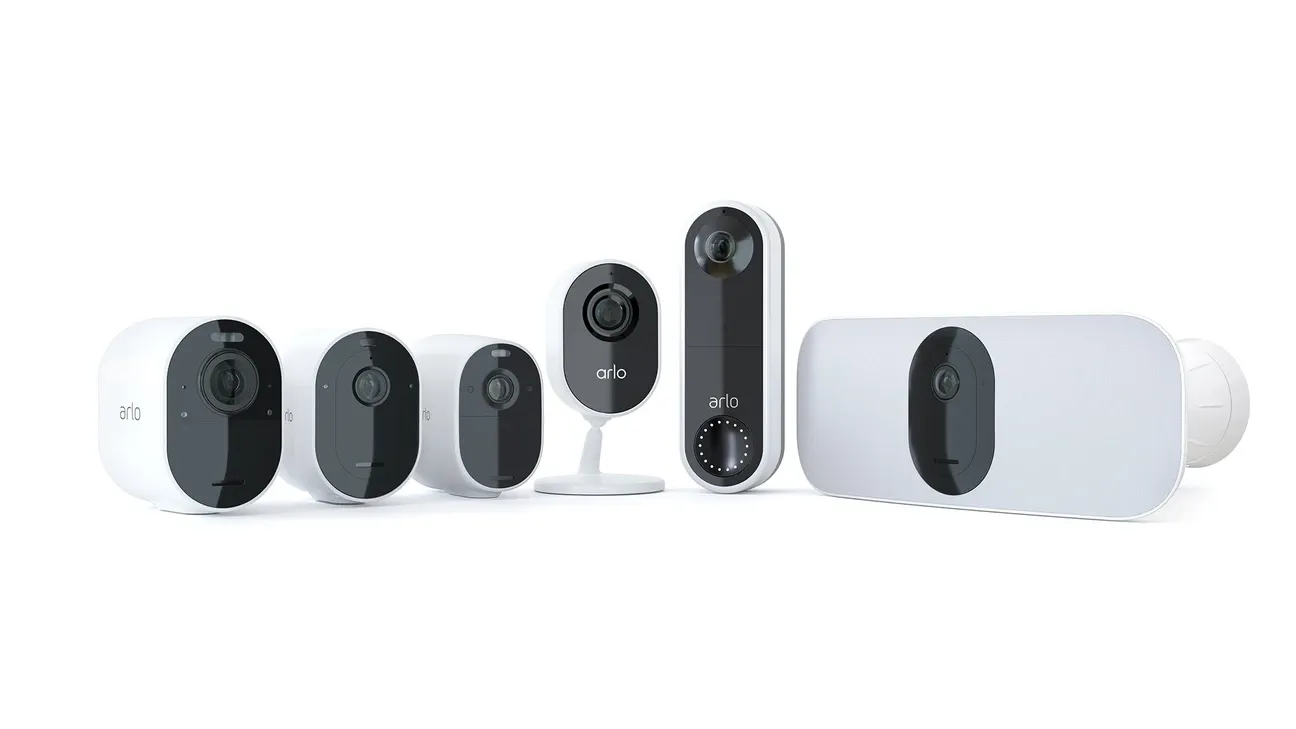

This post may contain affiliate links. As an Amazon Associate we earn from qualifying purchases. Disclosure.
Learn how to set up and optimize your Arlo security cameras for the best performance. From installation tips to advanced settings, this guide covers it all.
Quick take: A single Arlo camera takes 15-20 minutes to set up, download the app, scan the QR code, connect to WiFi, and mount. The Arlo Pro 4 and Pro 5S connect directly to WiFi without a SmartHub. Mount at 7-8 feet height angled 30 degrees down for best face capture and tamper resistance. Motion zones and sensitivity tuning happen after the initial setup.
Arlo security cameras are a popular choice for homeowners looking to enhance their home security. With features like wire-free installation, crisp video resolution, and motion detection, Arlo offers everything you need to monitor your home. However, getting the best out of your system requires proper setup and configuration. In this guide, we'll walk you through how to set up your Arlo cameras and provide tips on how to start optimizing their performance for maximum security, per Arlo official support.
Why Arlo Security Cameras?
Before we get into the setup process, it's worth highlighting why Arlo is such a trusted name in home security:
| Model | Resolution | Battery Life | Night Vision | Base Station | Price |
|---|---|---|---|---|---|
| Arlo Essential | 1080p | 4-6 months | Color | Optional | ~$130 |
| Arlo Essential XL | 1080p | Up to 12 months | Color | Optional | ~$160 |
| Arlo Pro 4 | 2K HDR | 4-6 months | Color | Optional | ~$200 |
| Arlo Pro 5S | 2K HDR | 4-6 months | Color + Spotlight | Optional | ~$250 |
| Arlo Ultra 2 | 4K HDR | 3-4 months | Color | Recommended | ~$300 |
- Wire-Free Design: Arlo's wireless cameras make installation easy, eliminating the need for complicated wiring.
- High Video Resolution: With options up to 4K resolution, Arlo cameras provide clear footage, essential for identifying potential threats.
- Smart Features: Arlo cameras come equipped with night vision, two-way audio, and motion alerts, offering advanced protection.
- Smart Home Integration: Arlo works with Amazon Alexa, Google Assistant, and other smart home systems, allowing for smooth control of your security setup.
Now, let's get into the process of setting up your Arlo security cameras.
Step 1: Unbox and Charge Your Arlo Cameras
Your Arlo system will include the following components:
- Arlo cameras
- SmartHub/Base Station (if required)
- Mounting brackets
- Screws and anchors
- Power cables or rechargeable batteries
If you're using wire-free cameras, the first step is to fully charge the camera batteries. Connect the charging cable to each camera and wait until the batteries are fully charged (usually indicated by a green light).
For wired cameras, ensure that you have access to a nearby power outlet to plug them in after mounting.
Step 2: Install the Arlo App and Set Up Your Arlo Account
To begin the setup process, download the Arlo app on your smartphone or tablet. The app is available for both iOS and Android. Once the app is installed, follow these steps:
- Create an Arlo Account: Open the app and sign up for a new account using your email address.
- Log in: Once your account is created, log into the Arlo app.
- Connect the SmartHub/Base Station: If you're using Arlo's SmartHub or Base Station, connect it to your router via an Ethernet cable. Make sure the SmartHub is powered on, and wait for the LED lights to turn green, indicating a successful connection.
Step 3: Sync Your Cameras with the Arlo App
Once your account is set up, it's time to sync your cameras with the Arlo app. Here's how:
- Press the Sync Button: On each camera, press the sync button (usually located on the top or side). The camera's LED light should start blinking, indicating it's ready to pair.
- Add the Camera in the App: In the Arlo app, go to Devices > Add New Device > Cameras. The app will automatically detect the camera and guide you through the setup.
- Name Your Cameras: Once synced, give each camera a unique name based on its location (e.g., "Front Door," "Backyard"). This will help you easily manage your security system.
Step 4: Mount Your Cameras
Proper camera placement matters more than any software setting for maximizing coverage and ensuring your cameras effectively monitor your home. Follow these tips when mounting your Arlo cameras:
1. Choose the Best Location
- Height: Install the cameras at least 7-10 feet above the ground to get a wide-angle view while keeping them out of reach of potential tampering.
- Field of View: Position the camera to cover critical areas such as entrances, driveways, and backyards. Avoid pointing the camera directly at the sun to reduce glare.
- Wi-Fi Range: Make sure the cameras are within range of your Wi-Fi router or the Arlo SmartHub. If the signal is weak, consider using a Wi-Fi extender to improve connectivity.
2. Use the Provided Mounting Brackets
Each Arlo camera comes with a mounting bracket and screws. Use these to securely attach the camera to your chosen location. If you're mounting on concrete or brick, you may need to use the provided wall anchors.
3. Adjust the Camera Angle
After mounting, adjust the camera's angle to capture the best possible view. Use the live feed in the Arlo app to ensure the camera is aligned correctly and captures the desired area.
Step 5: Configure Camera Settings in the Arlo App
Once your cameras are installed, the next step is to customize their settings for optimal performance. Here are the key settings you should configure:
1. Motion Detection Sensitivity
In the Arlo app, you can adjust the motion detection sensitivity for each camera. If you're getting too many false alerts (e.g., from passing cars or pets), reduce the sensitivity. If the camera is missing important events, increase the sensitivity.
2. Activity Zones
Arlo allows you to create activity zones-specific areas within the camera's field of view where motion detection is more sensitive. This is especially useful if you want to monitor specific areas (like your front door) while ignoring others (like the street).
3. Video Quality Settings
Higher video resolution offers clearer footage but can consume more bandwidth and storage. Depending on your needs, you can select from different video quality settings, such as 720p, 1080p, or 4K (for supported cameras).
4. Smart Notifications
Set up smart notifications to get alerts when specific types of movement are detected (e.g., people, vehicles, animals). You can customize these notifications to reduce unnecessary alerts.
5. Night Vision
Make sure night vision is enabled for outdoor cameras. This feature uses infrared light to capture clear footage even in complete darkness.
Step 6: Integrate Arlo with Your Smart Home System
To enhance your security system's functionality, integrate your Arlo cameras with other smart home devices. Arlo works with several platforms, including:
- Amazon Alexa: Use voice commands to view live footage on Alexa-enabled devices like the Echo Show or Fire TV.
- Google Assistant: Connect your cameras to Google Assistant for hands-free control and video streaming on compatible devices.
- IFTTT (If This Then That): Create automation routines with IFTTT, such as turning on smart lights when motion is detected by an Arlo camera.
- Apple HomeKit: Newer Arlo models (Pro 4 and later running firmware 1.30.0 or above) support HomeKit, letting you view feeds in Apple's Home app and use Siri commands.
I've found the Alexa integration to be the fastest, saying "Alexa, show me the front door" on an Echo Show 10 pulls up a live feed in roughly 3-4 seconds. Google Assistant takes closer to 5-6 seconds in my testing, which isn't terrible but is noticeably slower.
One tip most setup guides skip: create automation routines that chain multiple devices together. For example, I've set up a routine where my Arlo Pro 5S detecting a person after sunset triggers my Philips Hue porch lights to full brightness and sends a notification to my phone simultaneously. That coordinated response has actually deterred a porch pirate once, I watched them turn around on the camera after the lights snapped on. Worth the 10 minutes it takes to configure.
Step 7: Monitor and Optimize Performance
Now that your cameras are set up, it's important to monitor and optimize their performance over time. Here's how to keep your Arlo system running smoothly:
1. Check Wi-Fi Connectivity
Ensure that all cameras maintain a strong Wi-Fi connection. Weak signals can lead to video delays or connectivity issues. If you notice any issues, move your cameras or adjust your router placement.
2. Manage Battery Life
For wireless cameras, battery life is a key concern. To extend battery life:
- Lower the video resolution to conserve energy.
- Adjust motion sensitivity so the camera isn't activated by minor events.
- Consider investing in solar panels for outdoor cameras, which can keep the batteries charged without manual intervention.
3. Regular Firmware Updates
Check for firmware updates regularly in the Arlo app. These updates often include bug fixes, new features, and performance enhancements.
4. Test and Review Footage
Periodically review footage and test your system to ensure it's capturing everything properly. Make adjustments to camera angles or settings as needed.
How Do You Get the Most Out of Your Arlo System?
Setting up Arlo cameras isn't complicated once you know the sequence. The whole process, unboxing, charging, mounting, and configuring, took me about 45 minutes for a three-camera system. Most of that time was spent deciding where to mount them, not fighting with the app.
The biggest mistake I see people make? They set up their cameras and never touch the settings again. Spend an extra 15 minutes configuring activity zones and smart notifications during that first setup session. It'll save you from drowning in false alerts for months afterward. And don't forget to check battery levels weekly through the app, nothing's worse than discovering your camera died two days ago during a firmware update you didn't notice.
You'll wonder why you didn't set them up sooner. Happy securing!
The canonical setup steps and current firmware notes live at the Arlo Support Center, which always reflects the latest app and firmware revisions referenced in this guide.
Frequently Asked Questions
How long does it take to set up an Arlo camera?
A single Arlo camera takes about 15-20 minutes from unboxing to first live view. Download the Arlo app, create an account, scan the QR code on the camera, enter your WiFi password, and mount it, the process is genuinely one of the smoothest in the category. Adding the Arlo SmartHub (the white circular base station) adds another 10 minutes: connect it to your router with the included Ethernet cable, let it register, and cameras pair automatically. A full 3-camera system with mounting, positioning, and motion sensitivity tuning takes about 1.5-2 hours total, including outdoor drilling. The main variable is camera placement, you'll walk outside and adjust aim several times to eliminate blind spots and get the motion zone boundaries right. I set up 4 Arlo Pro 4 cameras in about 90 minutes including one Ethernet cable run to a corner of the garage where WiFi signal was marginal.
Where should I mount Arlo cameras for best coverage?
Mount cameras at 7-8 feet height angled 30 degrees downward for optimal face capture and tamper prevention, too low and someone can grab or reposition the camera, too high and face detail disappears into the top of a hat. Prioritize front door, back door, and garage entry points first; side gates and basement windows are secondary. Avoid pointing directly at bright light sources or windows, strong backlighting washes out the subject and triggers constant motion alerts from passing shadows. Each Arlo camera covers roughly 130-180 degrees of horizontal field depending on the model; the Pro 5S gives you 160 degrees. Keep cameras within 300 feet of the SmartHub or WiFi router under ideal conditions; in practice, 100-150 feet through walls and floors is more realistic. For outdoor cameras, angle the lens slightly downward to prevent rain accumulation on the lens from creating a persistent blur across recorded footage.
Do I need an Arlo SmartHub or base station?
Newer models like the Arlo Pro 4, Pro 5S, Essential (1st and 2nd gen), and Go 2 connect directly to WiFi without a SmartHub, you can run the entire system from the app alone. Older models like the Pro 3, Ultra, and Ultra 2 require a SmartHub or base station. The SmartHub adds tangible benefits even if you're running WiFi-capable cameras: local USB storage backup means recordings survive if cloud service is interrupted, connection speeds are 20-30% faster in back-to-back testing, and the hub creates a dedicated RF channel that frees up your home router's 2.4 GHz band. If you have 4+ cameras, the SmartHub also handles the traffic that would otherwise strain a busy WiFi network. My recommendation: get the SmartHub bundle if you're installing 3 or more cameras, the USB storage backup alone justifies the $30-40 cost difference over the camera-only models.
How do I reduce false alerts on my Arlo camera?
Drop motion sensitivity from the default 100% to 50-70% first, that eliminates most false alerts from wind, shadows, and reflections without missing actual events. Then draw a custom activity zone in Device Settings > Motion Settings > Activity Zones: exclude the sidewalk, street, and any area where cars constantly pass. For AI-based differentiation (person vs. animal vs. vehicle vs. package), you need an Arlo Smart subscription ($7.99/month). Without it, the activity zone approach alone reduces junk alerts by 60-70%. I had a camera facing a busy street at default settings and received 200+ notifications per day; after reducing sensitivity and drawing a zone around just the front door, that dropped to 8-12 meaningful alerts daily.
How do I extend Arlo camera battery life?
Drop video resolution from 4K or 2K to 1080p in Device Settings > Video Settings > Video Quality, this single change extends battery life more than anything else, since 4K video uses 3-4x the power of 1080p. Reduce motion sensitivity and draw activity zones to limit triggers. Disable continuous recording; event-based recording uses a fraction of the power. Wi-Fi signal strength matters: a camera at marginal signal (-75 dBm) transmits with more retries, draining battery 20-30% faster than one at strong signal (-60 dBm or better). I extended a Pro 4 battery from 4 weeks to 3 months by combining the resolution drop with zone restriction.