How to Build a Wall-Mounted Home Assistant Tablet Dashboard

This post may contain affiliate links. As an Amazon Associate we earn from qualifying purchases. Disclosure.
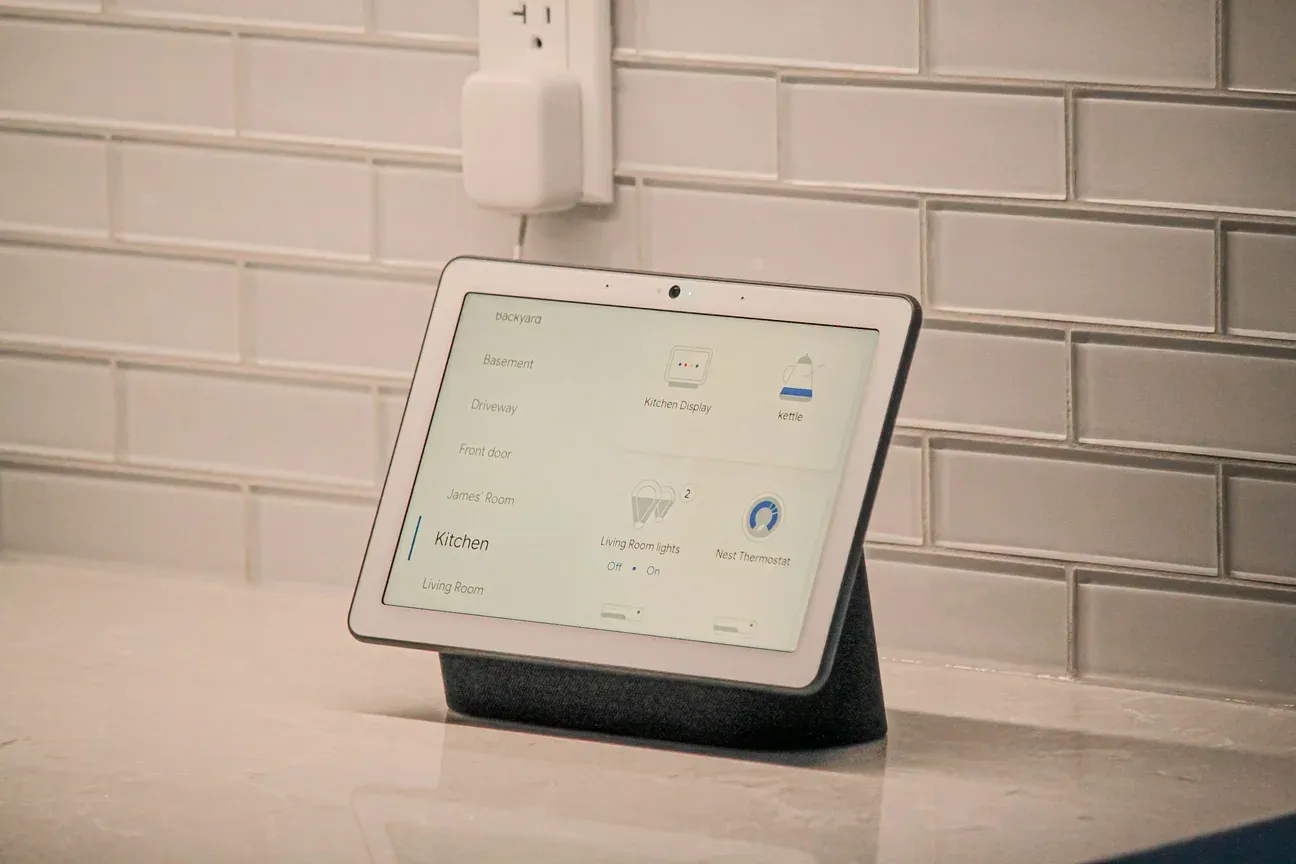
A wall-mounted tablet turns your Home Assistant setup from a phone app into a dedicated control panel that everyone in the house can actually use. This guide covers the hardware, software, and mounting you need on a modest budget.
A wall-mounted tablet running Home Assistant is one of those projects that sounds complicated but actually comes together in an afternoon. Once it's on the wall, you stop pulling out your phone for every light switch, and guests can actually control things without needing an app.
TL;DR: A fully functional wall-mounted Home Assistant dashboard needs a cheap Android tablet such as the Amazon Fire HD 8, an in-wall USB-C mount, and a kiosk app, with Fully Kiosk Browser costing 8.90 EUR once per device. Add a Zigbee PIR sensor for motion-activated screen wake. Plan on an afternoon, most of it spent on the kiosk software configuration.
Home Assistant setup basics
What Hardware Should You Actually Buy?
The hardware choice shapes everything downstream, so let's get specific. The Amazon Fire HD 8 (10th or 12th gen) is the workhorse pick for this project, it's cheap, has a decent 8-inch 1280x800 screen, and takes USB-C power through the wall. Stock Fire OS is limiting, but community tools such as XDA's Fire Toolbox can add Google Play Services, which unlocks the full Home Assistant Companion app. Check that your exact generation is supported before you buy.
Old iPads work, but there's a catch. iOS has Guided Access to pin the screen to one app, yet you give up the kiosk browser features that make Android tablets so scriptable. If you already own an iPad, it's worth using, the screen is beautiful and build quality is excellent. Just don't buy one new for this project.
The Galaxy Tab A7 Lite splits the difference. It runs Android natively, which means no flashing required. The 8.7-inch 1340x800 screen is slightly larger than the Fire HD 8. Buying used is cheaper, but ask about battery health, since a tablet that lives on a charger all day ages its cell quickly.
I won't quote crash rates or restart intervals for any of these tablets, because I haven't logged them over a long period. What I can say is that an always-on Android panel should be treated like a small server: schedule its updates, and let the kiosk app restart it after a crash.
Complete Budget Breakdown
| Item | Note |
|---|---|
| Android tablet (Fire HD 8 or Galaxy Tab A7 Lite) | The biggest single cost; buy used or on sale |
| In-wall USB-C tablet mount | Hides the cable in a single-gang box |
| Fully Kiosk Browser PLUS license | 8.90 EUR (10.99 USD) one-time per device |
| Short right-angle USB-C cable | A few euros |
| Zigbee PIR sensor (SONOFF SNZB-03) | Inexpensive; optional but worth it |
Which Kiosk App Is Worth Paying For?
Fully Kiosk Browser costs 8.90 EUR (10.99 USD) as a one-time per-device PLUS license, and Fully says you can try all features before buying. The PLUS tier gives you motion detection via the front camera, a screensaver, an automatic restart after a crash, and a remote admin REST API that Home Assistant can call directly. The REST API alone is a reason to pay, you can switch the screen on or off from an automation when it's bedtime.
WallPanel is the free alternative. It's open source (Apache 2.0), takes MQTT or HTTP commands for brightness, wake, and URL changes, and has a screensaver that motion or face detection can dismiss. If the Fully license feels like a stretch, WallPanel covers the basics.
The Home Assistant Companion app itself isn't really a kiosk solution, it's great for the dashboard display, but it won't prevent accidental navigation away from the dashboard or handle screen timeouts the way dedicated kiosk software does. Use the Companion app as the display target inside Fully Kiosk or WallPanel, not as a standalone kiosk.
Once the panel is up, our guide to customizing your Home Assistant dashboard goes deeper on views, cards and layout.
How Do You Actually Mount It on the Wall?
An in-wall USB-C tablet mount is the cleanest option. The good ones use a recessed cable channel that feeds through the wall plate, so the cable disappears completely. You need a standard single-gang electrical box in the wall, either a real outlet box you're not using or a low-voltage mounting bracket.
If running cable through the wall isn't an option, the magnetic right-angle cable approach works well. A strong magnetic cable snaps the tablet on and off easily, and the cable can run along a wall corner with plastic cord clips. It looks slightly less polished but takes 15 minutes instead of an hour.
One thing most guides skip: power the tablet from a proper wall supply, not from a shared USB hub or splitter. A tablet with its screen on all day draws far more than an idle one, and an underpowered port means slow charging or a battery that slowly drains. Wire it properly from day one.
Don't treat the battery as an afterthought either. Lithium-ion cells wear faster when they sit at 100% charge permanently, which Battery University explains in its guide to prolonging lithium-based batteries. Some tablets let you cap the charge level, and if yours does, use it.
What Makes a Good Tablet Dashboard Layout?
The sections view in Home Assistant Lovelace (available since Home Assistant 2024.3) is the best starting point for tablets. It puts rooms in a grid that makes sense on an 8-inch screen. You get 2-3 columns, each room is a card, and tapping into a room shows the lights, switches, and sensors for that space.
Room-based navigation beats a flat dashboard for households where multiple people use the panel. Everyone learns quickly: kitchen card controls kitchen. The alternative, one giant flat card list, makes sense for power users but confuses everyone else.
Three layout tips that actually matter. Keep the most-used controls on the first visible screen with no scrolling. Use large tap targets, at least 48x48 pixels, because people are tapping with fingers from arm's length. Put climate controls (thermostat, fan) on the home screen if they're touched more than twice a day.
For grid cards, conditional cards and per-user views, see the advanced Lovelace dashboard layouts guide.
How Do You Set Up Motion-Activated Screen Wake?
A PIR sensor that wakes the tablet is the quality-of-life upgrade that makes the whole setup feel polished. Without it, you're always tapping a dark screen to wake it. With it, the display lights up as you walk past, exactly when you need it.
The SONOFF SNZB-03 Zigbee motion sensor pairs with Zigbee2MQTT or ZHA like any other Zigbee device. The automation in Home Assistant is simple: when the sensor detects motion, call the Fully Kiosk Browser REST API to set screen brightness to 80%. When no motion for 2 minutes, call it again to dim to 0 (screen off) or 10 (dim nightlight).
alias: Tablet wake on motion
trigger:
  - platform: state
    entity_id: binary_sensor.hallway_pir
    to: "on"
action:
  - service: rest_command.fully_kiosk_screen_on
The Fully Kiosk REST command needs one line of config in configuration.yaml, and their documentation at fully-kiosk.com/en covers every available command, including screenOn and screenOff.
How Do You Prevent Screen Burn-In Long Term?
AMOLED screens burn in. LCD screens like the Fire HD 8 are more forgiving, but the backlight still degrades if left at maximum brightness around the clock.
A nightly dim is the right tool here. Have a Home Assistant automation call Fully Kiosk's REST API to drop the screen to low brightness, or switch it off entirely, between about 10pm and 7am. Running the backlight at low intensity for nine hours every night is easier on it than leaving it at full. Add a screensaver that moves a dark, minimal animation, Fully Kiosk includes several built-in options, or you can point it at a dark webpage.
For AMOLED tablets, dark mode dashboards are non-negotiable. A pure black background means those pixels are literally off. Home Assistant's dark theme (Settings > Profile > Theme) works well out of the box, and there are community themes designed specifically for AMOLED wall displays. My roundup of the best Home Assistant themes and how to install them covers the ones worth your time.
Home Assistant themes and visual customization
What Keeps a Tablet Setup Reliable Long Term?
These tips come from how always-on kiosks tend to fail. Most first-time builders skip them and regret it later.
Keep Home Assistant and the Companion app on a scheduled update cycle, not auto-update. Fully Kiosk's auto-restart feature saves you from a broken dashboard after a bad update, but it won't fix an incompatible app version. A monthly rhythm works well: read the Home Assistant release notes for breaking changes first, and only then push the update to the tablet.
Use a dedicated user account in Home Assistant for the dashboard tablet. Don't log in with your admin account. A limited user can't accidentally delete automations, and if the tablet is compromised, the damage is contained. Go to Settings > People > Add Person, create a user with no admin rights, and log that account into the Companion app on the tablet.
Label your wall cables before you close up the drywall. Sounds obvious, but six months later you won't remember which USB-C cable feeds which tablet if you have more than one. A piece of masking tape and a marker takes 30 seconds and saves an hour of troubleshooting.
Set up a watchdog automation that polls the tablet every few minutes and sends you a notification if it doesn't respond. Fully Kiosk's remote admin REST interface returns device status as JSON, and a simple Home Assistant REST sensor polling it will alert you within minutes if the tablet crashes or loses Wi-Fi. Without one, you'll often find out the dashboard is down when a family member complains.
- Use the sections view in Lovelace for rooms, not a single flat card list
- Create a separate HA user for the tablet with no admin rights
- Schedule monthly app updates manually rather than enabling auto-update
- Turn on Fully Kiosk's restart-after-crash option (a PLUS feature)
- Cap the battery charge level if your tablet offers it, to extend battery life
- Test your motion-wake automation by walking past it before calling the install done
A final note on Wi-Fi placement. The tablet needs a strong, stable signal because it's making constant WebSocket connections to Home Assistant. If your wall location is far from your router, consider adding a Wi-Fi extender or a mesh node nearby. A tablet with 2-bar signal will show lag on card updates and sometimes drop the connection entirely, which looks like the dashboard is broken when it's actually just a networking issue.
The full setup, tablet, mount, kiosk software, motion wake, and burn-in protection, is a modest spend that changes how your household interacts with home automation. It's one of those projects where the payoff is obvious as soon as the panel is on the wall.
Once the tablet is mounted, our best HACS integrations roundup is worth a look for filling that dashboard with more useful cards.
Frequently Asked Questions
What is the cheapest tablet for a Home Assistant wall dashboard?
The Amazon Fire HD 8 is usually the cheapest new option. Add Google Play with a community tool such as XDA's Fire Toolbox (check that your exact generation is supported) and install the Home Assistant Companion app. The 8-inch screen size is ideal for a hallway or kitchen. A used Galaxy Tab A7 Lite is another low-cost route and runs Android natively, so there's no flashing at all. Avoid buying a new iPad for this unless you already own one, because it costs several times as much as either Android option.
How do I stop my wall tablet screen from burning in?
Screen burn-in on always-on displays is a real problem, especially on AMOLED panels. Fully Kiosk Browser (a one-time PLUS license of 8.90 EUR per device) handles this well, it has a built-in screensaver that activates after a configurable idle period, and screen-on and screen-off commands you can call from a Home Assistant automation for a nightly dim. WallPanel (free, open source) also includes a screensaver feature. Both can show a dark screensaver instead of a static image. On LCD panels like the Fire HD 8, burn-in is less common, but dimming the screen overnight is still good practice for backlight longevity.
Can a PIR sensor automatically wake the tablet screen?
Yes, and it's one of the best additions to a wall dashboard setup. A cheap PIR motion sensor (HC-SR501 or a Zigbee variant like the SONOFF SNZB-03) triggers a Home Assistant automation that sends an MQTT message or a Companion app notification to the tablet. Fully Kiosk Browser has a built-in "Motion Detection via Camera" feature, but using a dedicated PIR is usually the more dependable choice. The automation turns the screen on at 80% brightness when motion is detected and dims it again after 2 minutes of no activity.
Sources & References
- Home Assistant - Fully Kiosk Browser home-assistant.io
- Home Assistant - Dashboards home-assistant.io
- Home Assistant Companion Docs - Sensors companion.home-assistant.io