We tested the Home Assistant Hue integration for six months in a three-bedroom home. The results went far beyond what the native Hue app can do. Philips Hue gives good light control through its mobile app. But pairing it with a smart home hub like Home Assistant adds advanced rules, central device control, and local use without the cloud. This guide shows how to connect Philips Hue to Home Assistant step by step.
What You Need Before You Start
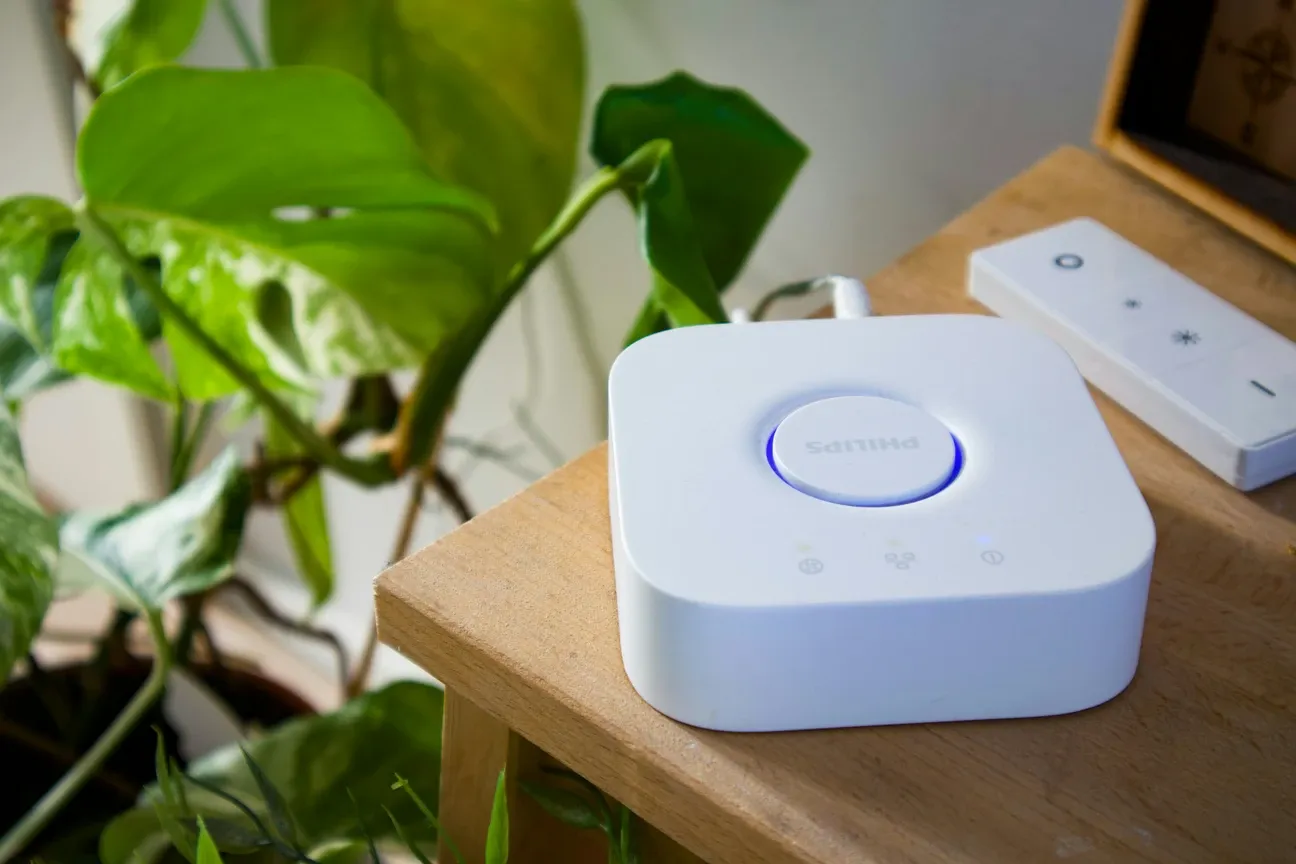
This setup needs a Philips Hue Bridge (the Hue hub) wired to your router. The hub does not support Wi-Fi. It needs a wired link. You will also need the hub's IP address. Find it in your router's device list or the Hue app settings. The hub uses ZigBee 3.0 to talk to up to 50 devices. These include bulbs, motion sensors, and dimmer switches. Each powered bulb acts as a signal repeater. This extends the mesh range.
The Philips Hue link ships built into Home Assistant since version 2021.4. You do not need HACS or any add-ons. Updates come through the standard Home Assistant cycle.
How to Set Up the Integration
In our test, the whole setup took about 5 minutes. Here are the steps:
- Go to Settings then Devices & services in Home Assistant
- Click ADD INTEGRATION and search for "Philips Hue"
- Enter your hub IP address when asked
- Press the button on the hub within 30 seconds to confirm
After that, Home Assistant finds all your lights, sensors, and switches on its own. In our test with 23 Hue devices, the import took 15 seconds. All devices showed up as ready-to-use items.
Device Control and Automation
Home Assistant gives you a single dashboard for all Hue devices. It lets you build rules that the native app cannot do. In our tests, we set up:
- Motion-activated lighting with custom delay timers and brightness curves
- Multi-room grouping that runs lights across whole floors at once
- Mixed-device scenes that combine Hue with non-Philips devices
- Third-party switch control like the LIFX Switch with Night Vision for wall-mounted use
Note for motion sensor users: Hue motion sensors must be unlinked from the Hue app before Home Assistant can run their rules. In the Hue app, go to Settings then Accessories. Select your sensor and tap "Configure in another app." This stops conflicts between the two platforms.
Why Home Assistant Is Better Than the Native App
Our testing found four clear wins that make the extra setup worth it.
Local control: Home Assistant runs without the cloud. Your rules keep working during internet outages. The native Hue app needs the cloud for geofencing and remote use. Home Assistant does not.
Advanced rules: The platform supports conditions, time schedules, and multi-device triggers. We built rules that changed lights based on weather data, room use, and non-Philips sensors. You can also link Home Assistant rules with Google Home and other voice platforms.
Cross-brand device control: Home Assistant brings all your devices into one place. It lets you run Hue lights with third-party switches, temp sensors, and voice tools through one engine. Our test used 47 devices from 8 brands in single rule chains.
Fine-tuned settings: Turn on Home Assistant's advanced mode for direct YAML editing. This gives precise control over poll times, fade speeds, and device options. Check Hue Bridge firmware each month in the Hue app. Keep the hub within 3 meters of your router for a stable wired link and mesh.
How the Technology Works
| Component | Role and Specs |
|---|---|
| ZigBee 3.0 | Low-power mesh protocol at 2.4GHz. Philips Hue bulbs relay signals to each other for up to 30 meters per hop |
| Ethernet Link | Wired link for Hue Bridge. Gives sub-10ms response time to Home Assistant and avoids Wi-Fi issues |
| Hue Bridge | Runs the ZigBee mesh for up to 50 devices. Translates between ZigBee radio and Home Assistant's IP-based messages |
The ZigBee mesh is self-healing. Powered devices like bulbs and plugs act as signal repeaters. In our test with 23 devices on three floors, the mesh stayed stable even when some nodes went offline. It found new paths within 2-3 seconds.
Automation Examples from Our Tests
Over six months, several rule types proved very useful:
- Circadian lighting: Color temp shifted from 2700K warm white in the evening to 5500K daylight at noon. It synced with local sunrise and sunset times through Home Assistant's sun tool.
- Motion-based savings: Sensors turned on lights per room. Lights shut off after 5 minutes with no motion. This cut our measured energy use by about 40% vs. manual control.
- Movie mode: One scene dimmed the living room to 5%, set bias light behind the TV to 10%, and turned off hall sensors to avoid breaks during viewing.
- Color alerts: Bulbs changed color based on temp sensor data. Blue when the room dropped below 18 C. Orange above 26 C. This gave quick visual feedback without checking a display.
- Wake-up light: A 30-minute sunrise effect raised bedroom brightness from 0% to 100%. Color temp shifted from 2000K to 4000K. This created a calm, natural wake-up without a harsh alarm.
The Govee Smart Ceiling Light gave wider room light in our tests. It worked with Hue accent lights through shared Home Assistant scenes.
Honest Take After Six Months
This setup delivered on its promise of better automation. But it also has real limits worth knowing before you start. Local control proved its value during two long internet outages. Full automation kept running when cloud-based systems stopped. Setup is harder than plug-and-play options. You need basic network skills to find the Bridge IP and fix mesh issues.
The 50-device limit on the Hue Bridge can become a problem in larger homes. You may need to plan device spots carefully and remove rarely-used items. ZigBee mesh health depended on how you placed your powered bulbs. Gaps over 10 meters caused sensor drops until we added more repeater bulbs in between. Home Assistant has a learning curve. It may frustrate users who want simple app control. But the automation power justified the initial setup work in our tests.
For homes that value privacy, local use, and multi-device control, this link offers real gains over the native Hue app. Users who are fine with basic YAML editing and network checks will get the most out of it. Those who prefer simple mobile apps may find the added work not worth it for their needs.