
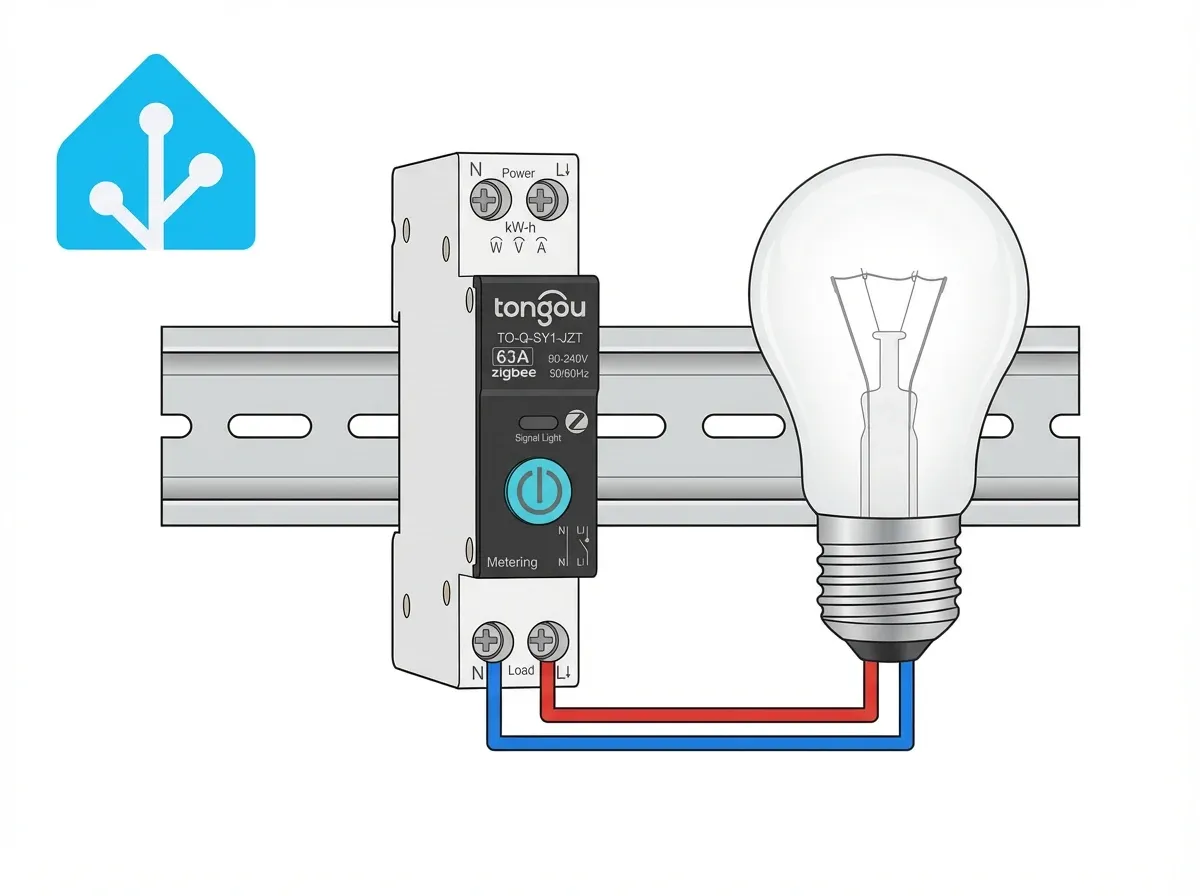
Home Assistant has become the central hub for smart home enthusiasts seeking complete control and automation of their connected devices. Integrating TONGOU smart switches with metering capabilities into Home Assistant opens up powerful possibilities for energy monitoring and intelligent circuit management. This guide walks you through the entire integration process.
Why Connect TONGOU to Home Assistant
TONGOU smart circuit breakers bring hardware-level electrical control combined with real-time energy metering to your smart home. Connecting them to Home Assistant allows you to:
- Monitor real-time power consumption across individual circuits
- Create automations based on energy usage patterns
- Integrate circuit control with other smart home devices
- Build dashboards displaying electrical system health
- Receive alerts when circuits draw excessive power
Prerequisites for Integration
Before connecting your TONGOU smart switch, ensure you have:
- Home Assistant installation (latest version recommended)
- ZigBee hub or adapter compatible with Home Assistant (Sonoff Zigbee 3.0 USB Dongle, ConBee II, etc.)
- TONGOU TO-Q-SY1-JZT or compatible model
- Network access to your Home Assistant instance
- Basic understanding of Home Assistant configuration
Understanding ZigBee Communication
TONGOU smart switches use ZigBee 3.0 wireless protocol, a low-power mesh networking standard ideal for smart home devices. Home Assistant's ZHA (Zigbee Home Automation) integration handles ZigBee device communication automatically once devices are paired.
The ZigBee mesh network allows multiple TONGOU devices throughout your electrical installation to relay signals, extending range and ensuring reliable communication even in challenging environments.
Step-by-Step Connection Guide
1. Prepare Your ZigBee Hub
First, ensure your ZigBee hub is properly connected to Home Assistant:
- Install your ZigBee adapter to your Home Assistant server
- Restart Home Assistant to detect the adapter
- Navigate to Settings > Devices & Services
- Click Create Integration and search for "ZHA"
- Select your ZigBee adapter from the dropdown
- Click Submit to initialize the ZigBee hub
2. Enable Pairing Mode on TONGOU Switch
Your TONGOU smart switch needs to enter pairing mode to communicate with the Home Assistant ZigBee hub:
- Locate the pairing button on your TONGOU smart switch (typically on the device or accessible through Smart Life app)
- Press and hold the pairing button for 5-10 seconds until the LED begins flashing
- Return to Home Assistant ZHA interface - pairing mode is typically active for 2-3 minutes
3. Complete ZigBee Pairing
Once your TONGOU switch is in pairing mode:
- In Home Assistant ZHA interface, click Add Device
- The system scans for nearby ZigBee devices
- Select your TONGOU device when it appears
- Home Assistant automatically detects the device type and capabilities
- Allow the pairing process to complete (usually 30-60 seconds)
4. Configure Energy Metering
After successful pairing, Home Assistant recognizes the TONGOU smart switch with its energy metering capabilities:
- Navigate to Settings > Devices & Services > Devices
- Find your TONGOU device in the list
- Click to view device details and entities
- Verify that power consumption, voltage, and energy entities are available
- Rename entities for clarity (e.g., "Kitchen Circuit Power" instead of generic names)
Creating Energy Monitoring Automations
With TONGOU smart switches connected, you can build powerful automations:
Alert on Excessive Power Draw
Create an automation notifying you when a specific circuit exceeds power thresholds:
automation:
  - alias: "Alert High Kitchen Circuit Power"
    trigger:
      platform: numeric_state
      entity_id: sensor.kitchen_circuit_power
      above: 3000
    action:
      service: notify.mobile_app
      data:
        message: "Kitchen circuit drawing excessive power: {{ states('sensor.kitchen_circuit_power') }}W"
Daily Energy Report
Summarize daily energy consumption across TONGOU circuits:
automation:
  - alias: "Daily Energy Report"
    trigger:
      platform: time
      at: "22:00:00"
    action:
      service: notify.mobile_app
      data:
        message: "Today's consumption - Kitchen: {{ states('sensor.kitchen_circuit_energy') }}kWh"
Smart Circuit Control Based on Time
Automatically manage circuits based on schedules:
automation:
  - alias: "Evening Lighting Schedule"
    trigger:
      platform: time
      at: "18:00:00"
    action:
      service: switch.turn_on
      target:
        entity_id: switch.living_room_circuit
Building an Energy Dashboard
Home Assistant's dashboard feature lets you visualize TONGOU energy data:
- Create a new dashboard in Home Assistant
- Add Energy gauge cards for each TONGOU circuit
- Include power consumption history graphs
- Display voltage and current measurements
- Add automations status and circuit control buttons
This centralized view provides complete electrical system visibility.
Troubleshooting Connection Issues
Device Not Pairing
If your TONGOU smart switch doesn't appear during pairing:
- Verify pairing button was pressed correctly and LED is flashing
- Check ZigBee hub is powered and properly initialized
- Ensure TONGOU device is within range (typically 10+ meters depending on obstacles)
- Restart both devices and try again
Poor Signal Quality
For unreliable ZigBee communication:
- Add additional ZigBee repeaters closer to the device
- Move ZigBee hub away from WiFi routers and interference sources
- Update TONGOU device firmware through Smart Life app if available
Metering Data Not Updating
If energy values aren't updating:
- Verify device paired successfully and appears in Home Assistant
- Check entity availability in device details
- Force update Home Assistant ZHA integration
- Unpair and re-pair the device
Advanced Integration Features
Home Assistant enables sophisticated TONGOU integrations:
Energy Dashboard Integration
Enable Home Assistant's built-in Energy Dashboard to track your home's power consumption using TONGOU metering data across multiple circuits.
Automation with Other Devices
Combine TONGOU circuit control with other smart devices:
- Turn off entertainment circuits when bedtime automation triggers
- Reduce heating loads during peak pricing hours
- Coordinate multiple circuits for balanced power distribution
Historical Analysis
Review past energy consumption patterns to identify optimization opportunities and validate conservation efforts.
Conclusion
Connecting TONGOU smart switches with metering to Home Assistant creates a powerful platform for comprehensive electrical management. The combination of hardware-level circuit control and Home Assistant's automation capabilities enables intelligent energy optimization, security monitoring, and complete smart home integration. With proper setup and automation strategies, your TONGOU devices become central to achieving true smart home electrical efficiency.